For long term absence and vacation planning I would recommend doing the absence registration as early as possible.
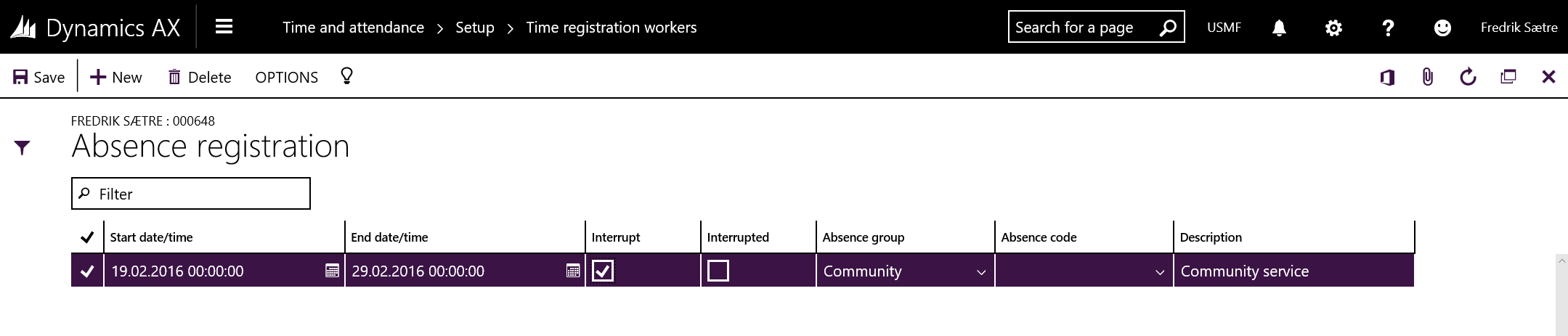
To create absence for a worker you can click the menu item as shown below:
You can view, delete and create new absence for the user in this form.
Create new and select the from and to date as well as a absence group and/or code.
Ticking the “Interrupt” check box will cancel the absence the next time the worker clocks in canceling the rest of the absence. If the absence is interrupted the Interrupted flag will be tagged making this absence not active anymore.
Bulk creation:
You can also do quick and bulk updates of absence. This is good for doing vacation planning.
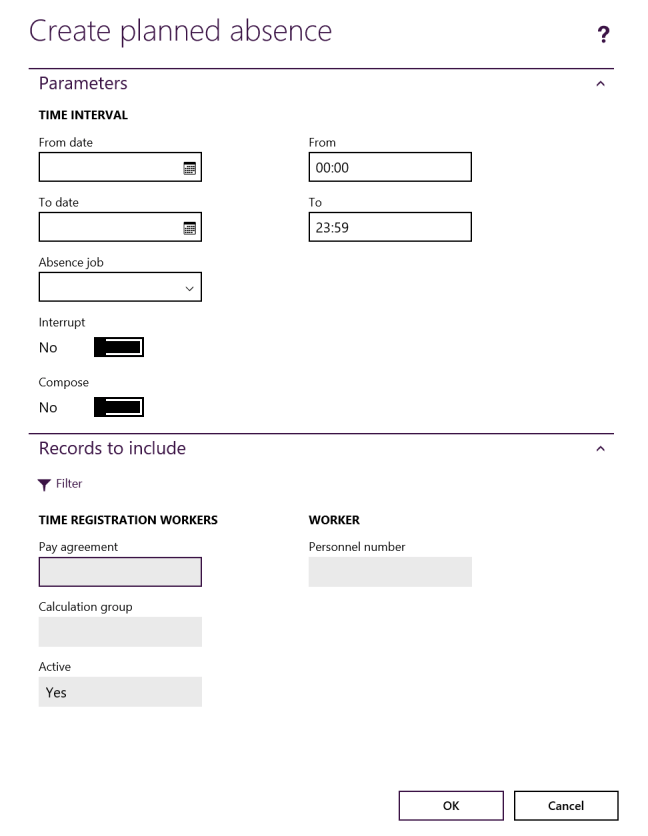
Go to Time and Attendance > Review and approve > Create planned absence
Select the from and to date for the intervals and select the absence job. REMEMBER TO SELECT THEWORKERS by applying the filter in “Records to include”.
Ticking the “Interrupt” check box will cancel the absence the next time the worker clocks in canceling the rest of the absence.
Ticking the “Compose” check box will create one line for each day for the duration of the absence.
Messed up?
If you some how create absence for to many users (forget to limit the filter) there aren’t a way to see absence for all users as a menu item. Then you would need to open the JmgAbsenceCalendar table directly in the development environment or create a new form that makes this data accessable.
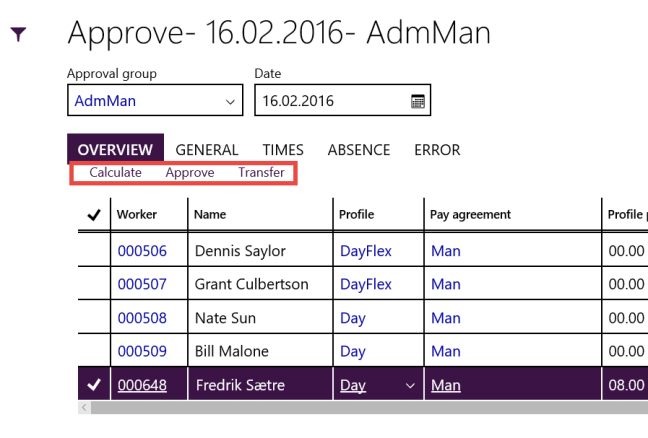
After calculation is done the next step is to do an approval. This is found at Time and attendance > Review and approve > Approve. All the T&A activated workers are members of an approval group and this should preferably be grouped at a management or executive level.
The approval process is very much like the calculation process and the approver can also perform the calculation steps on the approval form. Smaller companies might only use this level of control and skip the calculation process all together.
The approval action is:
Control if the correct pay agreement is set, change this to another type or override it.
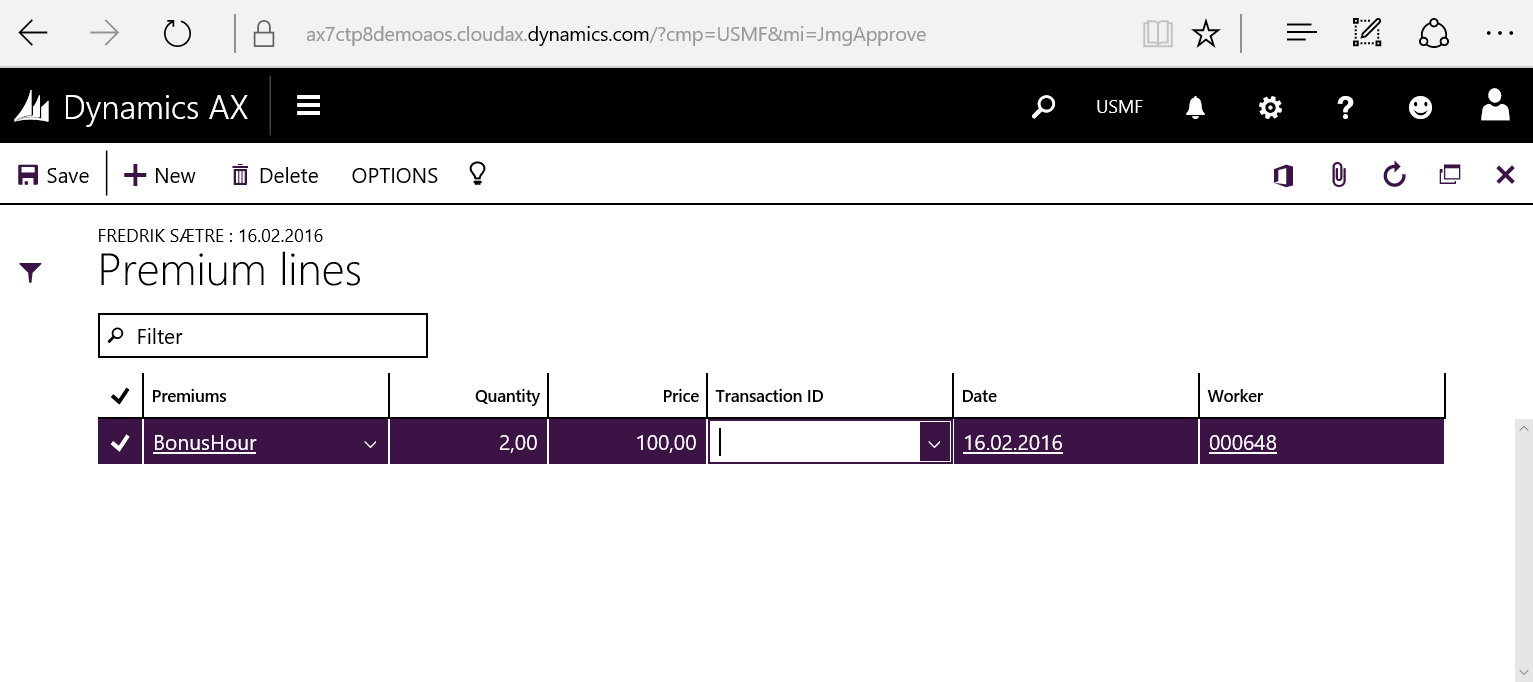
Create and approve manual premiums
Perform the Transfer of the time registrations to payroll, projects and Production. (This might be a step of its own)
You can click the approve checkbox on the time registration journal line to perform an approval for one single worker or click Update > Approvein the top menu to do it for the entire approval group. If some lines are not calculated the calculation action is automatically performed.
After the Update > Approveaction is performed you can also filter out the journals with errors in them to by clicking Display errors in the top menu.
Override of the pay agreements can be done in the same manor that profiles. Check the previous post for more information on how to do this.
Premiums:
The Premium transactions can be created manually or could be generated from a pay agreement.
You want to create as much automation in creating payment lines, but it’s not always possible. So for that rare event that creates some type of special payment this kept track of manualy and then entered in here. You could add it in the payroll system, but I believe that everything should be created from AX Time and attendance. Nothing should be added in the payroll system.
The list you select from is configured by going to the Manual premiums form at Time and attendance > Setup > Payroll > Manual premiums.
Transfer:
When the time registration journals are approved the next step is to transfer. This action transfers the changes in time journal lines to the perspective production orders and create the Project time journals as well as create the payroll pay type transactions.
You can click the transfer check box on the time journal header for one worker or click Update > Transferin the top menu to perform the action for all the workers in the approval group. If journals are not calculated or approved yet, these actions will be performed as well. Clicking the transfer check box (or any of the calculate or approval check box) after it has been checked will reverse the previous actions.
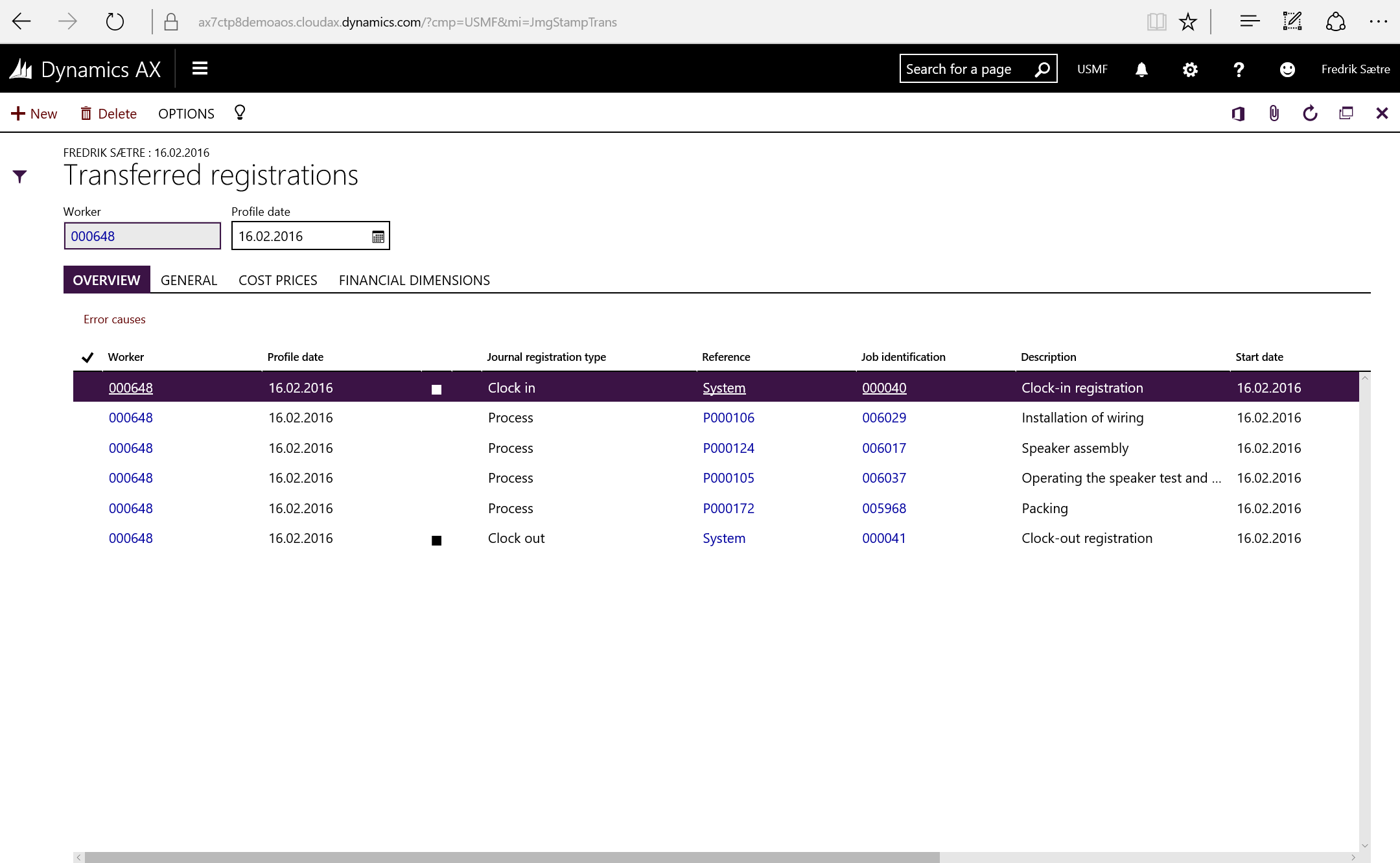
When transfer is performed the lines of the journal dissapear from the form. No worries. You can view them by clicking Inquiry > Transferred registrations in the top menu.
You can also check the pay types generated by clicking Inquiry > Pay items.
The Pay items are created, but not yet transfered to the Payroll system. This is done in a separate action. When transferred the pay items are checked with the “transferred to pay” flag.
Overview
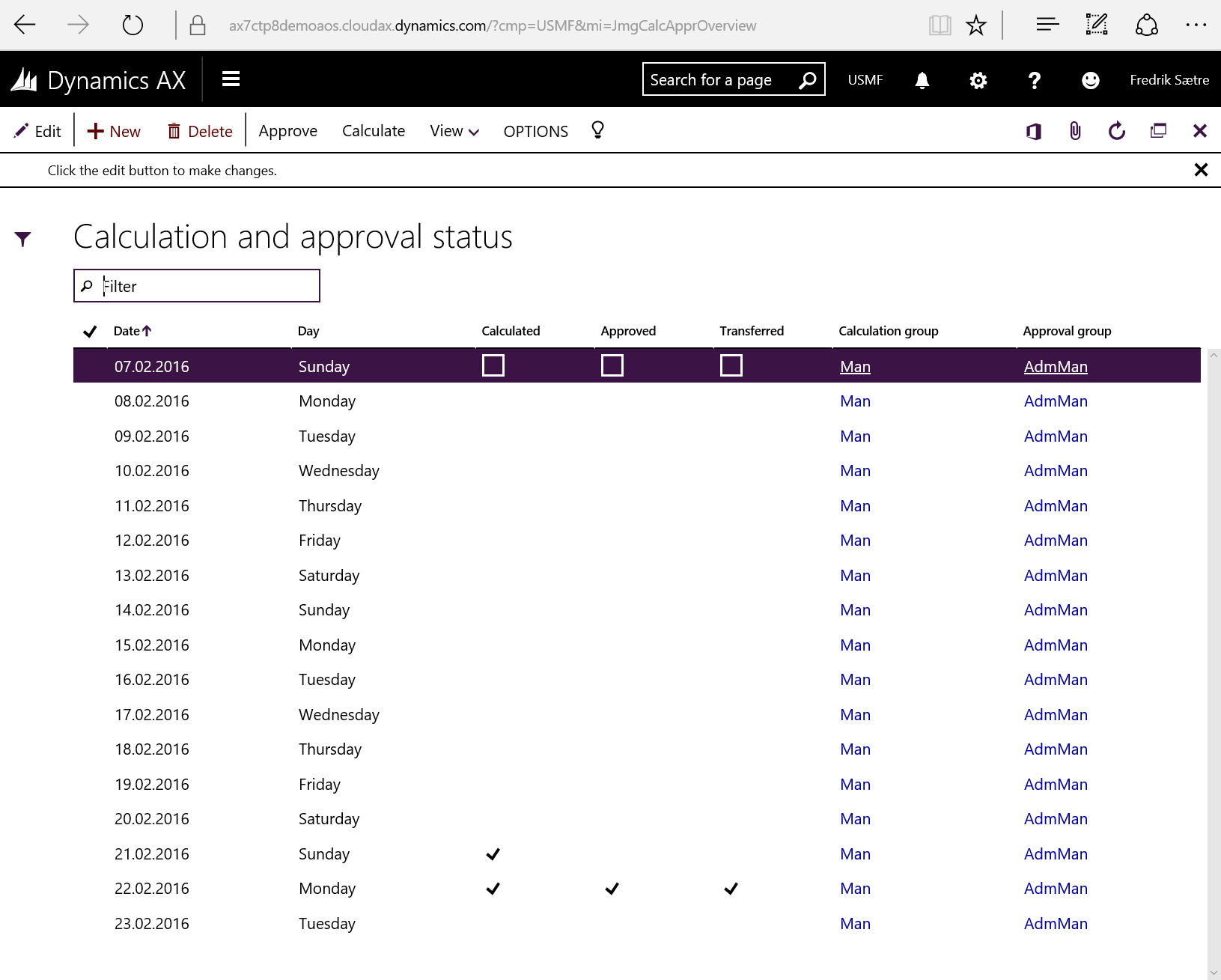
It would be tedious to run though all the approval groups with date and time to control if the calculation, approval and transfer is done. In the “Calculation and approval status” form you can easily get an overview of this. Go to Time and attendance > Inquiries and reports > Calculation and approval status and enter your criteria for the selection.
The grid will show the status of all records grouped by the combinations of calculation groups and approval groups.
In the example above you can see that 21.02 is only calculated and 22.02 is completely transferred while the rest of the days has to be handled. Now you can quickly go to the approval or calculate window by clicking the Approve or Calculate in the action menu on top of the form to do so.
Time registration workers are grouped to calculation groups. These should (in my opinion) be grouped as low as forman or team leder level. Offcause every user has to have this (also formen and team leaders), so I normally illustrate this as a hierarchy even though it is a flat table.
The calculation action is:
Define the work profile
Approve switch codes (for instance Overtime)
Define missing or redefine absence reasons
You can configure the group with a password which the user is prompted at opening the form with a specific group if you need to restrict access.
Start the Calculation form by going to Time and Attendance > Review and approve > Calculate.
This slideshow requires JavaScript.
You can do this week by week for a single user or day by day for the entire calculation group. Select the week or the day when you open. I like doing this on a day by day for entire group. Probably since this is the way it has been done before and old habits die hard. Click the day field to go into the day mode or keep the week setting to go to week mode.
This slideshow requires JavaScript.
Once the form is opened AX looks through all the the raw registrations and create these time journals.
You can look through the lines and do amendments to them if you want. You can go back to the original raw registrations data. If all fails. Delete the journal header. Go to the next day and go back.
You can run calculation for everyone in the list by clicking “Calculate” from the menu. The menu item changes to “Undo Calculation” when the line is calculated.
If you run the calculation for everyone (by clicking “Update > Calculate all”) you can click the “Display errors” in the main menu to only display the records that didn’t go through.
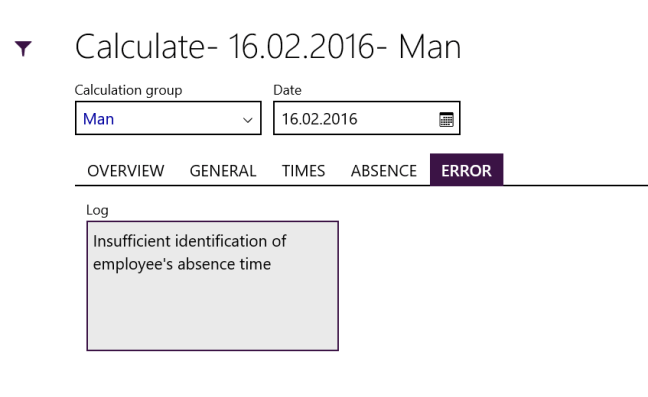
If the line goes in to an error you can view the error message by clicking the error pane in the header.
If absence is missing you can go to the absence tab and define the absence. You have to go there. You can not to this direcly on the line below.
Another common error I’ve run in to is if you’ve edited the lines you might have chronological issues. Especially if you have transactions going on till the next day. Profile day has to be the same day as you calculate and not the next day even if the job starts the next day. Check the times and dates on the lines to get the right. You can not be on different types of jobs (Indirect, Project, Production) at the same time.
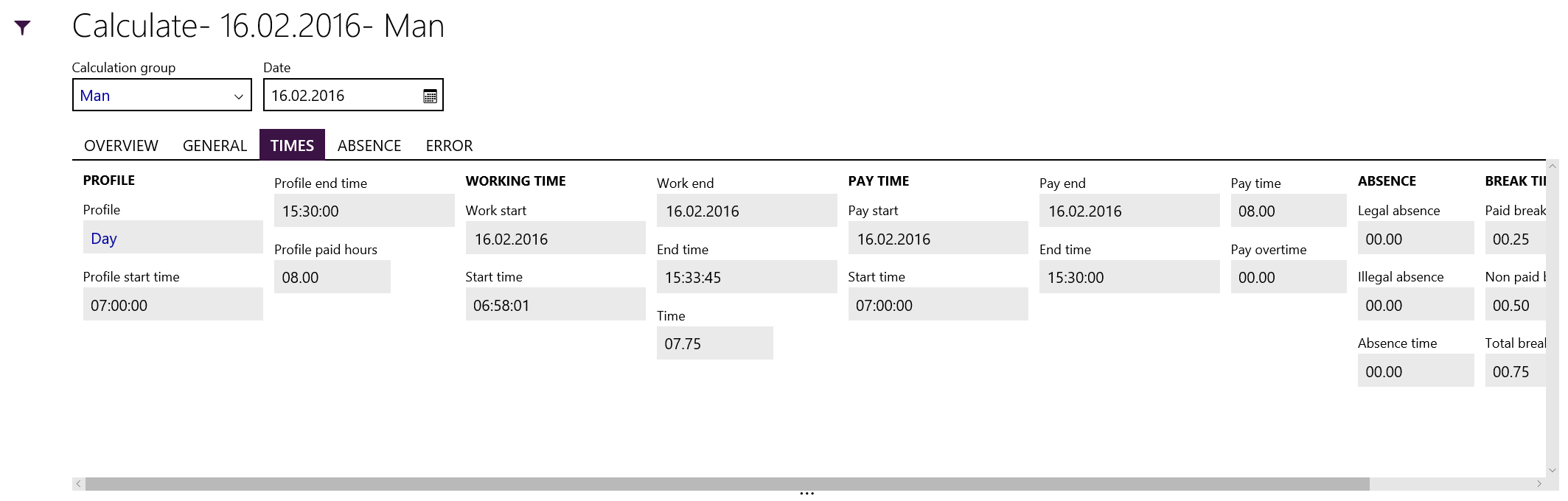
When the calculation is completed you can go and check the times that are calculated.
Override profile:
You can change the profile for any worker before you calculate and you can even override the profile for a unique day if there is a “once-in-a-blue-moon” event.
By clicking Override and Profile you can change the profile for that particular user for that day.
This slideshow requires JavaScript.
You can load the existing profile as a template by clicking “Retrieve profile” and start changing that one or create each line from scratch. You create this the same way you would a standard profile.
After the override is done the line will have the “Override profile” flag activated.
Remove the ovverride by clicking Delete override in the Profile override window.
Overtime allocation:
You can allocate the overtime for each of the jobs that has been worked on durring the day. Select the percentage of overtime hours to each job. This can be automatically allocated by the overtime allocations principle that is done in the general parameter settings under costing.
This is great, because it might not be the final job of the day that rightfully should carry the overtime cost. It might be that you had issues with the first job of the day and required to complete your work load for that day. Then the unfortunate last job had to be done on overtime, but the first job was the one that really should carry the cost.
Switch code:
Switch codes can be reviewed, changed and/or approved by the person doing the calculation.
Clock in/out: You can also do clock out workers from the calculation form. You can do a selection of the users that are not yet clocked out and do a clock out for each user.
The clock out time that the user get is the one sat in the profile, even if the clock out happen at a earlier time.
Restore lines:
As you can do amendments on the lines you might do errors or for some other reason want to go back to what was generated based on the terminal registrations. Trigging this will delete amendments to the lines and pull the terminal registrations again.
Quantity reports:
On the action pane menu on the lines of production jobs you can now also quickly access the quantity feedbacks given by the operator and even change these. Be aware of the consequences of changing them though… Well at least they are available.
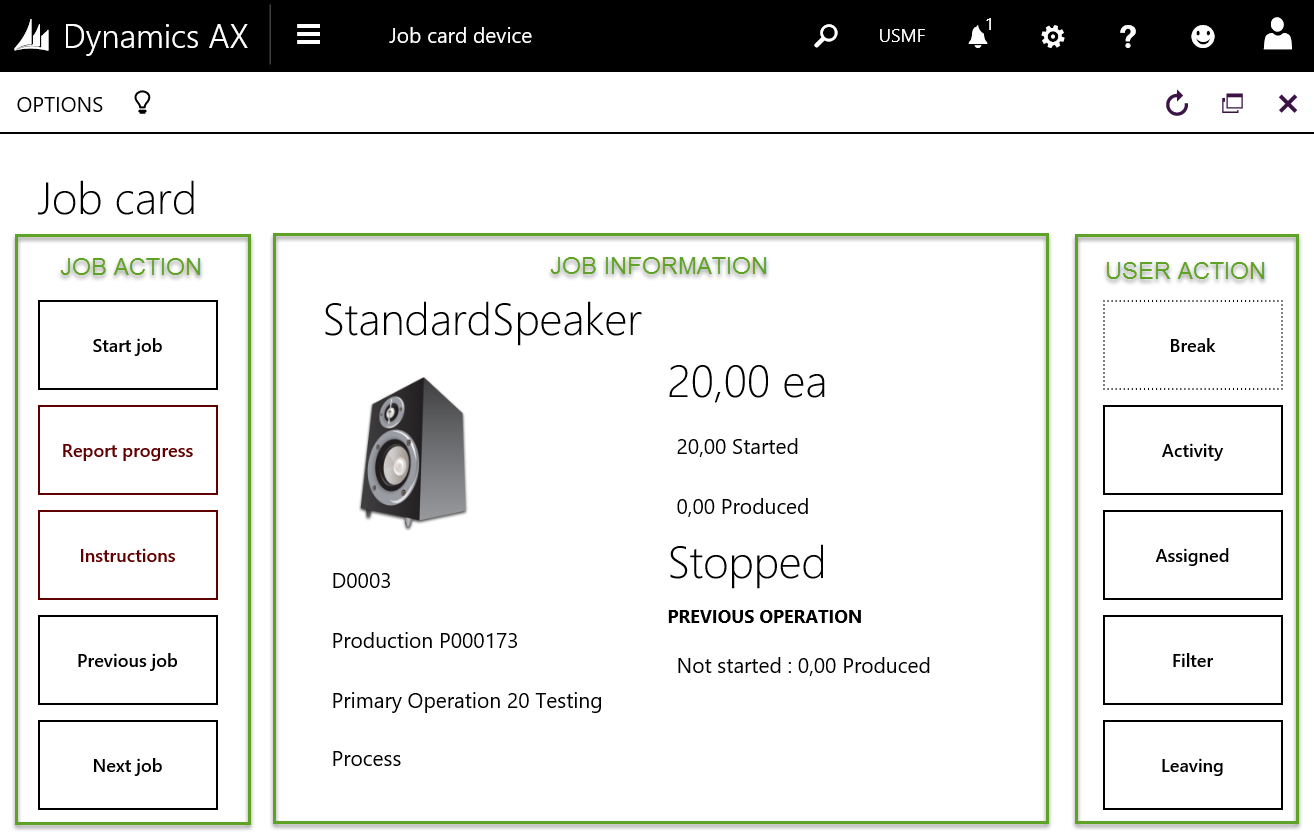
The Job card Device form is designed for a touch friendly experience and have a limit to the configurability.
It consists of three main areas:
Job action
Job information
User Action
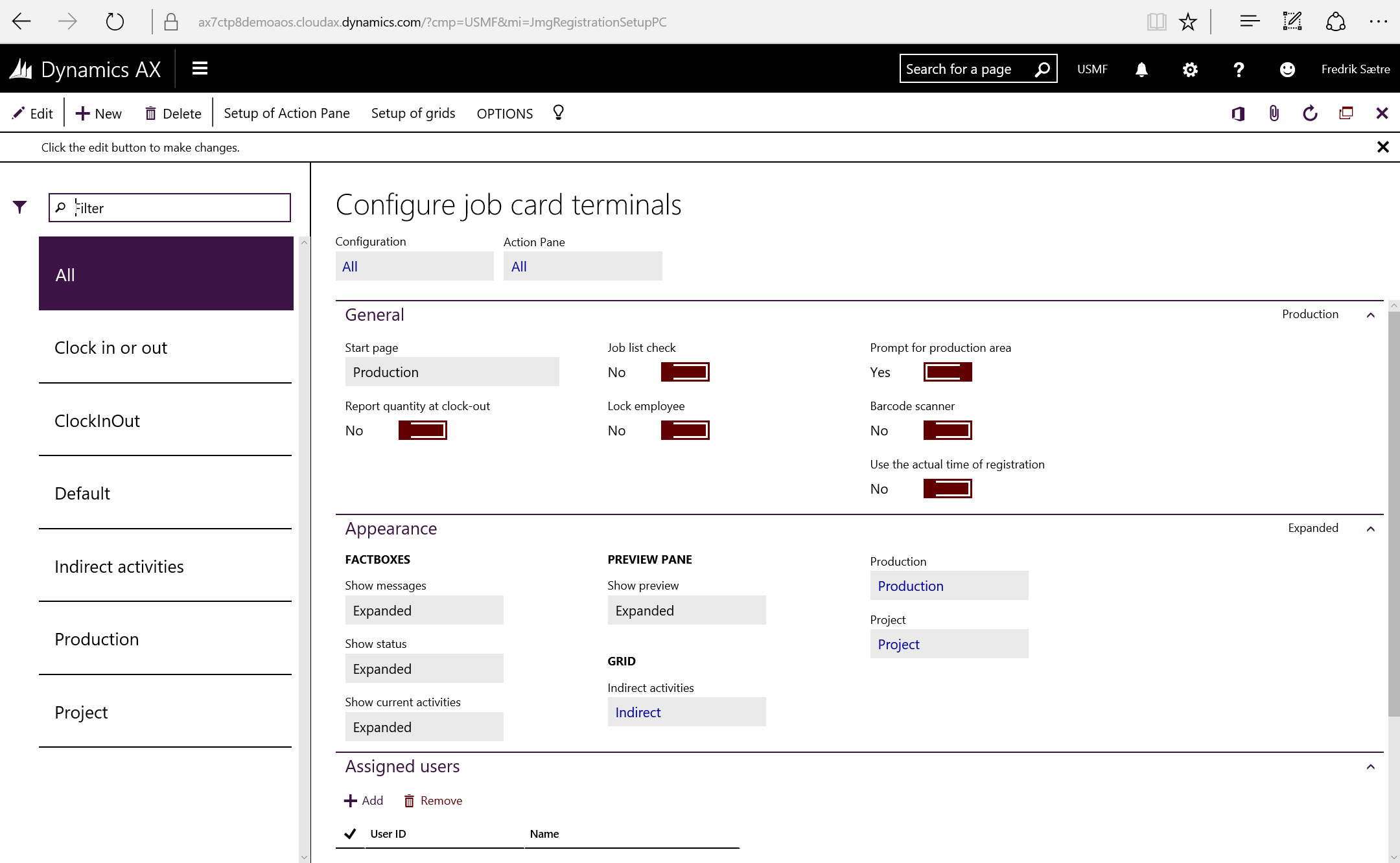
You can configure the Job card Device under Time and attendance > Setup > Configure job card > Configure job card for devices or Production control > Setup > Manufacturing Execution > Configure job card for devices.
Report quantity at clock-out gives the user a dialogue for feedback when clocking out.
Lock employee means that the user can authenticate once and start and report on the terminal without being presented the login screen again. They have to select the “Leaving” button and then “Log out” to change user. The terminal then returns to the login screen awaiting a new user credentials.
Barcode scanner puts a generic job input field named “Scan job card” in the bottom of the “Job action” column, that can be used to read the Job ID in to. This field is always first to be in focused (cursor active) when the form loads.
Use the actual time of registration gives an option only do full time registration or only start and report as finished journals.
Single user will only log in with the current active users employee credentials and stays logged in as this user.
Allow workers to set personal filters will show the button where the users can change the filter for the job selection.
You can set a Default device filter for the Production unit, Resource group and Resource.
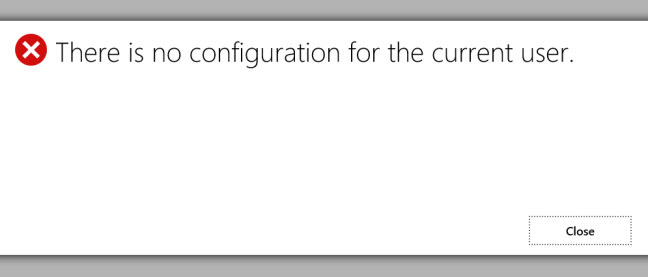
Assigned users will allow the logged in users to log on to the Job card Device. It is required to be assigned, if not an error will appear.
The Job card terminal can be used if you still want to get your time registered. 🙂
This error message with label ID: @SYS134518 can be found in the WrkCtrScheduler.loadRoute method. It basically means that it could not run the planning due to an issue with the route map.
I received this error due to a missing route group on a route. This was due to bad data that was imported and would not have happened if routes where created in the application directly.
The tricky thing was that this might pop up when trying to plan an item with a large BOM structure. Somewhere in this structure lies a route that is not configured properly. But which one is it?! That would be nice to have in the error message right? So let’s fix it!
Put this code:
if(_order.tableId == tableNum("ReqTrans"))
{
    info(strFmt("Item Number: %1 in RouteID: %2 on Operation: %3", ReqTrans::findrecId(_order.recId).ItemId, reqTrans::findRecId(_order.recId).ItemRouteId, routeMap.oprNum));
}
else
    info("Error not related to a reqTrans");
above the line:
throw error("@SYS134518");
This will then read the item, route and previous operation to the issue and you can easily mitigate it.
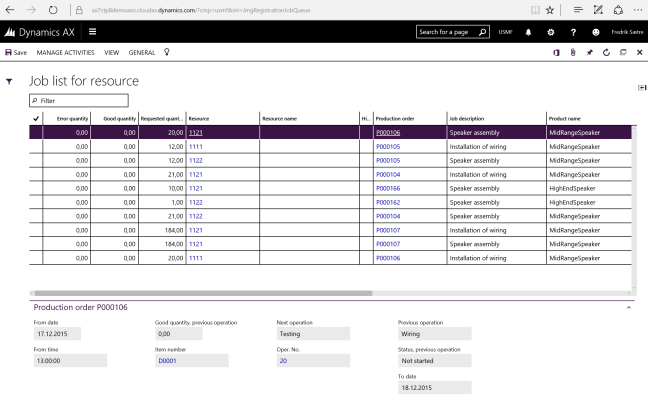
In the Job card terminal you can register time on any job (Indirect activities, Project and Manufacturing). It is a highly configurable form with an option for both fields and menu items to be specified by the user doing the setup.
You find the configuration on Time and attendance > Setup > Configure job card > Configure job card terminals or Production Control > Setup > Manufacturing Execution > Configure job card terminals.
Terminal configuration
You can personalize any form in AX, but the job registration form is one of the most configurable interfaces except for the retail POS terminals. You can configure the buttons and fields by using the terminal configuration (Production Control > Setup > Terminals > Configure registration forms). The configuration wizard create some default terminal settings as shown here. Feel free to make you own.
The Action pane parameter defines the configuration of the buttons and panes. You can configure these as you wish. More info on that below.
The Start page parameter defines the first page you are taken to when logging on. There are six options to choose from here.
None
Returns to the logon screen. Used for punch in/out terminals
My jobs
If the employee is connected to a resource, the terminal filters project activities and production jobs that are planned on this resource.
Indirect activities
Displays the available indirect activities
Project
Display projects and project activities
Current Activities
Shows a list of jobs the user has activly selected.
Production
Shows production jobs
Report qty at clock out gives the user a dialogue for feedback when clocking out. Even on the punch clocks.
Job list check checks if the job fed in to the barcode field is available on the list displayed. This way the user can not start another job then is on the filtered list.
Lock employee means that the user can authenticate once and start and report on the terminal without being presented the login screen again. They have to manually click the switch user icon. Then the terminal is brought back to the login screen.
Prompt for production area gives a dialogue at start up to select the Production area, Resource group or resource and filters the production jobs accordingly.
Barcode scanner puts a generic job input field named “scanning”, that can be used to read the Job ID in to. This field is always first to be in focused (cursor active) when the form loads.
Use actual login time defines if you want to use the time the worker clocked in or the actual time where he selected the job and approved/started.
You can show, minimize or totaly hide Messages, Status, Clock and Preview pane.
You can select the grid setup for the Indirect activities, Production orders and Projects. You can configure these and choose what fields to be shown in the grid collumns and the preview pane. More on this below.
Setting up grids:
Click “Setup of grids” in the menu to access this form and simply add the fields, their order and whether or not they are going to be displayed in the grid or in the preview pane.
If you want to do add new fields to the forms, you should add it as a selectable field in this list and not fool around with the form directly.
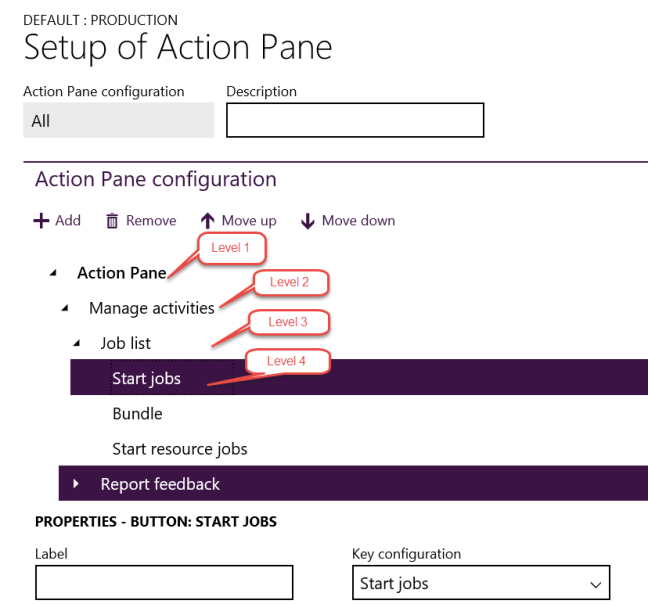
Setup of action panes
The action panes are the menus you see on top of the form. They are also configurable within the limits of what is available.
The setup is built on a four level hierarchy
Level 1 = Root
Level 2 = Top menu item
Level 3 = Menu group
Level 4 = Action/Button
In the form it looks like this:
So build your menu tree and add the button functionality from the “Key configuration” list as the function of the menu item you’ve created.
If you want to do add new functions/buttons your self, you should add it as a selectable item in the “Key configuration” list and never to the Job card Terminal form directly.
Assigning users
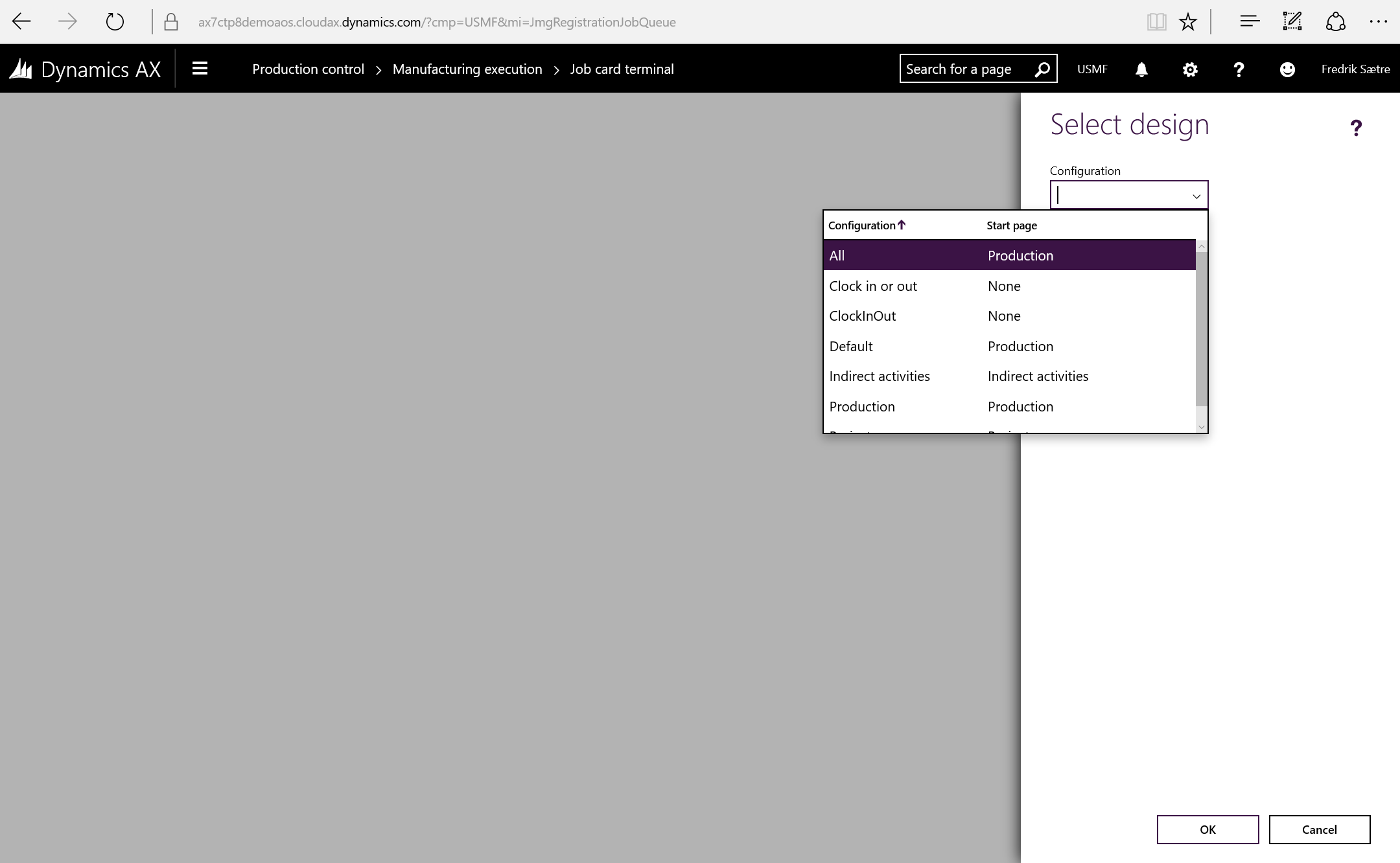
The terminal configuration setup was in AX 2012 authenticated by the machine name that the AX client was running on. In AX7 this is related to the user that is logged on. A user can be associated with a single Device or Terminal configuration. A user that is not allocated a Device or Terminal will require to select a terminal type when launching the Job card Terminal form and will not be able to open the Job card Device form.
Adding a new user launches a dialogue that filters on the security roles assigned to the user and removes any user that has already been assigned to a job card terminal or device already.
When a user which is not assigned a terminal and launches the Job card terminal time, the system prompts the user for a configuration.
The user will be prompted for this every time unless assigned a Job card terminal.
To launch the Job card terminal go to: Production Control > Manufacturing execution > Job card terminal.
The job registration form (Terminal) is the heart of the time and attendance functionality in my opinion.
If you’re running earlier AX versions there are a couple of things you must be aware of. There are major changes to the UI in AX7 and a lot of the design elements that where used in previous versions are now not available any more. Some forms where specially made to perform certain tasks and where fine tuned over the years. The Job registration form was one of these. These posts are based on the AX7 CTP8 which is a preview and will be subject for change before release and there are both good and bad news, but I believe the bad news are being worked out of the system in the final release.
In general
In AX7 there are two different type of terminals:
Job card Terminal
The Job card Terminal is the good old interface that we know from previous versions, though it is slightly down graded as functionality goes.
This interface is now meant for using on a desktop computer with mouse and keyboard. Though it is fairly usable for the touch screen as well, the buttons / menu actions are a bit small and will require a stirdy hand.
You can access the Job card terminal from Production Control > Manufacturing Execution > Job card Terminal or Common > Common > Time and attendance > Clock in/out (Punch clock)
More on how to set this up in another post.
Job card Device
The Job card Device is a new interface for manufacturing execution. This is basically the same interface concept that Microsoft made in the Modern UI Windows Companion App for AX called “Production Control”. It is a much more touch friendly and is made for the shop floor worker.
This interface is built for the the manufacturing shop floor and is a touch-first interface. It can do almost anything the Job card Terminal can do, but is not as configurable. It will not work with project and project activity jobs.
You can access the Job card Device from Production Control > Manufacturing Execution > Job card Device
More on how to set this up in another post.
Limited Navigation
A cool feature to know about is the general navigation interface can be simplified when though a URL attribute. Open the job card terminal or device and add &limitednav=true to the end of your URL. This will reduce the possibility to navigate to other places in the system (unless someone changes the URL of cause).
Once your base parameters are set, you can activate your workers (employees and contractors). This is done by going to the workers and selecting “Activate on registration terminals” under the “time registration” pane.
This brings up the dialogue for entering the basic parameters for your time registration worker.
Fill out at least the required fields (preferably as much as you can) and click OK.
Now let’s take a look at the user parameters on the worker card. I’ve marked the fields with green for the ones I normally set up.
Go to: Human Resources > Workers > Workers | Employment > Time Registration
Password has to be turned on in the T&A parameters to prompt the user. Can also be blank for some users. Great if you have issues of users typing the wrong user ID or pick the wrong ID card. This is to bring an extra level of accuracy, but is also used from a Security perspective. I always suggest to have this active on the supervisor users.
Pay ID overrides the employee ID in the case of exporting payroll transactions.
Badge ID is used as an alternative authentication method than Employee ID. You can only choose to use the one or the other. This is done in the T&A parameters.
Badge version is just an internal note for keeping up with the card version if applicable.
Activate the user by enabling the active checkbox and an Activation date. You can also deactivate users from time registration by unchecking this box.
Calculation group, Approval group, Standard profile, Profile group and Default calculation Group are required fields and must be entered.
New bundle is to set the default mode of working to either sequencial or task aggregated work. More on bundling later in the Manufacturing Execution part.
Category is the category that is standard for reporting i Projects.
Use Timecard is an option to activate the user to utalize the built in manual time sheet solution. More on this later.
Configuration is used to prompt the user with a specific desired job card terminal layout overriding the terminal standard.
Supervisor options gives the user the supervisor options menu at the time of authentication on a terminal.
Pay agreement should be sat for each employee. PS: The setting for pay agreement on the profile settings override this setting.
Seniority date is used by the pay agreements delimitation to calculate seniority. This is often confused with the seniority on the employee card.
Period code is the grouping on how often the user gets paid calculated.
Flex allowed needs to be activated if the user is to use a flex profile. You can also set rules and limitations for the flexi profile pr. user by entering a Flex Group ID.
Bulk update your employees:
Activating employees can be a tiresome task if you have a large organization that should be activated at once.
Use the Excel add-in and filter out the desired worker IDs in the hcmWorker table. Copy this to enter data into the jmgEmployee table.
Microsoft Dynamics AX 7 is being released today and I want to take some time to honor and reflect on the roots of this magnificent ERP solution. I’ve tried to color tag some elements of application, technical or global impact. I hope you enjoy reading it.
Brothers Preben and Erik Damgaard founded Damgaard A/S with the purpose of creating a computer based accounting software.
Brothers Erik and Preben Damgaard (Thank you for your contribution!)
In 1986 they released Concord Finance (Later named C4). The resellers and customers were able to do improvements to the code to tailor the solution to their needs.
In 1991 they released the Concord XAL business application based on the XAL Developer environment. Concord XAL had an open source code that made the resellers and customers able to create improvements, verticals and modules. Concord XAL quickly became the standard accounting software for Danish market and got foothold in many other countries.
In 1994 “Big Blue” IBM and Damgaard partner 50/50 to create Damgaard International A/S to focus on the international markets.
Concord crossed the millennium with a world wide customer base of over 75.000 installation in 29 countries. Read more here.
The first version of Axapta was mainly based on the Concord XAL business processes and covered Financial, Trade, Inventory management, Logistics and Production. It was created on a new and exciting object-oriented technology and was intended for midsize companies. It ran for the most part on Windows NT servers with Microsoft SQL Server 6.5, but also supported Oracle databases.
In November the same year, version 1.5 is released with support for Norway, Sweden, Germany, UK, Netherlands, Austria, Switzerland, Belgium and the European Union. Service pack technology is introduces along with Publishing manager and support for MSSQL 7.0. Damgaard buys out IBM and get exclusive rights for the Axapta software and brand.
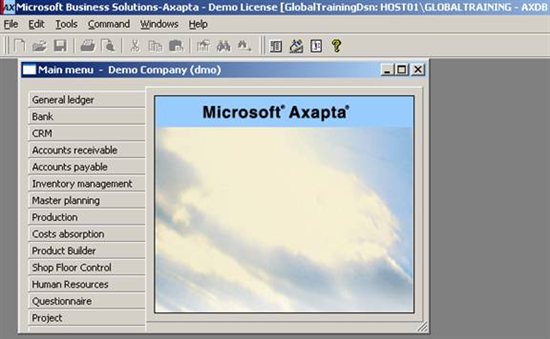
Axapta Main menu
Version 2.0 of Axapta is released in July 1999 and brings with it the Project Accounting module, Warehouse Managment (WMS) module, ActiveX support, Open pack concept, COM-connector and the early version of the Axapta Object Server which was used for offloading tasks from the client to the server for processing.
Damgaard and Navision
The Millenium passes without any major issues and a lot of happy IT consultant receive their paycheck with a nice overtime bonus. Axapta 2.1 is released in January 2000 with support for the German, Austria, Switzerland and Spanish market. The first WebApp is created. The Customer Self Service which grew in to the Enterprise Portal. Axapta 2.1 also supported Microsoft SQL Server 2000 with database log.
The Application Object Server (AOS) was fully implemented with Service pack 3 and Axapta became a true 3-tier solution (Client, Server and Database running separately).
Damgaard merges with Navision and become Navision Damgaard A/S (Later Navision A/S).
In December 2000 Axapta 2.5 is released with improvements (ESS) to the Project module and a new Banking module. It had a full web application development environment and supported internal OLAP.
The “Market Pack” for Axapta 2.5 was released October 2001. It introduced the French and Italian markets and had the CRM module with the Commerce gateway. It also introduced the Product builder.
Microsoft running the show
It is 2002! The movie franchises of Lord of the Rings, Harry Potter and Men in Black all release their sequels, Eminem and Shakira sold most singles, The €uro replaces twelve countries currencies and NASA finds water on Mars. Microsoft buys Navision A/S in June this year and it joins among others the ERP solution Great Plains to make up Microsoft Business Solutions.
Microsoft releases Microsoft Axapta 3.0 in October 2002. It supported 17 countries (including Canada) when launched. The security model was renewed, license configuration was introduced along with Enterprise Portal. The Demand planner and inter company functionality was added.
Microsoft Axapta 3.0
In september 2005 Microsoft rebrands Microsoft Business Solutions to Microsoft Dynamics and their business applications is also renamed; Axapta becomes AX, Navision becomes NAV, Great Plains becomes GP and Solomon becomes SL.
This slideshow requires JavaScript.
With the new brand name in place, Microsoft Dynamics AX 4.0 is released in March 2006 with a brand new Service management module. The AOS as a true Windows service, CLR interoperability and the .net connector was introduced. It also supported full Unicode for the first time and the Application Integration Framework saw the light of day.
The user interface was redesigned for the main menu to fit the default Microsoft application layout. The general form layout stayed the same with grids and menu buttons to the right. The login screen disappeared as AD authentication was added.
Microsoft Dynamics AX 4.0
Microsoft sets the agenda
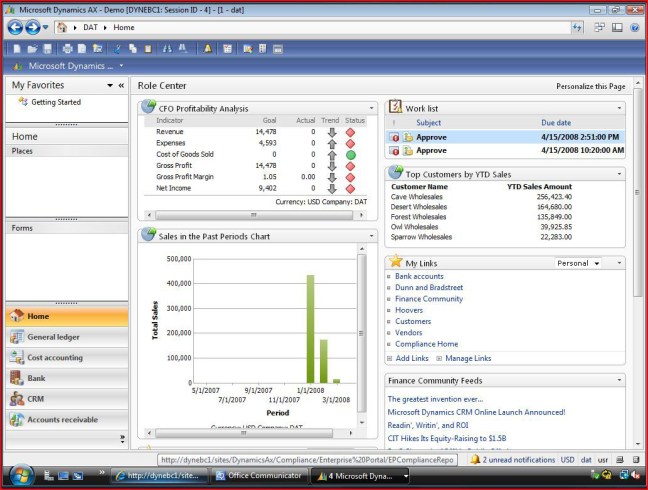
In the leap year of 2008 the Lehman brothers corporation goes belly up, Beyonce urges you to put a ring on it, Barrack Obama is elected the 44th President of the US, almost 11 thousand athletes travel to Beijing to compete in the Summer Olympics and in June this year Microsoft release Microsoft Dynamics AX 2009 (Version 5.0). It introduced the navigation bar, area pages and list pages to get the Office look and feel. This release brought A LOT of new features to the generic application and many of the different modules like the Global adresse book, Multisite functionality and Expense management to name just a few. There was a new Compliance module and the Role center for self service BI was introduced.
It was also a MAJOR technical update with a lot of Microsoft technologies being introduced. Workflow based on WCF, the reporting in SSAS/SSRS, Role centers based on SharePoint and X++ supported MS SQL statements. Batch server, Load balancing, AD import wizard, Code versioning control and many many more technical upgrades were in place.
Microsoft Dynamics AX 2009
Microsoft Dynamics AX 2012 (Version 6.0) released in September 2011 for 25 countries in 23 languages. The biggest release of AX thus far and introduced many changes and improvements both on the technical and application aspect of it and I can only list a few here, but you’re welcome to go and read all about the changes here.
Most profoundly for the end users was the changes in form design with ribbon menu, action panes, fact boxes as well as the experience of only using SSRS for printing as the X++ reporting solution was available, but to be deprecated. Role centers were improved and the modules got rearranged a bit introducing modules like “Sales and marketing” and “Procurement and sourcing“.
The licensing module was completely revised. It opened everyone to the entire application and licensing the users security access level instead of the functional modular way of the past. This meant customers could implement a broader set of features and would often look at and implement new functionality once discovered or required.
Building on the model of the global adresse book. There where many more global entities introduced like organization, workers and items that required a whole different way to interact with the application. You could for instance now not simply copy a company (now legal entity) anymore. Major changes where done to the database structure to support a “metadata” based model. General ledger, HR, Inventory managment was fundamentally redesigned.
A new product configurator was introduced based on the Solver foundation and so much much more.
Microsoft Dynamics AX 2012
On the technical side of things code was running in .Net (CIL) and the development environment was in a separate window. Many other changes appeared like the Role based security, a new Help system, Analytics in SSAS and redesign of the AIF to name a few.
The root for Life cycle services was also released. Rapid Configuration Service was introduced for the US market.
The journey of AX 2012
The AX 2012 party didn’t end there… During the next 5 years the application would grow immensely introducing more modules and even architectural changes.
The “Feature pack” for AX 2012 was released early 2012 and included the first version of the Retail module.
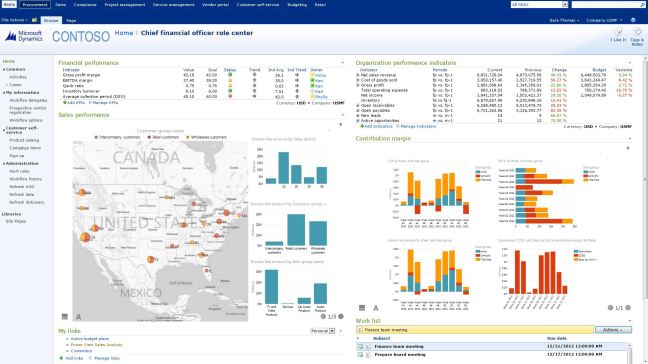
Microsoft Dynamics AX 2012 R2 was released in December 2012 which intailed database splitting and partitioning, new BI cubes and Retail e-commerce and many improvements to the existing business logic and processes. Role centers supported Power BI and got a nice face lift. Many modules got big upgrades like the Project module.
Microsoft Dynamics AX 2012 Enterprise portal Role center with PowerBI
Microsoft released many cumulative updates for R2 in the following years, both increasing functionality and features.
Companion applications where created to bring AX in to the Windows 8 eco system.
On May 1 2015 the Microsoft Dynamics AX 2012 R3 was released with a wide range of new modules, Warehouse management and Transportation management being most prominent. Existing modules got a major overhauls as well; The Retail module got impacted the most. There was also many system upgrades as well like Azure deployments, Cloud support and even more BI cubes.
Satya Nadella has turned the Microsoft super tanker on a sorely needed new coarse. A more transparent and engaged company will today introduce a paradigme shift in the ERP world. Living up to Nadellas “Cloud first-Mobile first” mantra, the new version of AX (Version 7) will be just that.
Cloud first: As it is only available to run on Azure (On-prem comes later)
Mobile first: As it has only a web interface that can be consumed on any device anywhere in the world (Desktop client with Cortana comes later)
I will be up in the early hours of the night here in central europe to follow this event. I hope you will join me.
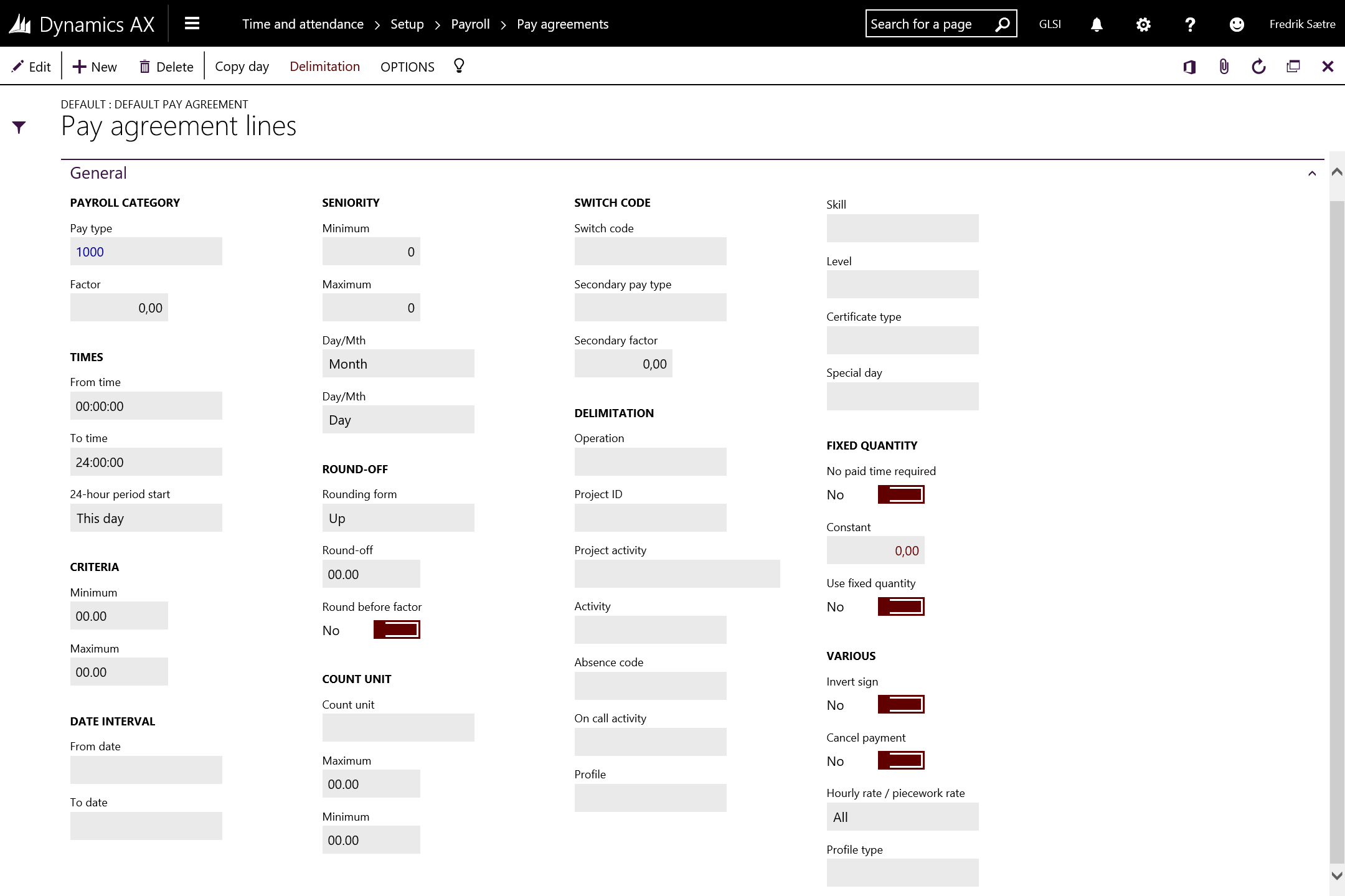
Most often there are differences between employees within an organization like additional bonuses should be triggered if something happens or an extra pay type should be triggered for all working hours for some users. There are SO many different ways of giving payment it is some times overwhelming. I believe that this is where the AX solution shines. You can create any type of delimitation rule to solve any issue. Please challenge me if you have a nut to crack.
By using pay agreements delimitation you can create common pay agreements that can fit the entire organization, but keep a good record of what you are doing as these can grow to be pretty big. This is how I do it. If someone has an input on the matter. Please share! 🙂
The reason why I like to create one pay agreement for the entire or at least the majority of the organization is that often there are some common denominators and these might be changed now and again. So if you have one pay agreement you only have to change this once and not replicate it to the entire organization. I would love to see the opportunity of adding multiple pay agreements to a user in the future.
So I use the pay agreement to mainly work for the entire day (No time entered). Then I use the configuration of the profile and/or worker to trigger the different agreements.
I’d thought I would go through each of the parameters and give an example to what it can be used for, but you have to open your mind to the possibilities here. Often combinations of more then one delimitation can be used for the wanted effect.
There is a button on the form called Delimitations which get even more Advanced. I’ll go in to those in another post later as the functionality does not seem to be finished at this time.
Factor:
Use this to add more or less than one pr. each working hour. I had a case where they needed to add 25% more hourly pay if the user worked flex hours. I used this on the Flex+ type with 0,25 of the standard hourly pay type.
Times:
If the times only apply during a certain time span. I don’t use these and let the profiles control the triggering.
Criteria:
This is often used if you only want to trigger the pay type from, to or between between a given interval. For instance a bonus is paid if the worker works more then 12 hours. You can easily create a stair case modeling of pay types by using this delimiter.
Date Interval: If you have pay types triggered differently between certain periods like summer or winter you can use this. This is not for Public holidays or Things like that. That is what the “special” day is used for.
Seniority:
The seniority is calculated based on the seniority date on the employees time and attendance settings. The seniority date can differ from the hire date and is not a mandatory field, so make sure to fill this out before you use this feature. I believe the fallback will be to the employement start date.
Round off:
Pretty common stuff, but I have never used it. In Norway we normally don’t round off until the payment is done.
Count unit:
These are measures that are counted within a period. Meaning it is set to zero at the start of each period. If the count unit is between the min and max values the pay type is triggered. This is mostly used to limit the amount of transactions within a period.
Switch code: This was mentioned in the Profiles setup as well. These are codes that are triggered by the users and can be used to switch to a secondary profile type. It can also be used to select what type of pay type to be triggered. I use this often for building up a “time-off” account (as opposed to using flex time) when the user should not have overtime but is outside the normal working hours. I then put this delimiter on the overtime records to get this to trigger. Often used in conjunction with a “Count unit” and a secondary factor if for example they get 1,25 for each overtime hour worked, but only up to 5 hours pr. week.
Delimitation
Operations:
I use this A LOT! This is the manufacturing operations. If a user should get a premium for each hour he does an certain operation, then this is triggered. Customers love this as this is normally solved by using extra time sheets, and with this it just works by it self.
Project ID and activity:
I guess this could be used for standardized internal projects or if a customer pays extra for a special Project, but if a type of Project Activity or category should give a premium as standard across multiple projects; then the “Advanced delimitations” must be used.
Activity:
This is the indirect activities of type “Jobs”. For instance some companies does not pay for union meetings.
I had a customer who would not allow contractors to have their time be posted to the systems waiting job. So they said that for all Contractors the Activity: “System job” should deduct 1:1 hour pay. This really increased the accuracy for their time registrations!
Absence code:
I use this a lot because some rules for payment of absence types often only apply to some types of workers. I use this as opposed to use the pay type settings directly on the absence code. I often use the “Advanced delimitations” for this as I can then trigger on a group level.
On Call Activity:
These are indirect activities of the type On Call. I use these for the Forman or Team leader permiums to be triggered if someone not normally in this position has to fill in during absence. The On Call is active for all working hours within the profile. I also use this when a person triggers his own permiums like emergency call outs, but then often with a fixed quantity.
Profile:
I use this to trigger shift premiums for night or evening shifts. I often use “Advanced delimitations” if more then one profile triggers the same pay type.
Skill (with leveling):
Skills are set on the individual employee. I use this for Premiums related to a skill some times.
Certifications:
I use this for individual separation and multiple grouping of employees. You can also use skill for this purpose. The difference is that skill is leveled, and certifications can expire. I separate the worker types and special Premiums for this. So a user can for instance be a part of the manufacturer, hard laborer and forman, while another might not have the forman or hard laborer active. Both on the same pay agreement, but different terms.
Special day:
In the profile calendar you can determine special days. This does not need to trigger the “special pay agreement day type”, but could be a special Tuesday for some reason… Thus giving a special premium for that particular day.
Invert sign:
This gives a negativ amount of the pay type triggered.
Cancel payment:
If this checkbox is active the system post the cost, but does not create a pay transaction. So this is just for a costing perspective. As I don’t use the costing in time and attendance this doesn’t apply to my setup.
Hour rate / Piece work:
You can select both or one or the other.
Profile type:
I use this actively as I differentiate between 100% or 50% overtime payment in my profiles. You can also create your own type of profile types. I have had an example where the users working Friday after lunch got 1,25. In that case I used a special profile type of the type work and added a pay type with 0,25 extra for each of the hours worked on this profile type.





























 dyntips.com by Fredrik Sætre