AX7: Setting your initial page

AX7_DD.png

The initial page triggers at three different instances:

  1. Opening your AX URL with no menu item attribute defined (?mi=””)
  2. Closing all open forms in the application (Esc * n)
  3. Clicking the ‘Dynamics AX’ button in the top left corner

The default is sat to your Default Dashboard which shows an overview of your available work spaces, but did you know that there are three more options?

Continue reading AX7: Setting your initial page

AX7 T&A: Pay agreements

Pay agreements are the settings for what pay types or cost elements that should be generated based on the workers approved registrations, profile and calculation parameters.

Pay types:
First you have to create the Pay Types (Time and attendance > Setup > Payroll > Pay Types). If the ID in AX differs from ID in the external payroll system you can enter External Pay Type to translate the pay type to the correct type. You can also have to pay types in AX become have the same External pay type.

AX7_TA_PayTypes.png

You can set up generic rates for the pay types by clicking Rates in the menu.

AX7_TA_PayTypeRates

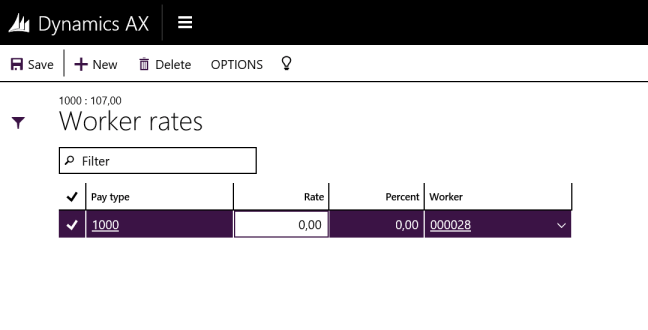
You can also go even more granular and set a rate for each worker by clicking Worker rates from the rates item.

AX7_TA_PayTypeWorkerRates.png

The worker rates are in relation to the pay type generic rate.
You can use percentage variance from the generic pay type or set a specific rate.

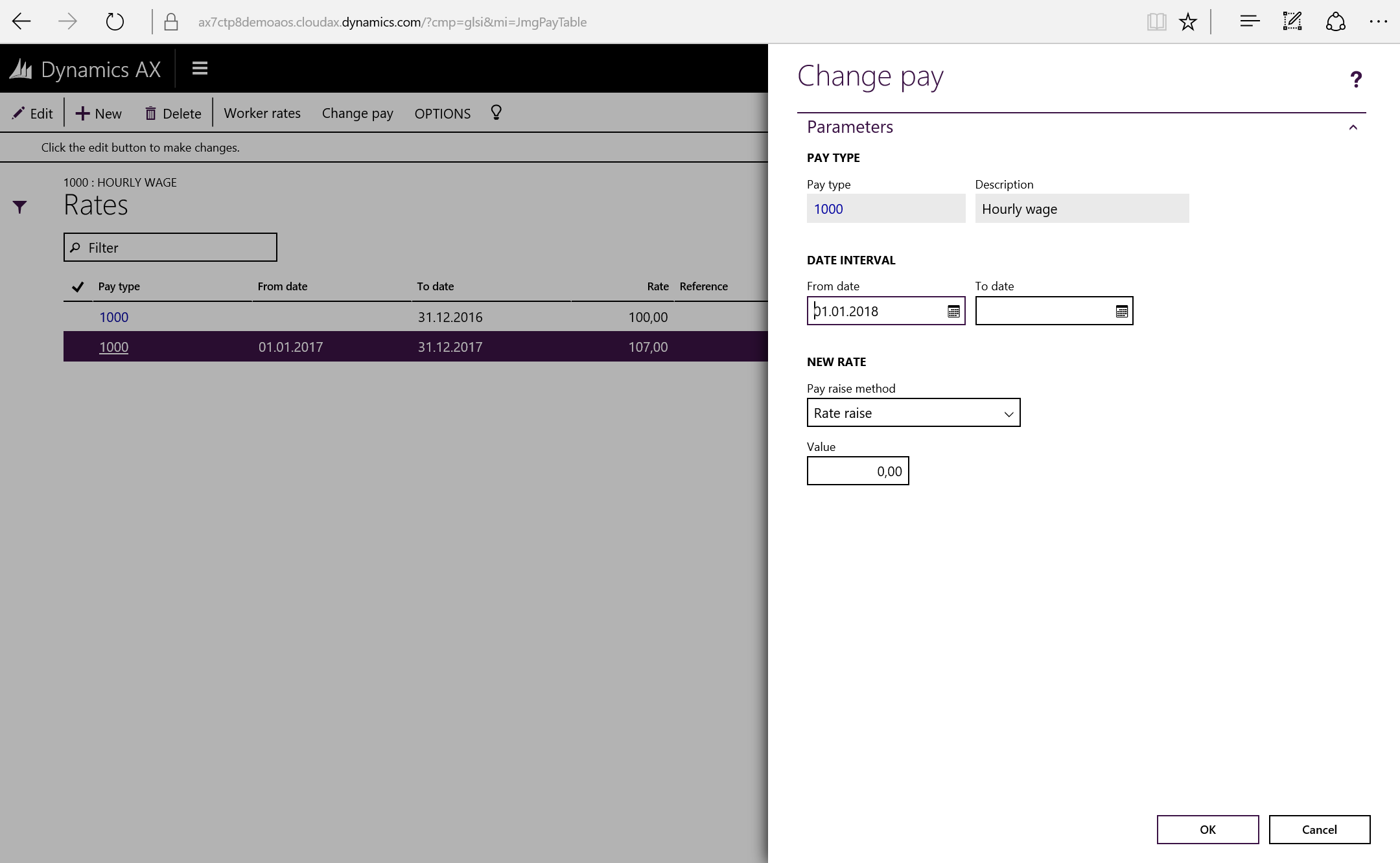
There is also a job on the pay type rates form to do an all over pay increase (“Change pay”) by setting a percentage, amount increase or a direct new value. Running this will update the generic and corresponding worker rates.

AX7_TA_PayTypeRatesChangePay.png

Pay agreements:
The pay agreements are a header/line type of configuration. I try to keep as few pay agreements as possible. Preferably only one. I rather use delimitations to restrict for each employee grouping within the same pay agreement. The reason for this is that if you need to apply a new rule for everyone you just need to do it once.

Go to Time and attendance > Setup > Payroll > Pay agreement to create a new agreement.

You need to put in a valid period in the header to be able to use the pay agreement.

AX7_TA_PayAgreement.png

Pay agreement lines:
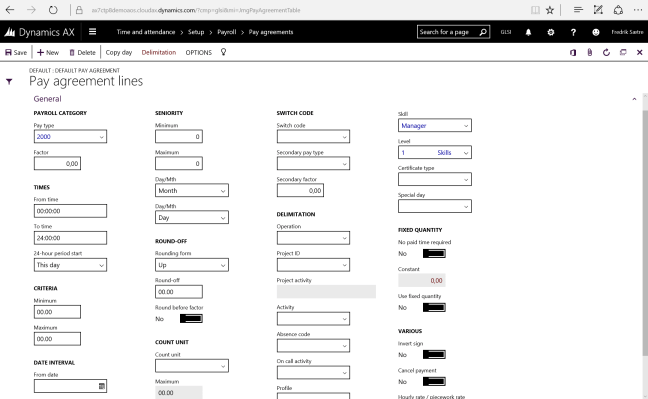
Keep in mind that the registered time and the profile limit the range of the payment type. So entering records should be taking in to account and cover all the different profiles. In the example below the pay type 1201 is generated for all standard time being triggered.

AX7_TA_PayAgreementLines.png

There is a section for filtering each wage type (Sat to “Standard time” in the example above). The relation between these and transactions from the profile calculation is set in the calculation parameters. Keep in mind that as a part of the standard configuration; overtime also triggers standard time. If you don’t want to do this, you can change this in the calculation paramters (Time and attendance > Setup > Calculation parameters).

The pay agreement lines has a day by day setup as well as a “Special day”. This is a setup done in the profile calendar that defines if a day is a special day. Christmas might fall on a Tuesday, so this is pretty important to notice.

Pay agreement lines delimitations:

AX7_TA_PayAgreementDelimitation.png

As you can see there is a wide range of delimitations you can do and I’ll run through what I normally do in my next blogpost.

Go to the AX 7 – Time and Attendance guide page

AX7 T&A: Indirect activities

Indirect Activities is used for all other job types that does not involve absence, manufacturing execution, projects or project activities.

You can set up all you need for general tracking by just creating indirect activities. It is possible to set up costs for the different indirect activities. You can even set your own GL posting and financial dimensions, so you can get a lot of good financial data out of this. For instance this can be used to run costing for departments where you have people moving between departments and doing different work. It works very well, but I would recommend using the projects accounting module for proper internal cost tracking, as it is a lot more configurable and able to handle more aspects then just the employee hours.

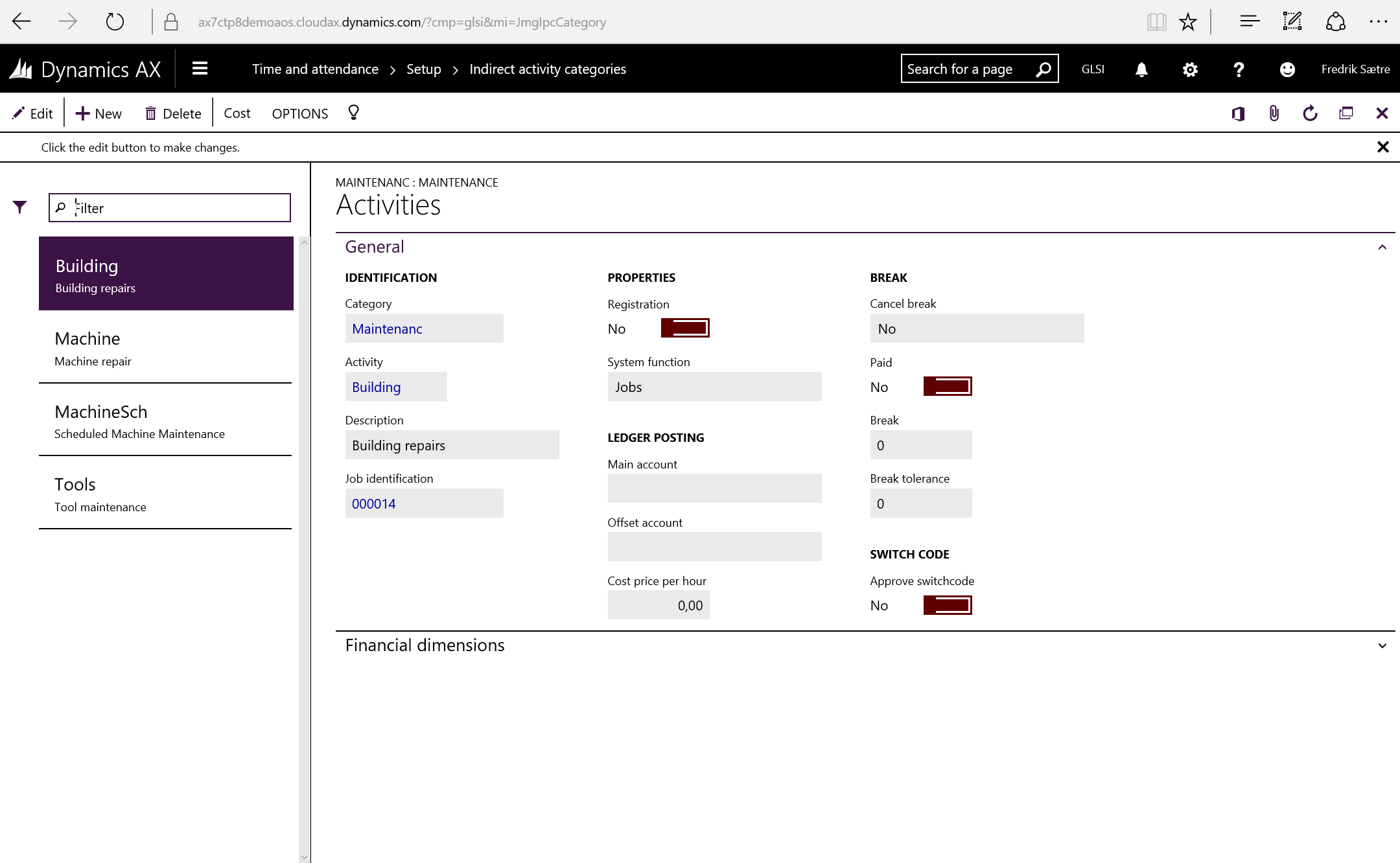
First you need to create the categories. You can access these in Time and attendance > Setup > Indirect activity categories.

AX7_TA_IndirectActivityCategories.png

There are four types of indirect activities:

  • Job (General jobs and system tasks)
  • Break
  • Switch code
  • On Call

You can only have one type of activity within each category and each type activate/deactivate different parameters in the setup. You can also allow registration on the category by activating the registration for Time and attendance.

In AX7 you can also maintain all activities in a flat structure in the Indirect activities form (Time and attendance > Maintain indirect activities > Indirect Activities)

Job Activities:
There are some job activities created by the configuration wizard. These are the system specific jobs that are connected to a system function other then the type “Jobs”.

The system jobs are:

  • Clock in
  • Clock out
  • Start assistance
  • Stop assistance
  • Change pilot
  • Submit registrations
  • Clear
  • System waiting
  • Stop break
  • Info
  • Switch bundle mode
AX7_TA_IndirectActivities2.png

If you are missing any of the system tasks, you might want to create these in the indirect activities Group called “System” (Created by the wizard) later on.

Other then the system jobs, you can create a job of type: job… Which is simply just a way to handle your internal costing. These are the jobs that will contain miscellaneous type of work like machine, equipment or building repairs, meetings or other type of work performed that need tracking.

AX7_TA_IndirectActivities3.png

Break activities:
You can either create default breaks in the profiles, but you can also set it up, so the users them selves can select when they take a break and how long it should be.

You can create different types of break activities that will holt the cost allocation to the operation beeing executed on.

AX7_TA_IndirectActivitiesBreak

You can choose if the break is a paid break and to set a timer for the activity. If the user does not punch a cancel break activity within a given time frame (with tolerance settings) the break will turn in to an unpaid break activity.

You can activate the “Cancel break” to create activities that cancel an active break. This can be different types of cancelation reasons like if there is a machine issue, you would like to track that as opposed to user related cancelations (like if they just wanted to go back to work).

Switch code activities:
Switch codes are used to toggle different types of pay agreements and profile types in the profile.

I use these to mostly toggle overtime and toggle flex vs. overtime for flexi time users.

If you have a special type of pay account build up as well you can use this parameter to toggle this on or off.

You can demand an approval of a switch code. Like in most cases you would not approve overtime automatically, but you need an extra action to do so.

AX7_TA_SwitchCodeApprove.png

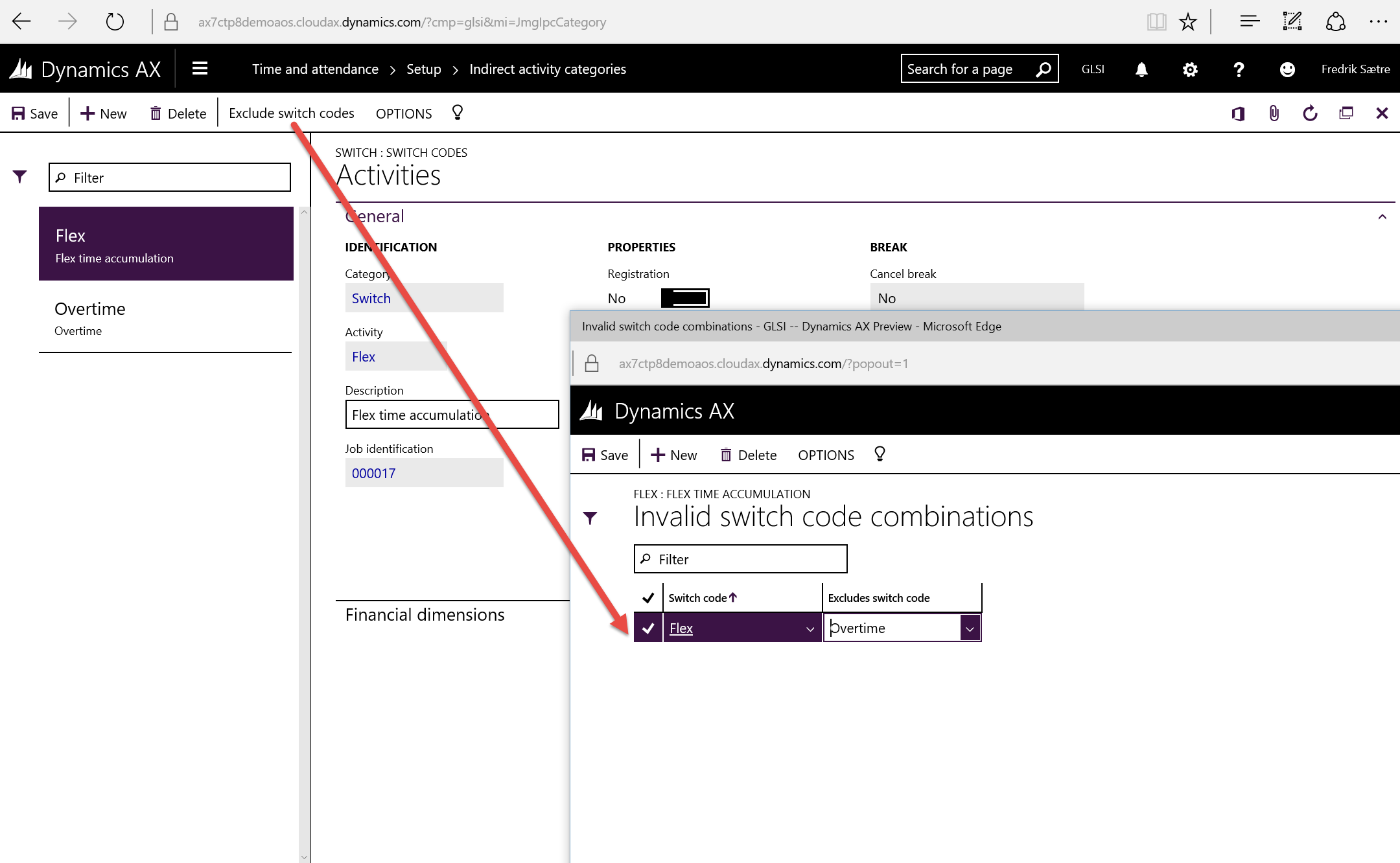
A switch code can also cancel or exclude another switch code, so for the overtime scenario you will also want a cancel overtime activity that negate the overtime switch codes.

AX7_TA_SwitchCodeExclude.png

On Call:
The on Call activity is a special activity that is called once for each shift (the time between clock in and clock out).

If the user triggers this at any time durring a shift, the entire work time will be “marked” with this On Call activity.

So you can use this as a to trigger where the user gets a special added pay type to each working hour.

I use this for triggering self-managed bonuses. For example if a worker needs to go to jobb in the middle of the night because a machine has stopped or something.


Go to the AX 7 – Time and Attendance guide page

AX7 T&A: Absence setup

Absence registration can be done by the time registration users them selves. If the clock-in or clock-out does not match the expected user profile, the user is prompted with an absence dialogue and can register either the reason why they are late or the reason why they are early.

In 2012 there where several separate ways to handle absence. Which I talked about in this post: Two (three) different absence solutions in AX? I suspect there are some improvements as there seems to be a parameter missing concerning this interaction in the general parameters that are missing.

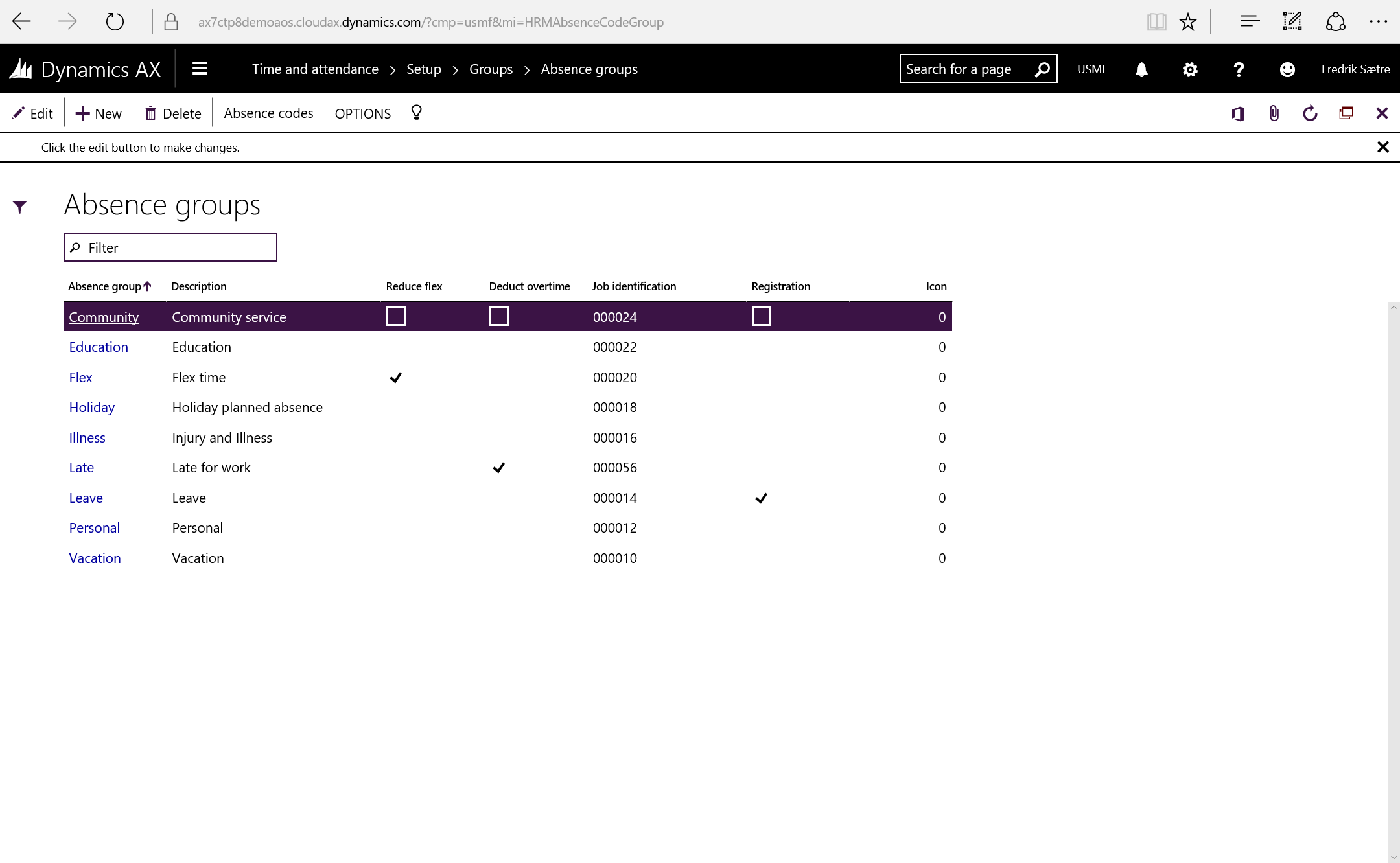
To configure this go to Time and attendance > Setup > Groups > Absence Groups.

AX7_TA_AbsenceGroups

Create the groups with payroll in mind. For instance paid, unpaid, vacation and so on. This can make the payroll setup easier later.

After creating groups you need to create the codes. Click Absence codes in the menu.

AX7_TA_AbsenceCodes.png

Make it available for the time registration user:
The setup for absence codes are the reasons for why the employee is not present. Not all the codes are natural to have in the terminal Interface. To make them available. Set “Registration” to “Yes” under Time and attendance fasttab.

The icons are embedded resources in 2012, but I’m not sure how you find them in AX7. I’ll figure it out and replace this paragraph on how to do it.

Continued or not:
The parameter “Continue absence” determines if the absence code should be active until next clock-in by the user (“Yes”) or only until the next expected clock in stated in the profile (“No”).

Post pay types:
If you want to make the absence post a pay type to payroll you can add a pay type to the record as well. You can do it here if it is the rule for all employees. If they differ for some employees you can do this in the pay agreement setup later.

Absence method:
For absence like Vacation that should result in a full day. You set the “Days” parameter to 1. You might be tempted to try out the Hour/Day toggle in “Method”, but that only works with the Human resources type of absence. Keep it to hour.

All done!

Now… Try clocking outside the expected profile times and see the nice interface pop up.

AX7_TA_AbsenceRegister

Go to the AX 7 – Time and Attendance guide page

AX7 T&A: Time Profiles

You create profiles to determin the users actual working times (Time and attendance > Time profiles > Profiles). You can do this in so many different ways that it is could be a dauntfull task to attack. I’ve got my own way of doing it and I’ll show you my way and some other methods of creating this. There is a lot to say here, but jump to: “Create a standard profile” and do that to quickly get started or read all to become a wiz.

Note: Name these based on function or department (Production, Administration, 50%, Day Shift, Night Shift, Flex daytime…) and not on users(eg. Jhonny, Frank, 105, FRS…).

Profile types:
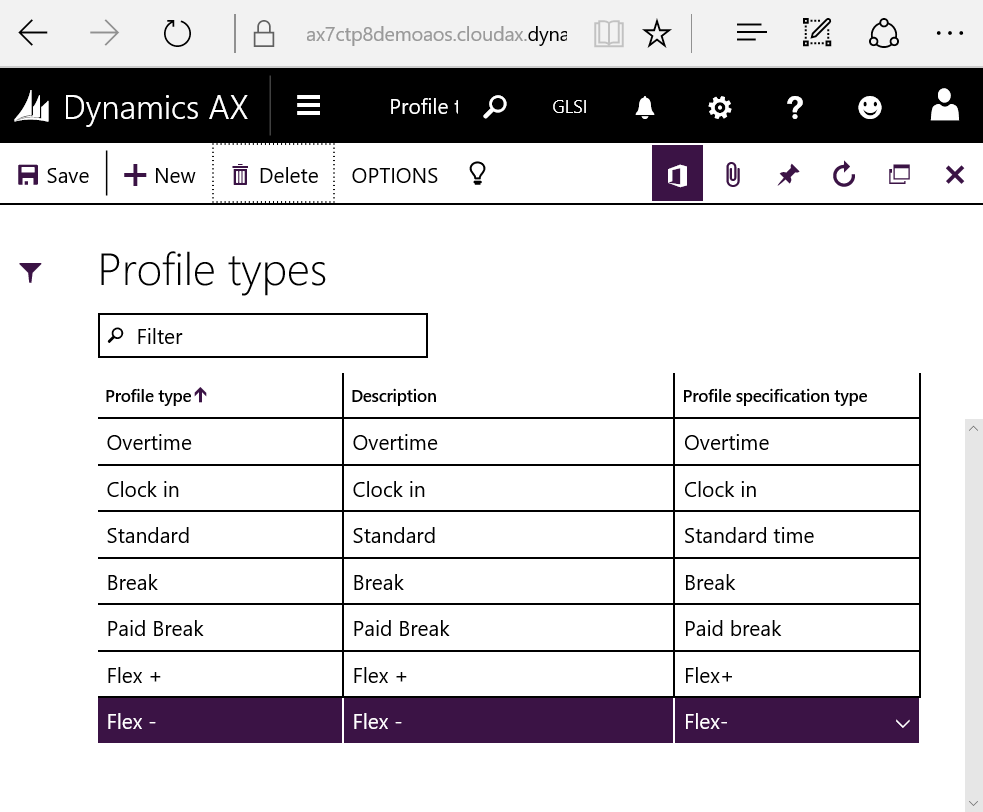
You can configure the profile types at Time and attendance > Time profiles > Profile types. Durring the wizard execution we got some standard profile types, but to get the full functionality you will need atleast:

  • Break
  • Clock in
  • Clock out
  • Overtime
  • Paid Break
  • Standard Time
  • Flex +
  • Flex –

AX7_TA_ProfileTypes.png

Create a standard profile
A standard profile has expected clock-in and clock-out records and could looks like this:

Profile type Start End Start day End day
Overtime 00:00:00 07:00:00 Monday Monday
Clock in 07:00:00 07:00:00 Monday Monday
Standard 08:00:00 09:00:00 Monday Monday
Paid Break 09:00:00 09:15:00 Monday Monday
Standard 09:15:00 12:00:00 Monday Monday
Break 12:00:00 12:30:00 Monday Monday
Standard 12:30:00 15:30:00 Monday Monday
Clock out 15:30:00 15:30:00 Monday Monday
Overtime 15:30:00 08:00:00 Monday Tuesday

Before 07:00 the user gets Ovetime. After 07:00 they have standard time untill a paid break for 15 minutes at 09:00 and a break at 12:00 for 30 minutes. The clock out is at 15:30 and time after this is overtime. The profile has tolerances for 5 minutes before and after clock-in/out making the rounding within the clock-in/out times.

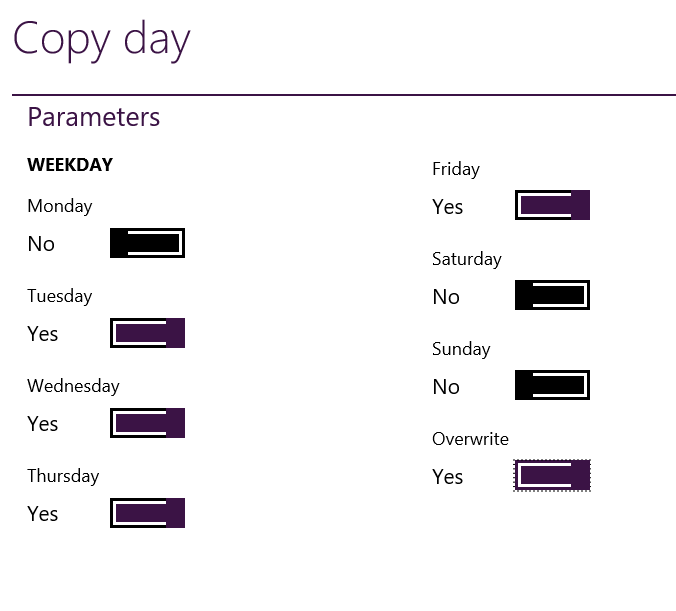
After creating one day, you can copy this to the rest of the days in the week by using the copy function.

AX7_TA_CopyDay

Note: Always check the “Profile time day:” to see the total work hours for that day and “Profile time total:” for the entire week after copying is done.

Microsoft has some great information and examples on this on MSDN for AX 2012 that still applies: Click here

Profiles that need overtime approval
As I don’t want the system to automatically give the users overtime if they register before or after clock-in/out because this has a great economic impact. I use switch codes and secondary profile type to introduce a approval step for this action. The user can clock in early, but they have to enter a switch code to get the overtime. The switch codes are set up with the approval parameter active and available to be registered on.

AX7_TA_SwitchCode.png

You can create new switch codes by going to the Indirect Activity Categories (Time and attendance > Indirect Activity Categories) and adding a group and corresponding activities.

AX7_TA_SwitchCodeGroup.png

Then add a switch code to the line.

AX7_TA_SwitchCodeApplied.png

I use Break as the default profile type, because this has no payment associated with it. So if the employee works after 15:30 without registering overtime. No payment will be triggered after 15:30.

Note: The final record goes past 24:00 on to Tuesday because a user can then work past 24:00 and still get paid. The calculation is for the profile date and it only looks at the day it is activated. It does not look at the next day after 24:00.

Create a profile without clock-in/out constraints
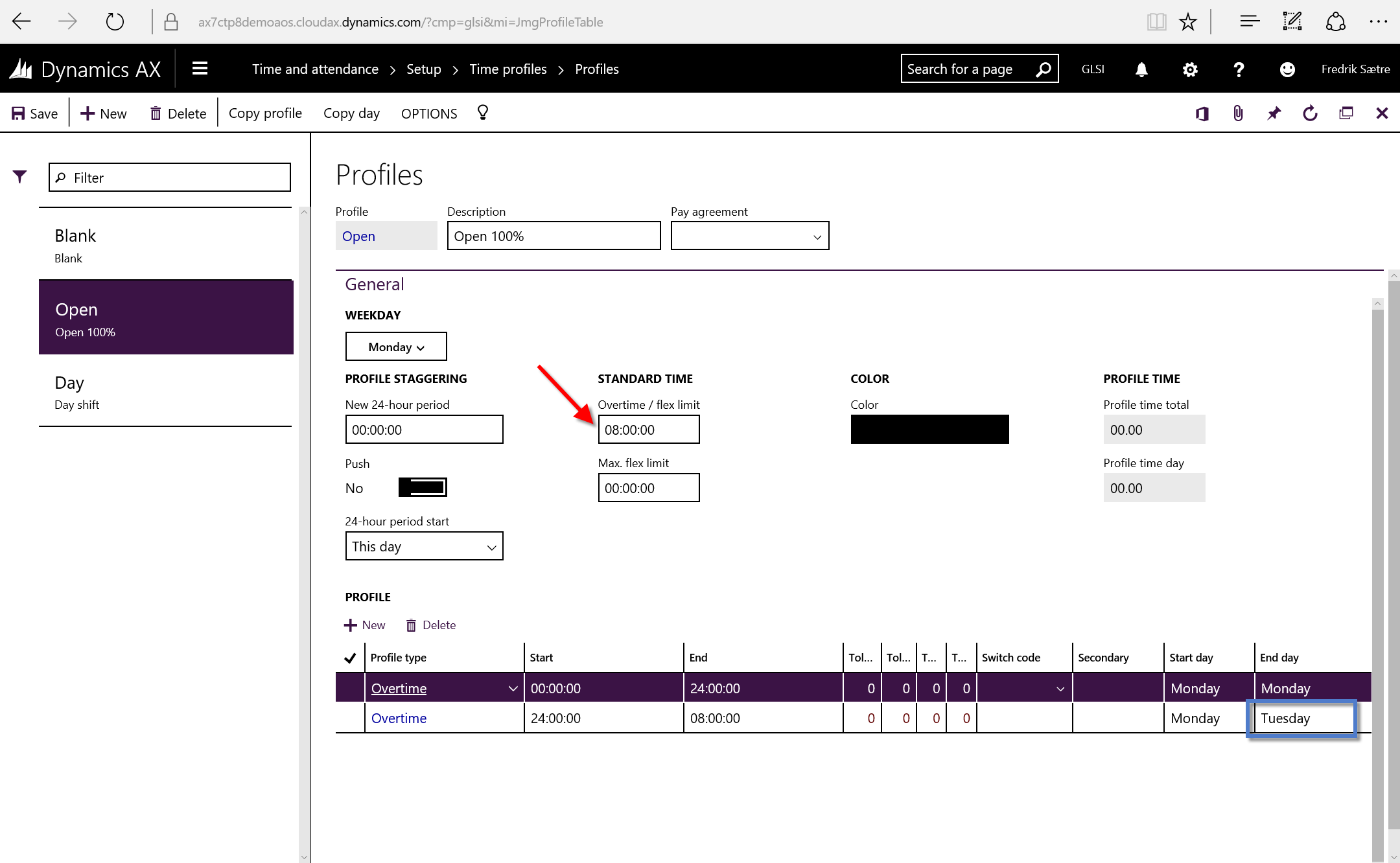
The simplest profile type is the one without clock in or out times. This solution is pretty quick to set up and covers anyone who clocks in at any time of the day. It is mostly used for “Contractors” (external workers/hired help) and part time workers that is paid hour by hour. It will not prompt the user for absence codes.

Note: This type require users to register in and out from breaks. These can be added to the profile if needed, but are then static.
Punching in and out of breaks require the right Indirect activities system jobs to be created.

AX7_TA_OpenProfile.png

Notice that the lines are chronological, and since the first line lasts untill 24:00 the second line last untill 23:00, but on the day after. This way anyone can clock in durring the entre day from 00:00 to 23:59 and work untill 23:00 the next day without any issues. It is important to check the “Profile time day:” to controll this.

Same type with approval for overtime:

AX7_TA_OpenProfile2.png

Flex time profiles:
We will cover is in Flex time section later.

Prepair for work planner:
While creating profiles. Select a color for the profile. Try grouping them logically, so you can look at the color and kind of an impression on the type of profile.

My standards are:

  • Green for day shifts
  • Amber/orange for evening shifts
  • Red for night shift
  • Grey for generic profiles
  • Yellow for reduced times
  • White for free or NA
  • Blue for flex profiles

Go to the AX 7 – Time and Attendance guide page

AX7 T&A: Basic concepts

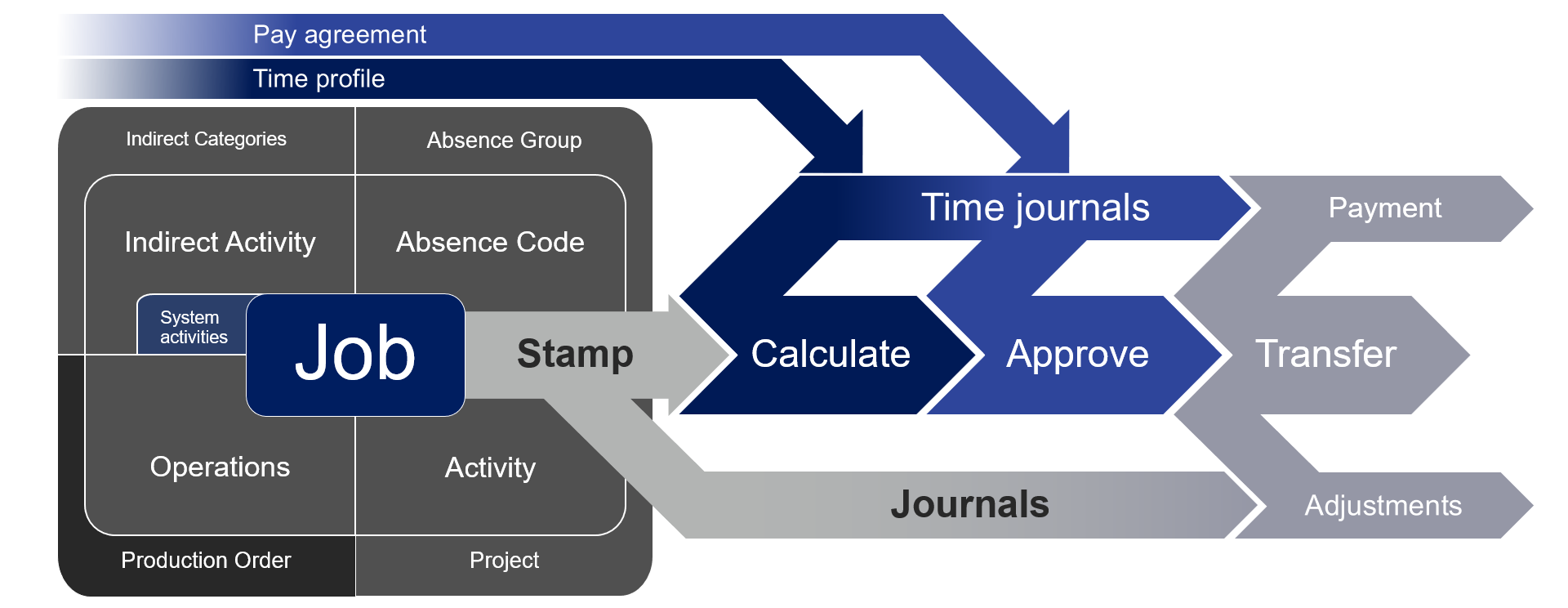
It might be hard to get an overview on how the module works, so I made this chart that I feel pretty well illustrates the process and flow of the module in general.

Concept2

When doing training I feel that this is a great point to start.
An alternative view is this top down approach with a little more detail.

concept3

Data input:
Time and attendance uses jobs to that is registered in raw registrations at the time of input from the user. It creates multiple jobs for each production operation depending on the settings, a job for each project and project activity, a job for each indirect activity and absence code and absence group.

Calculating work times:
When the person doing the calculation/approval opens the profile day for control of the hours the system creates the time journal header and time journal transactions based on the raw registrations. The journal can be changed. It can also be reverted back to it’s original transactions by importing the raw registration transactions again. The system require absence to be identified at calculation.

Calculating parameters and Pay agreements:
The pay agreements are used to set the base for what pay types that will be generated.
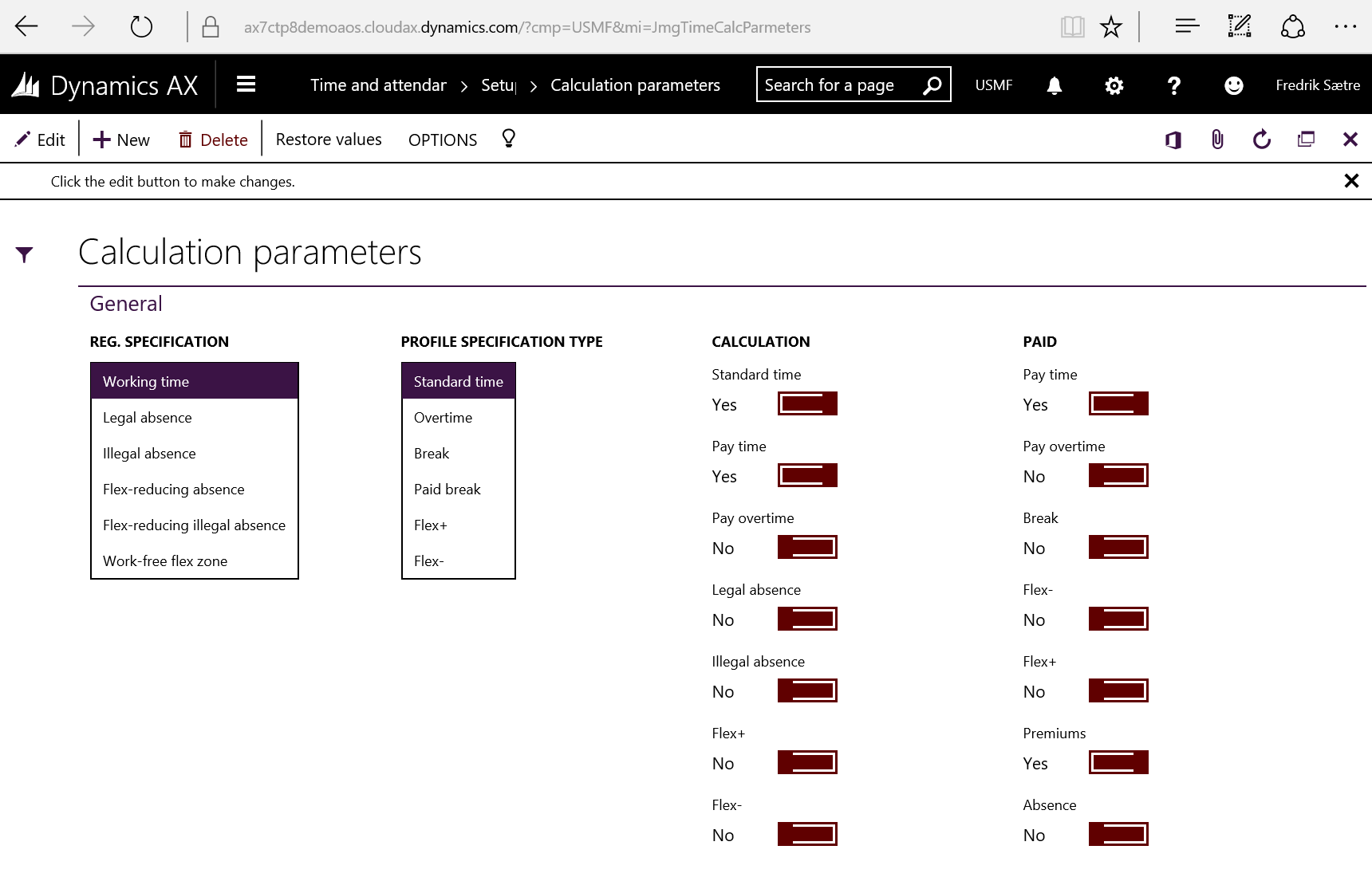
After the work times are calculated and approved it runs through the calculation parameters where the profile types corresponding with the raw registrations generate pay agreement types based on the calculation parameter settings and pay agreements.

AX7_TA_CalculationParameters.png

Transfer:
After calculating and approving the user will transfer the journals. This results in the lines being removed from the view of the user and pay types being locked in. These can later be exported to an external payroll system and the pay type transactions will be flagged as exported.

At the time of transfer the production orders and projects will get hours amended in the time journals posted as discrepancies in new route cards/Job Cards and Hour journals.

That should cover the basics!

Go to the AX 7 – Time and Attendance guide page

AX7 T&A: General Parameters

There are a lot of parameters, but I’ll focus on the ones you mostly need to take in to account early on. We’ll get in to the different parameters later, but the default parameters are pretty OK.

No surprise. The general parameters are located at: Time and Attendance > Setup > Time and Attendance Parameters.

AX7_TA_Parameters1

I most often keep “Auto insert flex-/absence” blank. If not you will automatically get an absence suggested when approving hours. You would probably want to allocate this and be alerted when absence is registered.

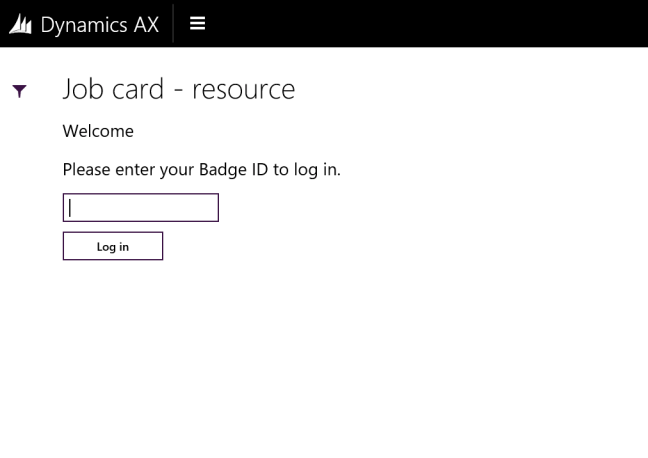
I seldom “Use password”. This is a security feature giving you an extra box in the check in dialogue. It is a field on the worker setup. Leaving it blank lets you only require the user ID. I have a customer where the factory floor workers only authenticate with a barcode ID (no password) and the administration use ID + Password.

I often “Use badge ID” because most companies don’t have a good number sequence on the employee numbers. This requires you to add an ID to the Badge ID field on the worker setup.

Check out the post on user setup for the Password and Badge ID fields.

I recommend using centihours as “Time presentation” as this is easier in conjunction with payroll.

I normally set “Restart at clock-in” to “Yes”. That allows the workers to check in and the system will try to continue on the job they where active on when signing out. If not, they will have to sign in to the job as well after they checked in.

If you set up the “Automatic” clock out function, the system will try checking the user out at the clock out time in their active profile if they forget to clock out after the given “Max. working minutes” has transpired since they clocked in.

I prefer to have a separate journal type for the “Inventory Adjustment” journals then what is standard to be able to see what is created from the terminals as opposed to the journal entry form.

AX7_TA_Parameters2

I would recommend to have different journal types for the Hour, Fee and Item journals then standard to be able to distinctly identify the T&A journals.

“Post automatically” set to Yes will post the journals at time of registration and post a offset journal when transferring approved time registrations. Setting it to No will post the journal, but waits until you have approved and then transfer the time registrations to do so.

If you want to use “Cost categories” as opposed to the hour rates from time and attendance for the project activities, then activate this.

Dimensions decide what way the dimensions should be inherited and what should be master in cases of conflicts where both jobs (projects/activities) and the workers have the same dimension filled out.
AX7_TA_Parameters3

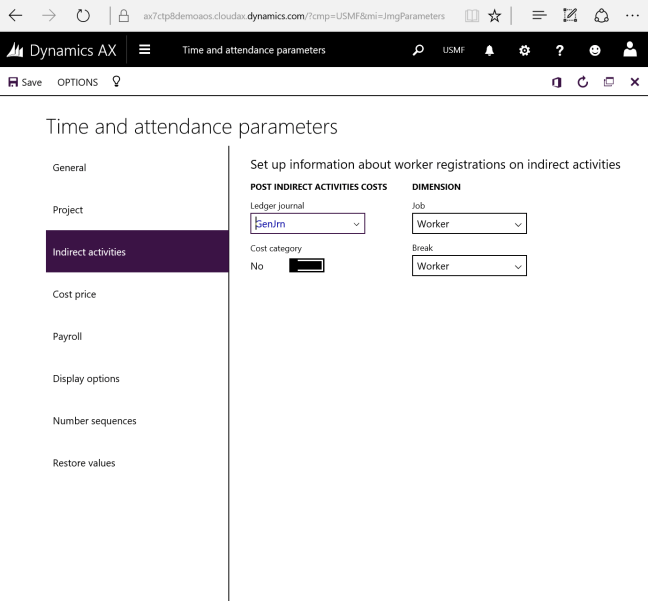
You can actually run time and attendance with a great insights by only using the indirect activities. You set up the cost handling here.

Set up a separate “Ledger journal” to be able to track the journals in the general ledger. You can use cost categories, which is a set cost for all activities, or get the data from the payroll transactions if you use this to the full extent.

Dimension can be set to a hierarchy or to a single record type either worker or the job. Most often use a hierarchy of “Worker -> Job” because that takes both in to account and the one (Worker in that case) overrides the other.

AX7_TA_Parameters4

In Time and Attendance you can either use cost categories or get the cost price from the payroll transactions. You will have to add rates to the pay types, but that gives you the possibility to have more accurate costing.

In this setup you select what is added to your cost price. I’ll go in to this more closely in a separate post.
AX7_TA_Parameters5.png

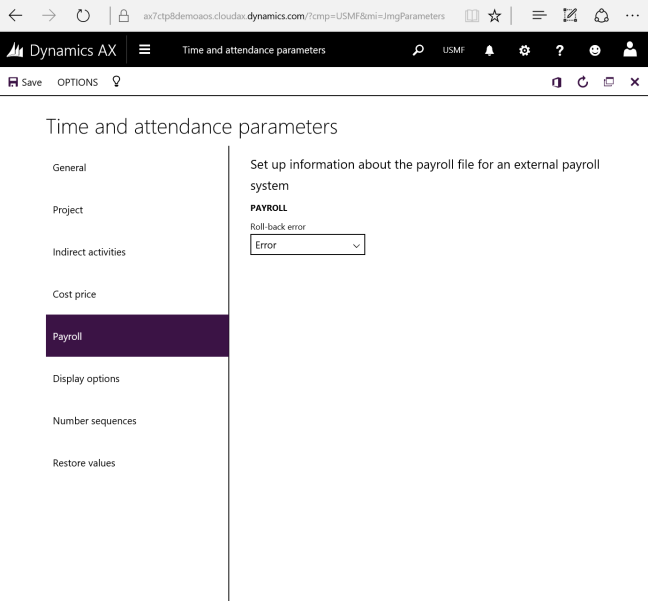
Best described by Microsoft help wiki: (Formated by me)

Specify whether the user can roll back registrations after pay transactions have been exported to a file. The following options are available:

  • Error (the user receives an error message, and the rollback is not performed),
  • Warning (the user receives a warning message before the rollback is performed)
  • Accept (the rollback is performed; no message is displayed to the user).

AX7_TA_Parameters6.png

More on this in “Electronic time card”.
AX7_TA_Parameters7.png

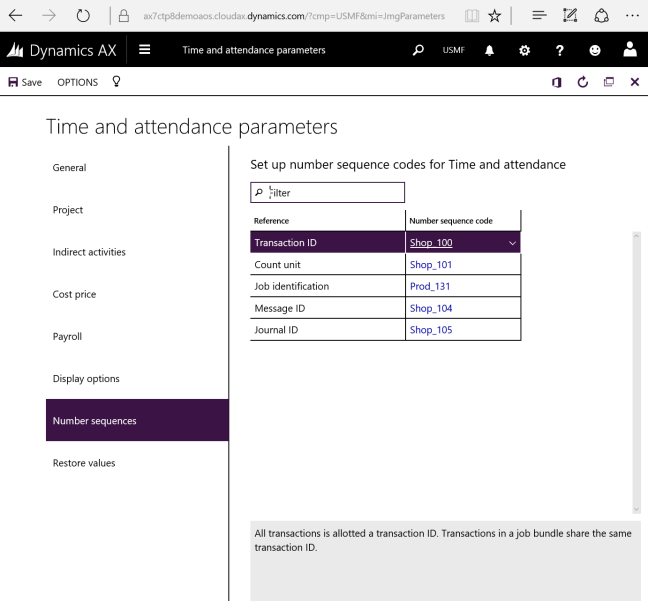
Setting up number sequences as in any other module: Use prefixes if you want to easily identify the series and never start a series with only zeros.

AX7_TA_Parameters8.png

This will restore your settings to the default setup if you get to far off… which i find kind of odd…

Go to the AX 7 – Time and Attendance guide page

AX7 T&A: Getting started

This is the first post in the AX 7 T&A guide series.

Time and attendance is a very flexible solution for registering attendance and absence as well as manufacturing execution and realtime project feedback.

AX7_TA_ClockIn

This is a pretty big setup job if you want it to be done properly. You can however get started right away! Following these steps will get you to start registering time clocking in and out.

1. First you need to run the configuration wizard under Wizards. This will create the required setting like system jobs in indirect activities (clock in/out, wait time, abort pause and more), terminal configurations and profile types.

This slideshow requires JavaScript.

2. Go to time profiles (Time and attendance > Setup >Time profiles > Profiles) and set up a profile single. This define the workers actual working times. You do not need to enter anything in to the profiles, but you need atleast to create a blank one for setting the required parameters on a user.

ax7_TA_Profile.PNG
3. Create the necessary groups. Just create a simple common group for the entire company.
  • Profile group
    Time and attendance > Setup > Time profiles > Profile groups
  • Calculation group
    Time and attendance > Setup > Groups > Calculation groups
  • Approval group
    Time and attendance > Setup > Groups > Approval groups

This slideshow requires JavaScript.

4. Go to the Workers (Human resources > Workers > Workers). On the “Time” pane in the menu bar under the “Maintain” group: Click on “Activate on registration terminals” and fill inn the required fields.

This slideshow requires JavaScript.

5. Now launch the Time and attendance registration terminal and select a terminal setup.
Common > Common > Time and attendance > Clock in/out (Punch clock)

AX7_TA_Terminal1
Use the “Clock in and out” for attendance.

You can now clock in and out using the employee Id (Leave password blank if not set) and do the same to clock out.

This slideshow requires JavaScript.

This is the bare minimum to actually start registering attendance. Cool thing is… If you’re only looking for the attendance part of the solution you can start punching time and do the rest of the setup later.

Go to the AX 7 – Time and Attendance guide page