AX7 T&A: Manufacturing execution setup

A core component in Time and attendance is Manufacturing Execution (MES). The setup for this is now located in the Production Control module (Production Control > Setup > Manufacturing Execution)

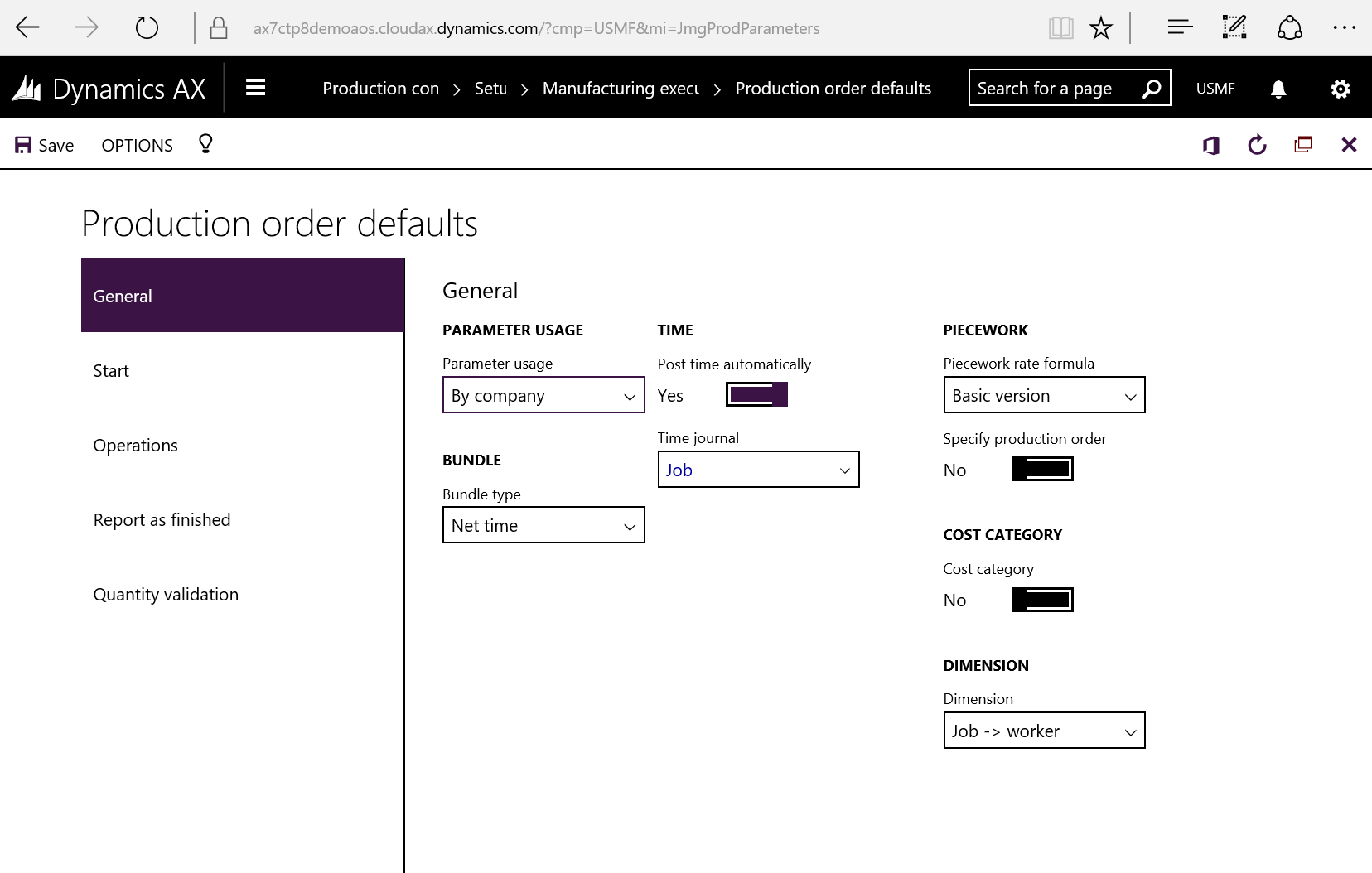
The Manufacturing Execution parameters is only a subset of parameters presented in the Time and Attendance general parameters. The interesting parts are in the Production parameters (Production Control > Setup > Manufacturing Execution > Production order defaults)
AX7_TA_MESParm1

You can control the parameters by site or generic throughout the company.

Parameter usage defines the level of how detailed you want to control this. You can set it to site, but then you would have to define a parameter set for each site.

Bundle type decide how you want to split your work when working on several jobs at the same time. (I might post something on that later on)

Time can be posted automatically to route or jobb journals. If not activated, then it will wait to post until the Transfer action is performed in the approval process.

You can assign cost for manufacturing based on the pay types generated or by the Cost Category.

Financial Dimensions can be inherited from the jobs or worker or as a hierarchy where the one overrides the other.

Productions post journals (Route and Picking lists) at three different stages:

  • Production start
  • Operation feedback
  • Report as finished (Also posts a finishing journal)

The next three options in the right side menu (Start, Operations, Report as Finished) is for setting different posting setups for each step.

IMPORTANT!
Be sure to not set the solution up so it automatically pulls estimated route as well as actual transactions and duplicate or even worse triple posting of estimated items. Use either “Always” for only ONE of the three posting actions or Route group/Flushing principle for two of them.

All of these steps need a quantity to trigger automatic consumption of items, so you must start with a quantity if you want it to handle picking to be created or posted at start.

AX7_TA_MESParm2

On Start you can also decide if you want the solution to mark the production order as started and if you want to include a quantity as well.

You can select if you want to show the picking list journal before it is posted. This opens up a form with items suggested based on the qty started and the terminal user can edit it on the fly when posting.
AX7_TA_MESParm3

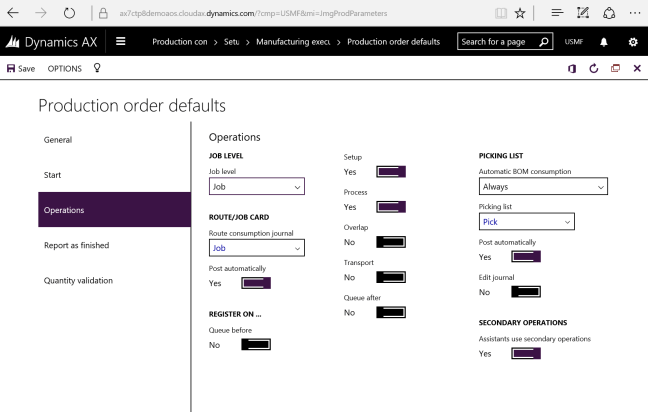
On Operations you also decide what level you want to report on. You can select either Operations(Route) or Jobs.

You can on this level, as well as on Start let the user to be able to edit the picking list journal by ticking Edit journal under the Picking list section.

AX7_TA_MESParm4

On Report as Finished you can select if you want to update the status of the production order and if you want to Accept errors.
Accept errors doesn’t accept any error like missing inventory and so on, but are in relation to jobs being reported as finished and the consumption of all estimated quantities.

It is a good idea to have unique journal types for feedback from Manufacturing Execution to be able to quickly differentiate between what is manually created and automatically created from MES.

AX7_TA_MESParm5

The final menu item is Quantity validation which is used to make sure that you start and report the correct amount. In some cases I use this, but in many cases this is left as it is shown in the screenshot above. You can base the validation based on previous jobs or the estimated quantity.


When all this is looked over you will be able to get cracking on using manufacturing execution.

Releasing a production order with route will make the jobs available in Manufacturing Execution.

Start the Job card terminal form (Production Control > Manufacturing Execution > Job card terminal) and have at it!

 

Go to the AX 7 – Time and Attendance guide page

AX7 T&A: Profile group profile relations

We have noe looked at how to manually do shift planning by using the Work planner interface to work with the profile calendar table. If you want to automate the shift process, you can do so as well. The profile group can be associated with a setup that automatically assign a profile based on the clock in time.

Go to your Profile groups (Time and attendance > Setup > Time profile > Profile group)

AX7_TA_ProfileGroups2.png

and click the Profile relation menu item.

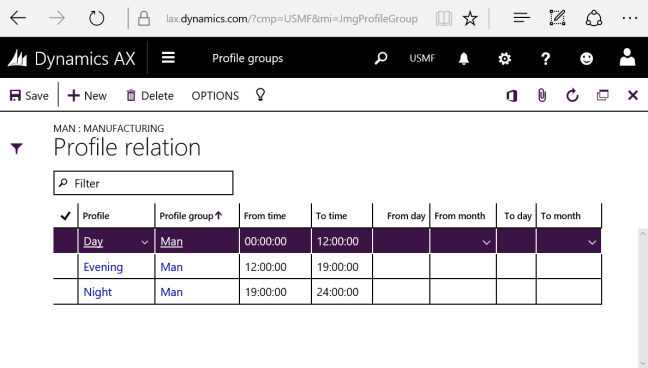
AX7_TA_ProfileGroupRelations.png

Add your profile and the time intervals that the clock in time should trigger at.

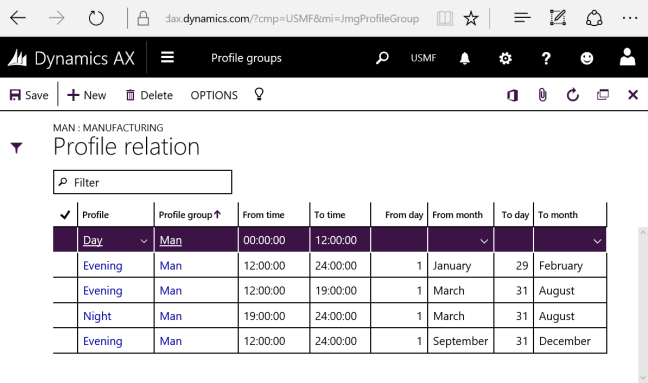
You can also create regular shift variations. Like for instance in high demand season (01.03..31.08) we run three shift, but in low season we run only two.

AX7_TA_ProfileGroupRelationsSeasonal.png
Example of a season variable profile relation setup.


Go to the AX 7 – Time and Attendance guide page

AX7 T&A: Work planner

Work planner is an excellent tools to handle your workers profiles over time and work efficiently with the profile calendar. It basically is a visual representation and painting tool (Yes…) of your profile calendar and the reason why you want to have some logical coloring of your profile settings.

This solution was in CTP8, but was deprecated in the RTW! However it is still in there in the code. It is just the menu item that is not included. Find the JmgWorkPlanner form and add create a menu item so you can call it from the browser.

My customers use it to do shift planning and make those off-weekly-work-profiles work (like someone having half day two days a week, but not the same days next week and free every third Friday after a full moon and such). To set this up you need to add a color to you profile. Check out my earlier post on time profile configuration for more info.

Using the Work planner:
You find the Work planner at Time & Attendance > Work planner.

When the form opens it gathers all the data from the profile calendar and creates an overview in the form.

Right area of the form:
There are two panes:

  • “Period” is one row per user
  • “Profile Group” has a section for all and a section with rows per profile group.

You can filter based on calculation group and/or approval group. The Display options are layered and shows the profiles in the way the profile calendar is queried from the Time Journal creation. You can activate them at will by clicking the check boxes. “Overlay” will show the profile group and all, Standard profile is the default profile on the workers employee settings and then you have “planned absence”.
The absence can be shown and you can pick the color it shows in the grid.

One layer overrides the other:
1. Absence
2. Profile calendar: User
3. Profile calendar: Group
4. Profile calendar: All
5. Default Profile

Left area of the form:
Here you can pick the date interval for the form and clicking “show weekends” gives a grey color on Saturdays and Sundays. The Profiles are listed and shows in the color as set on the profile. You can filter down the profiles by using the profile group. These will then show only the profiles in the profiles relations for this group.

Select one of the profiles in the list by clicking it and then draw these profiles on the dates for each user or group/all based on the pane you’re on.

Check the clear profile and draw if you want to delete/remove.

This slideshow requires JavaScript.

The Profile group pane looks like this:

AX7_TA_WorkPlannerGroupLevel.png

After you’ve finished you’re work planning. Click “Save” in the top menu and the profile calendar is updated with the new data.

Have fun!

AX7_TA_WorkPlannerFun.png


Go to the AX 7 – Time and Attendance guide page

AX7 T&A: Profile calendar

The profile calendar is used to make planned changes to the default profile that is used for calculation. When doing the profile calculation the system checks the Profile calendar to override the default profile and this is loaded as the profile for that journal. So you can predetermine the profile that the user is going to have at calculation by creating a record in the profile calendar table. You can set this up for special work days that deviate from the standard work hours, but it is also a very nice tool to handle complex profiles where the profile changes from week to week. Go to Time and Attendance > Time Profiles > Profile Calendar to add new records.

AX7_TA_ProfileCalendar.png

You can do changes for entire profile groups or for all workers as well by changing the Profile calendar code column to Group or All. Use special day column to trigger the special day in the pay agreement. For instance if a Monday is Christmas Day and if someone comes in and does work, they will get the special day Pay agreement instead of a Monday.

Since one record is only referred to one day it takes a while to input a whole week manually. You can easily create this by using the Compose function.

AX7_TA_ProfileCalendarCompose.png

You can also copy an interval for instance if one week is day-shift and one week is night-shift, then this fortnight can be multiplied as many times as you want. You do this by using the Copy interval function.

AX7_TA_CopyIntercval.png

There is a great graphical tool for handling profile calendar which is called job planner. I will look into that next.

Go to the AX 7 – Time and Attendance guide page

AX7 T&A: Flex time administration

All the menu items for handling flex for a worker is located on the workers form (Human Resources > Workers > Workers)

AX7_TA_FlexTimeUser

Flex: Recalculate the workers flex balance.

Opening flex balance: You can set the Opening Flex balance of a worker if the worker already had some time built up at implementation or as a transfer from another company.

Flex balance: Shows an overview of the workers flex account balance chronologically through time. A new record is put in to this table each time the user has a flex transaction at calculation and the flex balance is recalculated.

AX7_TA_FlexBalance.png

You can do adjustments manually by clicking Flex correction

AX7_TA_FlexOverviewAdjustment1.png

You can also post payroll transactions in the same correction. A good example is that you can replace overtime with flex time.

This flex correction can also be performed by the system.
The balance for a worker can exceed the limits of the Flex group settings.

AX7_TA_FlexBalanceAdjustSetting.png

Some just want to report on the issue and make sure that the users get back within the limits them selves or you can run the flex correction job to reduce or increase the balance for the user like the manual example above.
Based on the flex group settings you can replace these with pay types for each flex time unit adjusted. This is configured in the flex group.

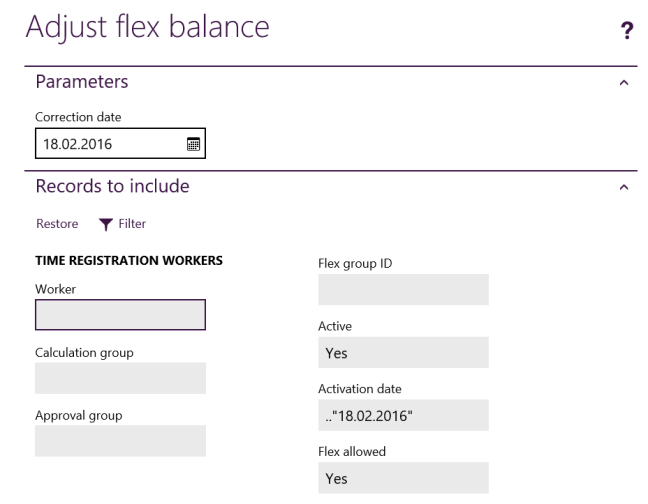
The periodic job is found at Time and Attendance > Manage flex time > Adjust flex balance.

AX7_TA_AdjustFlexBalance.png

The system looks at the Correction date and adjusts the Flex balance to the Max or Min flex time allowed in the flex profile the worker is associated with.

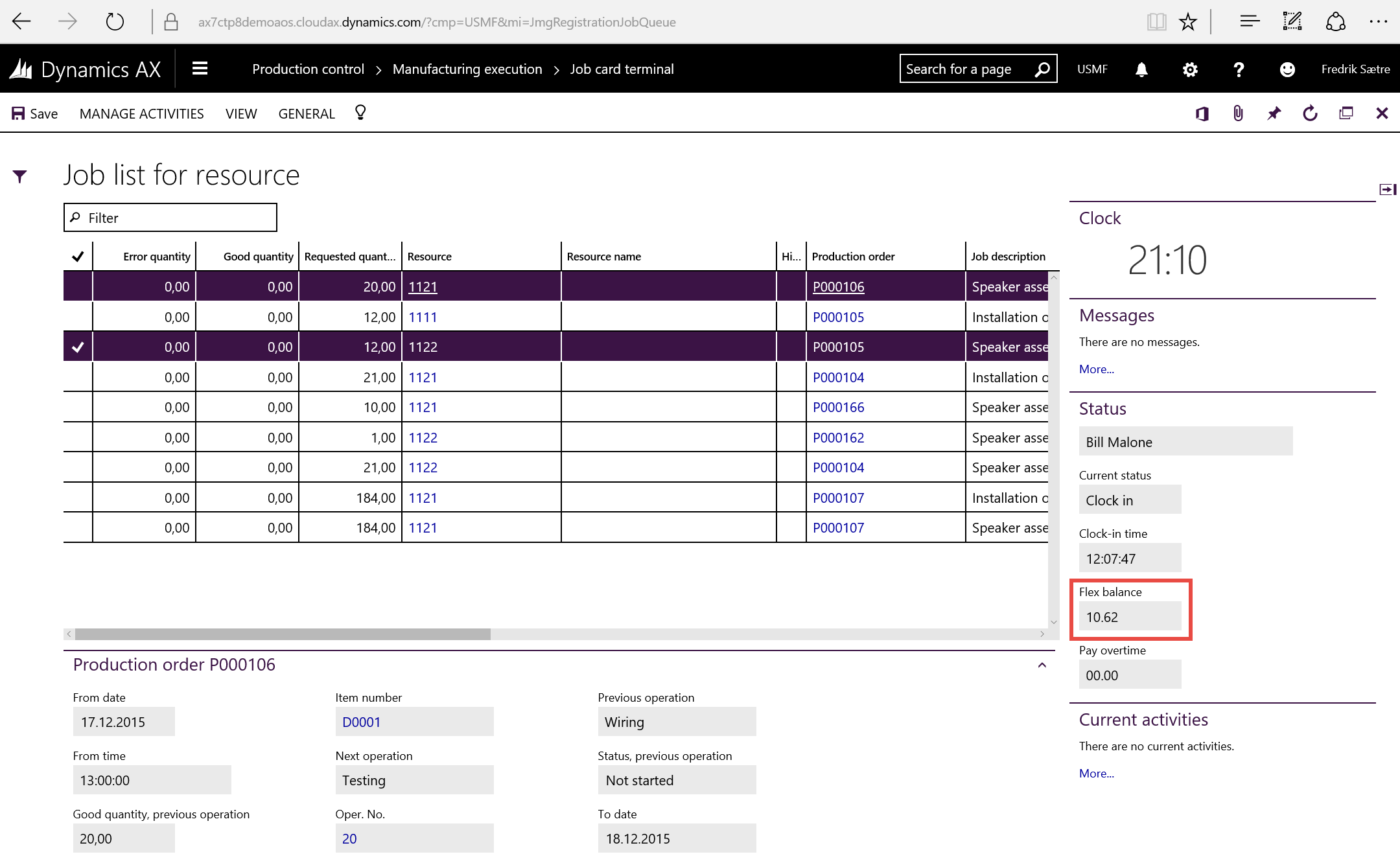
Worker account balance:
The worker can check their flex account balance in the Job card terminal in the Status fact box.

AX7_TA_FlexBalanceJobCardTerminal.png


Go to the AX 7 – Time and Attendance guide page


AX7 T&A: Flex time profile setup

Flex time is added before and after the clock in and clock out. Flex within work hours (after clock in and before clock out) is regarded as “Flex -” and flex outside work hours (before clock in and after clock out) is regarded as “Flex +”.

The flex time intervals does not have to be proportional, but it is recommended that it is at least similar for each of the end points of the work day (clock in/out). You can have Flex + at any time before clock in and -1 hour at clock in if you want. Example: “Flex +” 00:00 – 08:00, Clock in at 08:00 and “Flex -” 08:00 – 09:00. However the profile will look at the total hours of work (from clock in to clock out) to determine when to start flex time calculation. So in that case you should have -2 hours and at least +1 hour at clock out.

A standard flex profile might look like this:

Profile type Start End Switch code Secondary Start day End day
Flex+ 00:00:00 08:00:00 OTBCI Overtime Monday Monday
Clock in 08:00:00 08:00:00 Monday Monday
Flex- 08:00:00 09:00:00 Monday Monday
Standard time 09:00:00 11:30:00 Monday Monday
Paid break 11:30:00 12:00:00 CB1 Standard time Monday Monday
Standard time 12:00:00 15:00:00 Monday Monday
Flex- 15:00:00 16:00:00 Monday Monday
Clock out 16:00:00 16:00:00 Monday Monday
Flex+ 16:00:00 00:00:00 OTACO Overtime Monday Tuesday

Notice the switch codes:
OTBCI = “OverTime Before Clock In”
OTACO = “OverTime After Clock Out”
CB1 = “Canceled Break”

Worker want to register overtime instead of building flex, then the switch codes OTBCI and OTACO is registered and this will then swap the Flex + for Overtime profile type at the right intervals. You can register the switch code at any time of the profile day to activate these.

Go to the AX 7 – Time and Attendance guide page


AX7 T&A: Flex time setup

Flex time is often used and is a pretty concrete concept. You have core hours that the worker has to work and hours that vary from the clock in and clock out hours are posted to an balance that you can monitor. But I use this as a tool to monitor minor worker deviations as well. Even for workers who doesn’t have flex time.

My view on the matter: You don’t want to set up the system to be too strict as this makes for a tight regime and a lot of input needed. I use this as a method of monitoring the small deviations that occur daily in all companies and simply letting the employees them selves be in charge of their work times and by the end of the week or month make sure that you have a balance around 0. Hours owed are deducted and hours earned are reset to 0 and lost. Use a small flex window like 30 minutes to handle the smaller deviations, but keep track of the hours. So the employees that are always late will owe and be deducted at month end. I’ve convinced many companies to start using this concept instead of the old ways because this is a win win win concept. Even in old school manufacturing companies where they used to alarm bells to ring in the shift have been converted to a more dynamic environment for the employees. Increasing the productivity, vastly reducing the amount of absence occurrences and manual controls, boosting moral and thus making the recycling of employees lower.

Basics

What the flex functionality basically does is to maintain a flex balance. It can also use this as a pay type to keep an overview in an external payroll system.
Workers are a part of a flex group that sets boundaries, but the boundaries can be broken. It can adjust the flex balance to fall back within the boundaries of the flex group by running a job which may or may not create pay transactions (either positive or negative). The adjustment is normally performed right before payment transfer is executed.
You can get reports on people working outside their flex boundaries for manual control as well.

Setup

The setup for Flex groups are located at Time and attendance > Setup > Groups > Flex groups

AX7_TA_FlexGroups.png

The categories Flex minimum and Flex maximum contains the settings for the boundaries of the flex account.
If Adjust flex max or min is activated the system will increase or reduce the account balance and pay the pay type assigned. You can use a Pay type factor to get more or less for each hour flex.
Setting up Flex balance pay types is used to be able to have an overview of your flex balances in your payroll systems.

User setup

After the flex groups are created you add it to your workers information.
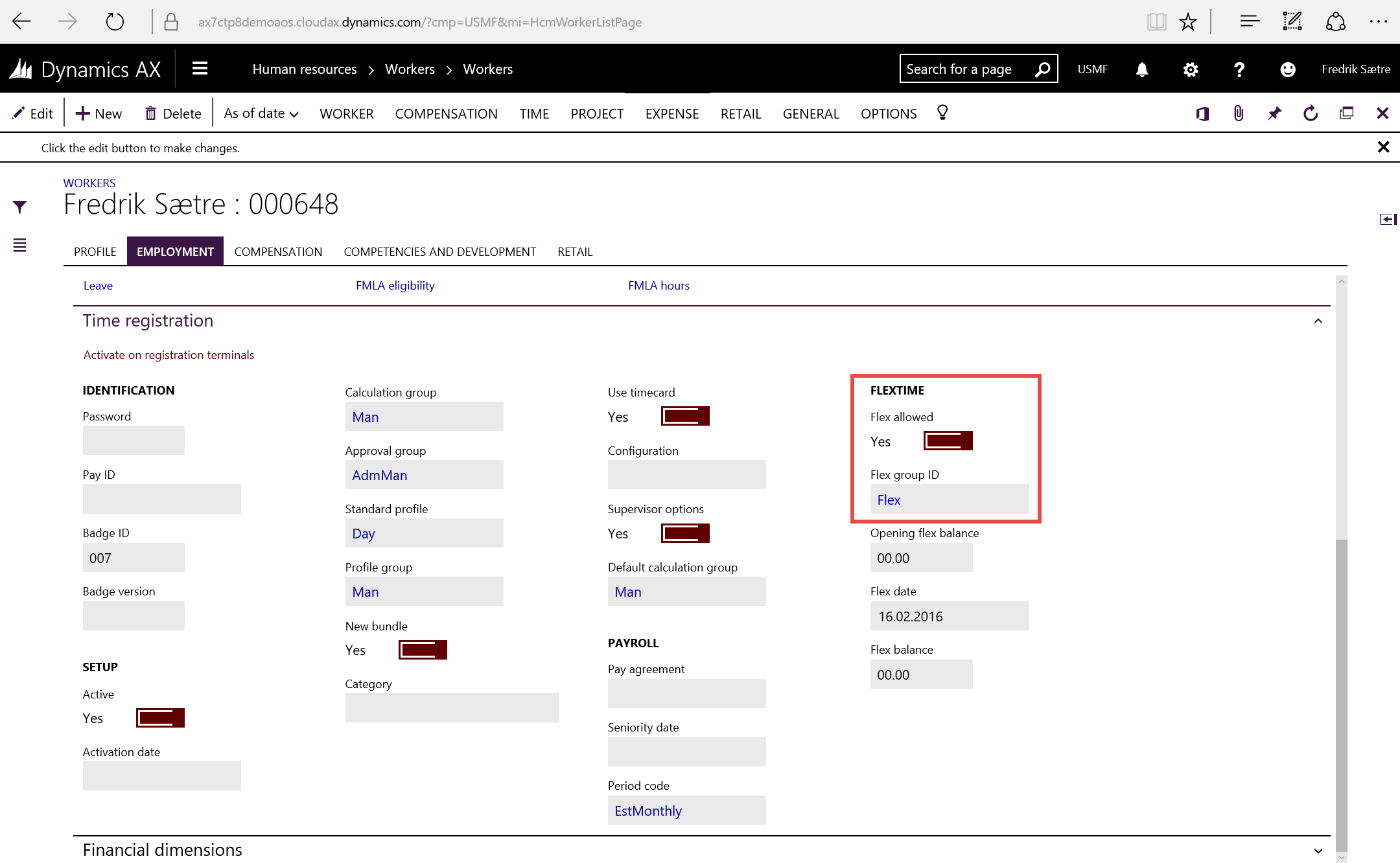
Go to Human Resources > Workers > Workers > Time registration workers | Employment > Time registration > Flextime

AX7_TA_FlexTimeUserSetup

When Flex allowed is “Yes” and a Flex Group ID is selected you will be able to use profiles with flex +/- in them for this worker.

Next we’ll look at how to set up a Time profile with flex.

Go to the AX 7 – Time and Attendance guide page

AX7 T&A: Payroll transfer and export

After pay types are created and approved there will be payment lines ready for transfer to payroll. The records for payment lines are created and there is a flag on each post showing whether or not the transaction has been exported. When transferring payments from AX we use a periodic grouping by the means of Period types. This is a shared feature between many different modules and situated in the Project module. You can create your own periods and can choose from a set of different types of period intervals. I normally use the ledger type, but have created some weekly or monthly offset types of payment periods. Workers can be grouped to different payment periods. It is then possible to do different exports for different workers, so in some cases you might even have similar period types with different names (for instance if exported to different systems, but in similar periods).

Go to Time and attendance > Setup > Payroll > Period types.

AX7_TA_PeriodTypes.png

After you have created a period type, make sure to generate the periods.

AX7_TA_PeriodTypesGeneratePeriod.png

A period has a from and to date and a nice name to go with it.

AX7_TA_PeriodTypesPeriod.png

Generate payroll file

The path for the exported file is set up at in the general Time and attendance parameters. To execute the export go to: Time and Attendance > Maintain payroll > Transfer to pay

AX7_TA_TransferToPay.png

Select a payment period and put in a pay date. The export will do an export for the period which the day resides, so if you select 04.01.2015 and the period is a Monthly type. It will export all transactions within 01.01 to 31.01. You can even retransfer transactions. This will ignore the “Transferred” flag on the payment line. The result of this is a comma separated file. The framework is made so that you can create your own type of exports.

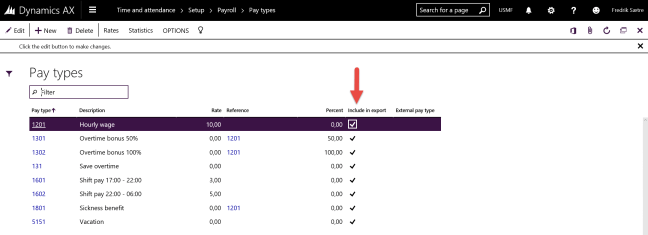
Note: Only the pay types that are checked to be included in the export will be transferred.

AX7_TA_PayTypeExportMarked.png


Go to the AX 7 – Time and Attendance guide page

AX7 T&A: Switch codes

Switch codes are used for swapping different pay types in pay agreements. Most often used to switch between flex and overtime or no pay (break) and overtime or some pay account build up.

A switch code is set up as an indirect activity in a group marked with the switch code type. This is found at: Time and Attendance > Setup > Indirect activity categories

AX7_TA_IndirectActivityCategories

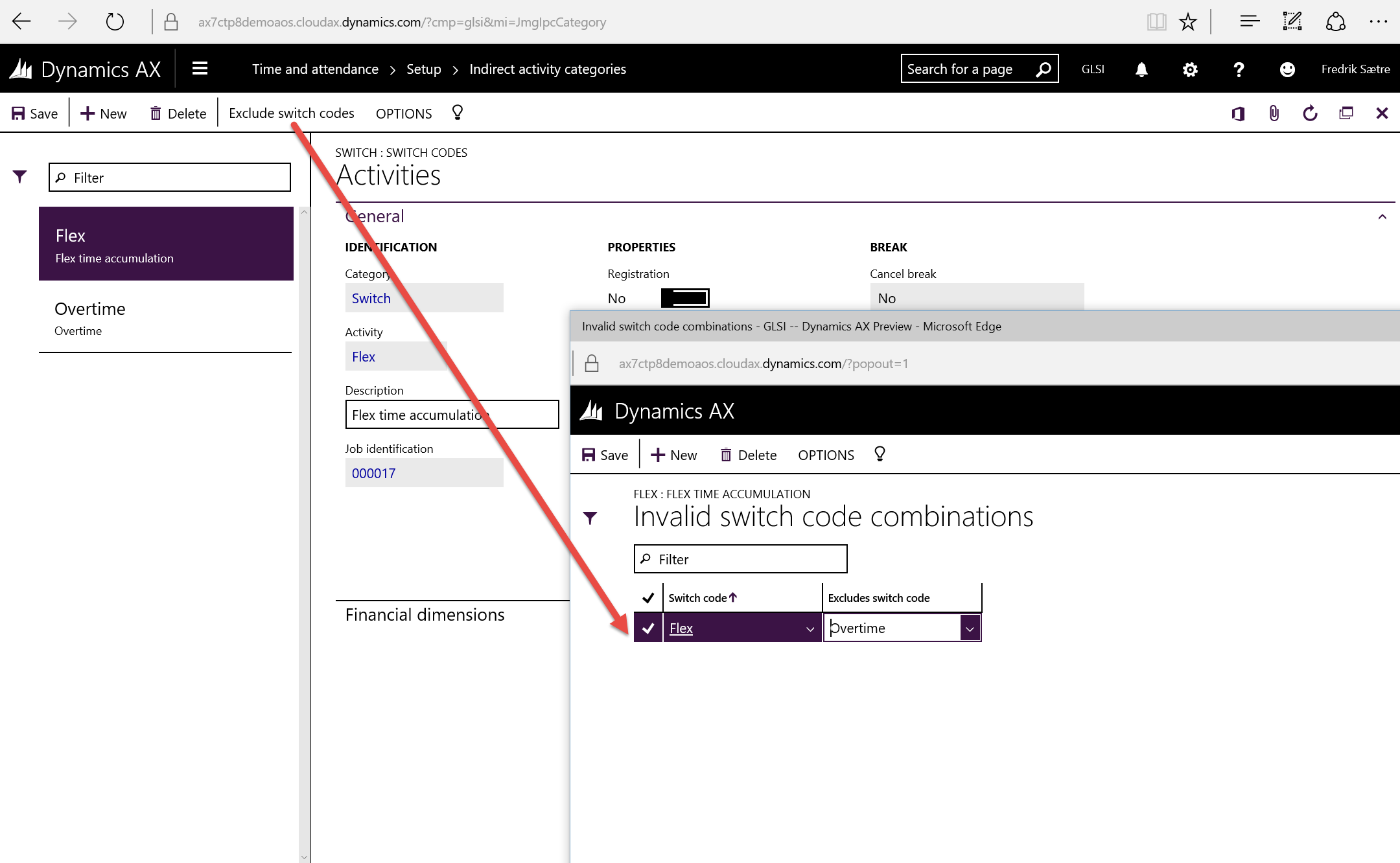
Switch codes can be used together like overtime before and overtime after profile time. You can also set them up to cancel one or more other switch codes. For instance if the user has decided to apply overtime to his work after regular profile hours, but then decide that he wants to do a flexi or work account build-up. In that case the user register a “build-up switch code” which cancel the earlier registered overtime switch code.

AX7_TA_SwitchCodeExclude

The example above only has a single overtime switch code. You might want to have a separate switch code for “start of day overtime” and “end of day overtime” to be able to differentiate. You also then want a Flex switch code that cancels the overtime switch codes.

Go to the AX 7 – Time and Attendance guide page

Making AX7 into an “app”

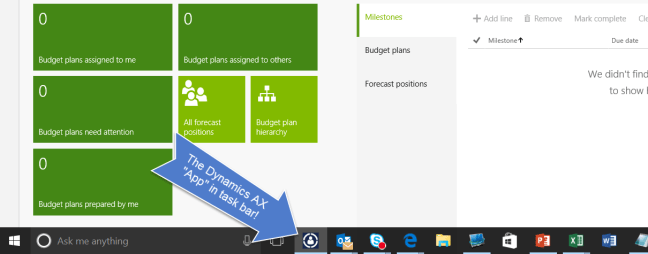
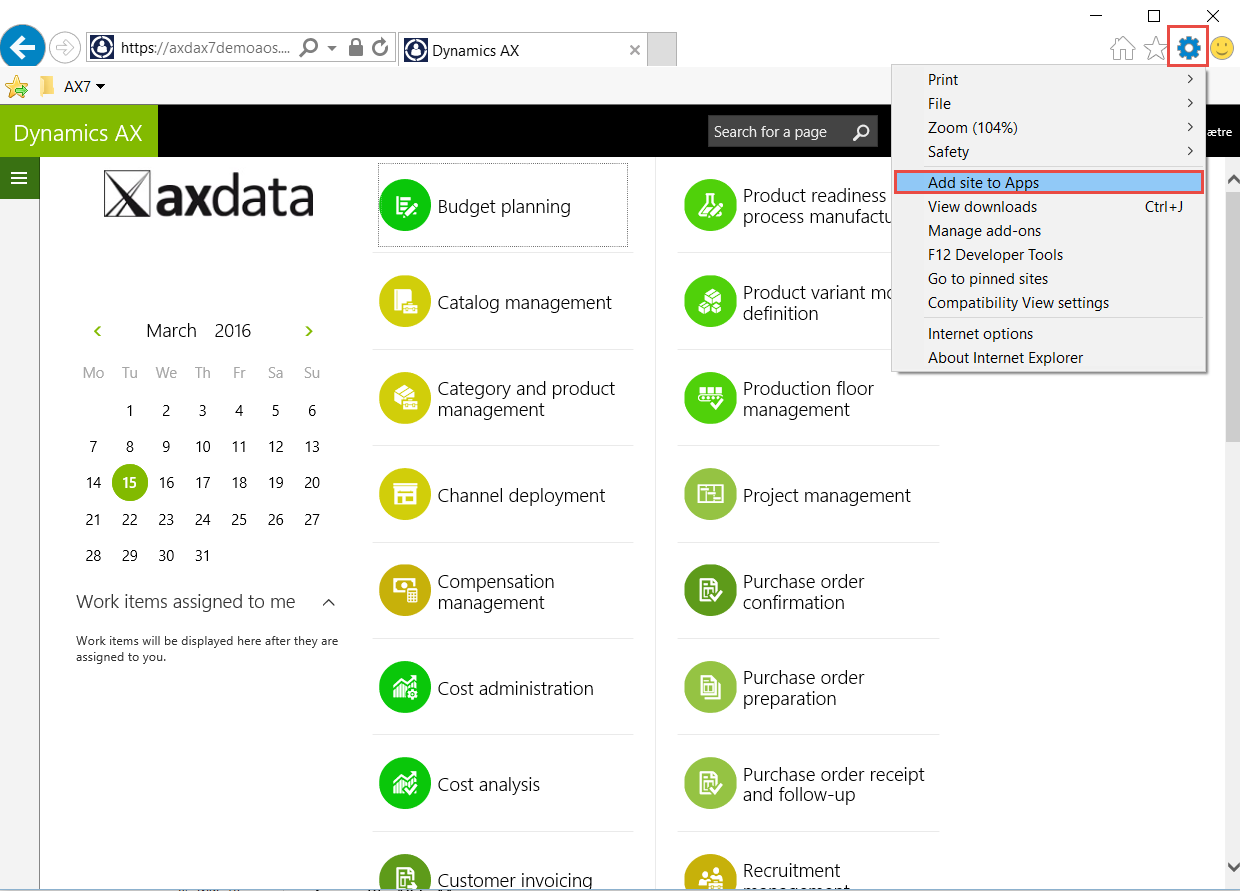
You could create a favorites and create your own navigation menu though that in any browser, but the best way of getting to the new and improved Microsoft Dynamics AX web client on a Windows machine would be to use the “App feature” in Microsoft Internet Explorer. This gives you a separate Dynamics AX icon on your task bar and it is so easy!

  1. Go to your Dynamics AX website
  2. Click the gear icon and “Add site to Apps”

    AX7_IE_App1.png

  3. Click Add in the dialogue.

    AX7_IE_App2.png

  4. This makes the AX icon pop up in your task bar!

    AX7_IE_App4.png

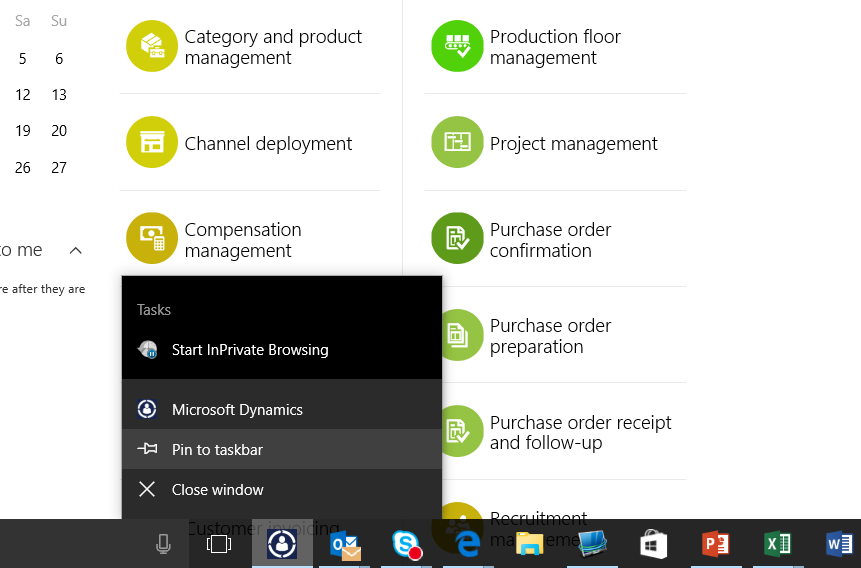
  5. Now pin it to make it stick around!

    AX7_IE_App3.png

  6. Done!


Or you could simply drag your IE Tab (Has to be the specific tab) down to your task bar.


HAVE A DAXING GOOD DAY!