Dynamics AX Podcast // Episode 1 // Upgrading to AX “7”

Dick Wenning join us to talk about development process and the upgrade to AX 7, sharing some tips along the way. We also talk about some history and other things related to Dynamics AX.

Hosts:
Fredrik Sætre (Twitter: @AxFredrik)
https://www.dynaxtips.com
Tommy Skaue (Twitter: @Skaue)
https://yetanotherdynamicsaxblog.blogspot.com
///////////////////////////////////////////////////////////////
Be a part of the AX community!
https://community.dynamics.com/ax/
//////////////////////////////////////////////////////////////
Music courtesy of Cannavo&Nesse

Dynamics AX URL tips

There are some cool stuff you can do with the Dynamics AX URL that you should be aware of. Knowing these tricks will be beneficial during sales work, configuration and even in your daily work routine.

Attributes

A URL is built up of a domain, folder, webpage and attributes.
Like: www .domain.com/folder/folder/webpage.aspx?attr1=value1&attr2=value2

The Dynamics AX URL doesn’t need folders or webpage (underlined), but it does contain some attributes that are worth getting to know a bit better. Here are my favorite ones…

Calling the domain without any attributes gives you the DefaultDashboard and the company selected in your user options.

Select a form (“mi=[menuitem]”)

This is one of two attributes is always present. Decoding this can make you swiftly go directly to a desired form. Storing URLs in favorites on your browser will give you direct access to a form.

Example: “mi=CustTableListPage

Select a company (“cmp=[legal entity ID]”)

This is the other attribute always present. This shows the legal entity that you want to access. No information and the system calls the one that is selected in your users options. However it is great if you’re working with multiple companies to store different menu items that starts you off in one company or the other.

Example = “cmp=DAT

Select a language (“lng=[lang]”)

The default language is the one that is selected in your user options. To work in an environment with another language you would normally make you go change parameters and reload the application. This is a REALLY fast way to just look at another language quickly. Great if you work in your local language and want to run through a tutorial or guide in another language… Like this one: dynaxtips.com/ax2012ta/

Example = “lng=nb-no

Restrict navigation (“limitednav=true”)

In some cases you might want to restrict access to a navigation. This is really nice for the manufacturing execution terminals or a simple dashboard, customer information etc.

Another great way to use this is if you want to limit your navigation in cases where you do cross company lookups. So if you want to go in to another company and don’t want to run around doing other stuff once in that company. That could be a good damage control functionality.

Get to your data!

To get to your oData feed from the entity store… Simply write the folder: data after the domain. This will list all your entities. Adding the URL in the listing will give you the result. Try adding this to your Excel oData query to REALLY simply get to your data.

Example: https: //[yourdomain] .cloudax.dynamics.com/data/Customers

Ignite 2016 Videos

There where a lot of new information revealed at Ignite 2016 about Dynamics AX. This is my favorite way of consuming new information about the application.
Most of the content is released on Youtube and you’ll find it all here. Hours of fun!
There are even videos not tagged with AX on the Ignite website.

I’ll kick if off with a very exciting Keynote by Mike Ehrenberg. Enjoy!

https://www.youtube.com/watch?v=YewxXSFFXac

https://www.youtube.com/watch?v=CVWUt76Bmfc

https://www.youtube.com/watch?v=zUG0mrE8koQ

https://www.youtube.com/watch?v=r8NYafvG32g

https://www.youtube.com/watch?v=d6QdFM5rSLo

https://www.youtube.com/watch?v=BPuQC0_fBfc

https://www.youtube.com/watch?v=eNc3C_n0fkw

https://www.youtube.com/watch?v=hRzinXs9XOQ

https://www.youtube.com/watch?v=x773iWHZaLY

https://www.youtube.com/watch?v=KMclYIberdg

https://www.youtube.com/watch?v=GIG9yzRjMbY

https://www.youtube.com/watch?v=j2g5kwwcVks

https://www.youtube.com/watch?v=FAql0pYtaIo

https://www.youtube.com/watch?v=uwsWfZFc2m8

https://www.youtube.com/watch?v=6vgFk-YE8AI

https://www.youtube.com/watch?v=L5-Px4klL80

https://www.youtube.com/watch?v=FGWWJiMNYNU

https://www.youtube.com/watch?v=4zx8OoVQtPk

https://www.youtube.com/watch?v=lhXpgU2xYH0

https://www.youtube.com/watch?v=wznM8kDVA70

E-mail invoices with a smarter dynamic Print management setup

Setting up the Print management for sending documents by e-mail is a very manual process in most implementations I’ve seen. It takes a user quite a lot of steps to set up a the system for sending documents on e-mail and getting it wrong has grave consequences (It actually stops your sending the invoice process, while still having the invoice posted!). I’ve dove down in to some data and found a smart way to dynamically set this up so that you only have to tag a e-mail address on the customer with a role and you’re done. This will also work with other documents like packing slip or customer statement and should eliminate the setup issue.

Let me show you how to do it!

Step 1: Set up a new contact purpose for the document.

You could use the default ones, but in my experience you should differentiate pr. document type.
Go to: Organization administration > Setup > Global address book > Address and contact information purpose

Add a new type and tick both Contact information and Postal address check boxes.
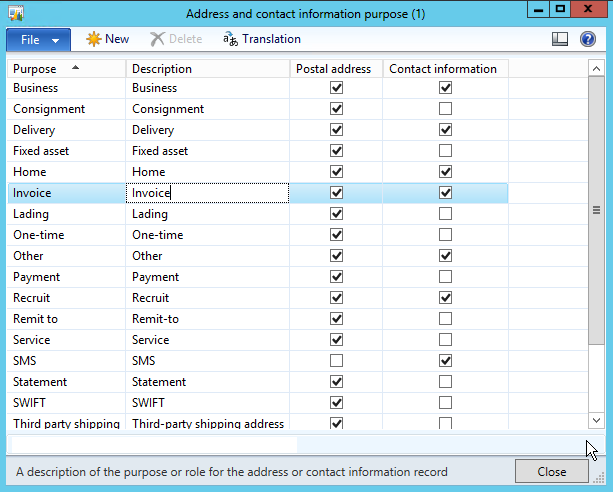
einvoice_newPurpose.png

Step 2: Set up the Print Management

So selecting what customers should receive require you to specifically trigger the customer either by filtering by a parameter or setting it up by hardcoding the customer level print management setup. My idea is to dive down to see if the customer has a contact e-mail that is tagged with the “Invoice” role (Step 1) and trigger based on that.

To set up general print management settings, go to:
Accounts receivable > Setup > Forms > Form setup | Print Management

Create a new print setup

Click the original node and setup the default printer settings and then add a new node on the original node.
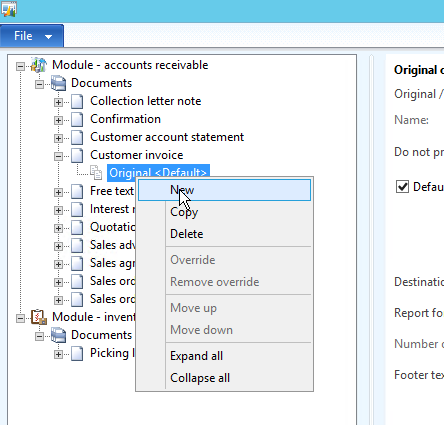
einvoice_newProperty

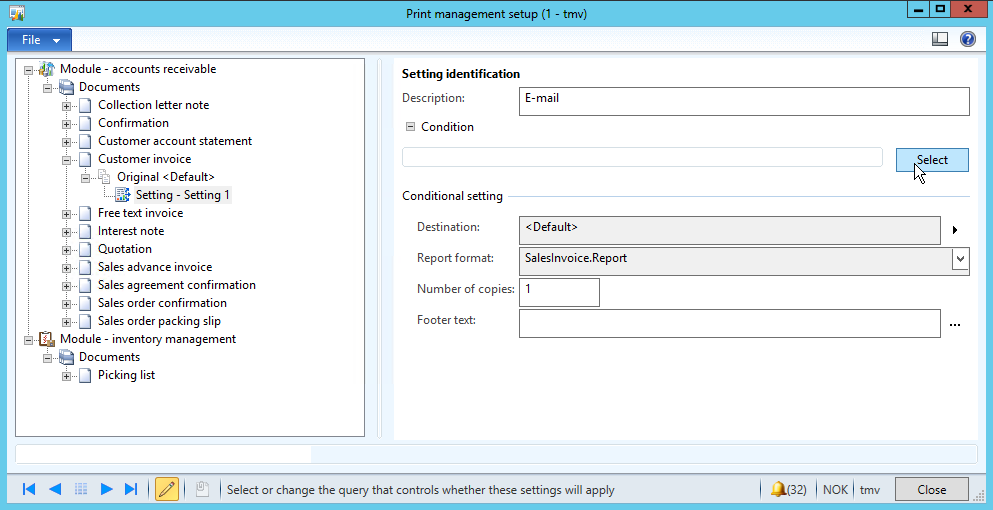
Give the node a name (Like “E-mail”) and set up a condition for the query/filter. When the filter is true the invoice follows this setup. If not it will default back to “Original” setting.
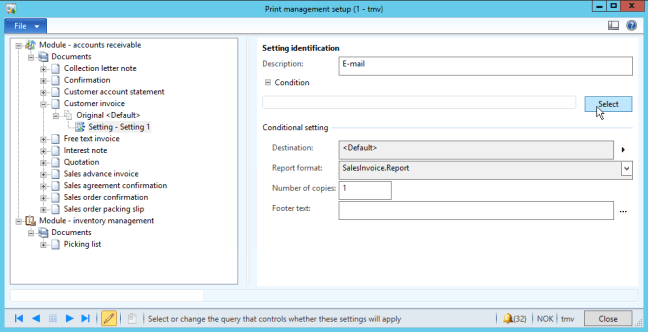
einvoice_selectConditions

The query needs to be extended to get the required data available. You extend the query by right clicking the node and select a 1:n or n:1 relations.
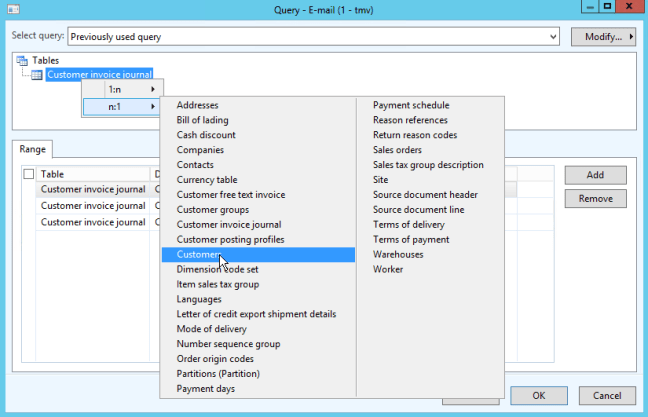
einvoice_extendQuery

  1. n:1 > Customer
  2. n:1 > Global address book
  3. 1:n > Party location relationship
  4. 1:n > Locations
  5. 1:n > Communication details
  6. 1:n > Contact information and role relationship
  7. n:1 > Roles

That should give you a query like this.
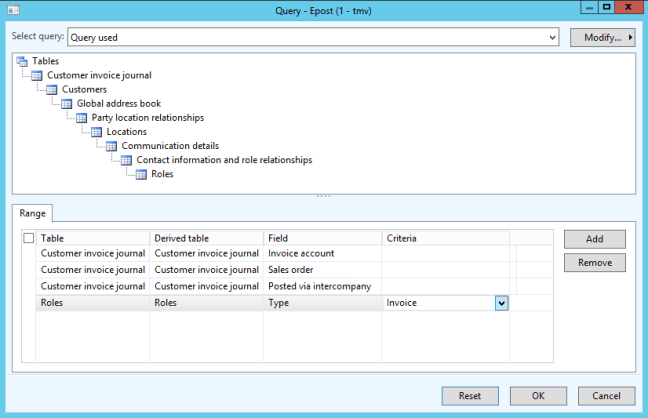
einvoice_Query

Then add the “Roles” table, “Type” field and select the desired Criteria (Like “Invoice”). Click OK to close the criteria dialogue.

Setup the print to e-mail

Now set up the printing settings by selecting the arrow at the end of the “Destination” and select “Printer setup”.
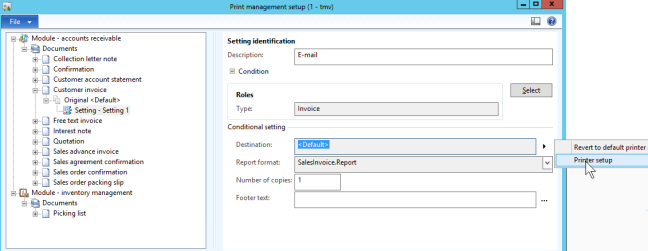
einvoice_setupPrinter.png

Notice that you can add a preferred footer for the invoice.

Select “E-mail” in the left column. Then on the “To” line select the “Edit” and in the Customer purpose field select the role you created in Step 1 (Like “Invoice”).
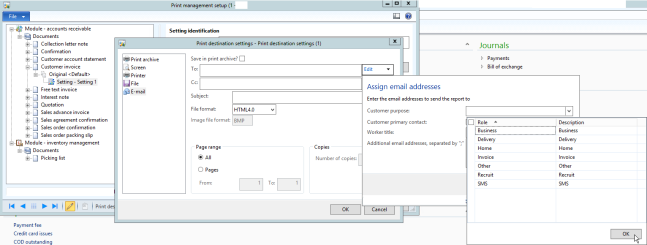
einvoice_printSetting

Now add a subject and select the desired format (I prefer PDF).

Click OK on the Print destination setting and close the Print management form.

Step 3: Setting up a customer

This is the final step and the only one you need to repeat when you now want to add a new customer to be emailed the invoices.

Create a new email address or use an existing one on a customer.
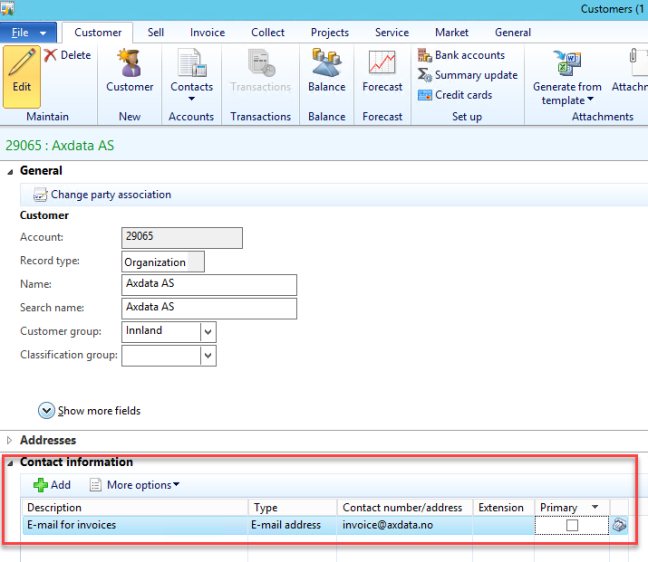
einvoice_email1

Now select the “More options” menu and select “Advanced”.
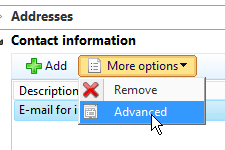
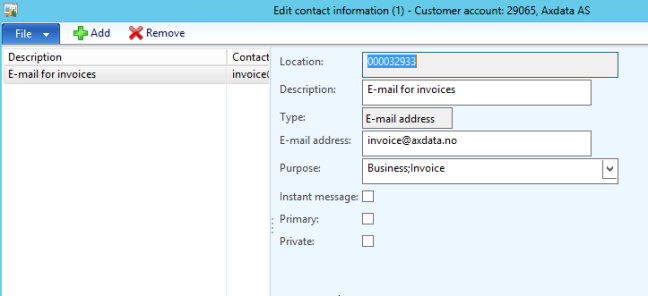
einvoice_email2Select the “Invoice” role (or another if you created a different one in step 1) on the “Purpose” drop down. You can even have multiple roles selected if you want, so if you do a multiple setup with different documents you can add multiple roles/documents to one e-mail address.
einvoice_email3

Setup is done!


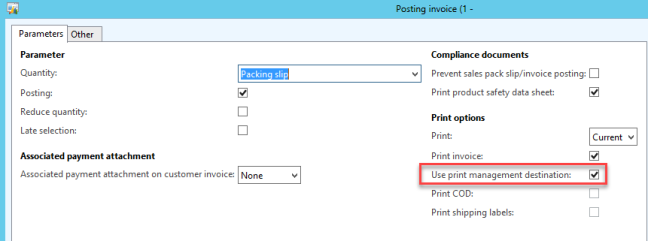
So now all you have to do is to remember to tick the “Use print management destination” check box when posting an invoice and all customers with this role on an email will get an email instead of going to print.
einvoice_posting.png

Oh… You’re welcome!


Creating demo data in Dynamics AX

The Contoso demo for Dynamics AX is an extensive data set that covers most features in the application. You do have to get to know the company somewhat, but it is a great tool to do demos on.

The issue is to get up to date data, so that the BI reports and data looks current. Well… not any more.

If you need to refresh a demo set, you simply generate new data.

There is a module called demo data. Access this and click Generate data.

demo_menu

There are some options to consider. I normally tick them all…

demo_options

Then just let it work for a bit…

demo_dialogue

You’re good to go do a demo with fresh data!

demo_BI.png


Presenting relative budget reports

A quick idea on how to present sales targets to your sellers or any type of budgeted data.

As a sales representative in my early career I always dreaded the first sales report I got each month. The issue was that I was presented with a report showing my current monthly sales according to the monthly budget. It looked like this:

SalesVsBudget1


It was discouraging because it looked like a MASSIVE effort to reach that goal. I just hated the look of this graph, so I made a small amendment to the report to better inform myself:

SalesVsBudget2

Suddenly a very negative report is turned into a positive one. I was ahead! I’m on track! Great!

It is pretty simple…
Just find the number of days for the budget interval and find out how many days into the period you currently are. Then create two columns of the budget with elapsed and remaining budget based on that. Take a look at the spreadsheet I’ve made as an example.

excel_2013-3e7309ea2dbd8944be164009d840feae

How To Present A Budget.xslx

Make it perfect:
If you only do monthly budgets you could divide the number of days in the month as is done in this spreadsheet. Doing it right, you could would look for open days in your Calendars in AX and use that as your base for progression and quantity. The difference is that the chart would jump over the weekend by cycling through two additional days giving you a worse status on Monday then on the Friday.

Power BI:
Now I have no example of this in Power BI yet, but I know you can create this with not that much effort and I’ll amend this post when I’ve done one with a more detailed guide.

General take-away:
Try building as much context into a report without making it messy and make that data as correct and full-featured as possible.

Gamify the work. GAME ON!

KPIs are well and good. Competing with ones goals are one thing, but wouldn’t it be awesome if a social thing got your sellers to think their every work day was great fun? I have had such an experience myself. #STORYMODE

10_-competition-getty-image

In my early years (before my ERP consulting days) I worked as a sales person in a store that sold telecommunication equipment. It was a very small store (Kiosk) and we did work pretty much on our own all day long. There were several stores in the area and we did compete together on sales. There were no common ERP solution used, so statistics where something that came once every x interval. I talked to the owner and we though up a way to report more directly and we hired someone to do the development of an intranett. I was kind of the architect behind it and came up with some cool stuff that really boosted the sales and had an amazing impact on the focus of each individual.

The idea was to create a webpage where we could report sales of different types of focus products. I thought that once authentication and the data was in place a chat would be pretty easy to implement as well, so we did that. As we all worked separately we suddenly had a place to talk in public to each other… Today that is pretty common. However the smart thing we did was that we also posted an update to the chat when some sales was done. It was a GREAT success… Sales multiplied by an order of magnitude and the boss mann could easily swap focus by changing game products and rules.

The experience I gained from this was that a social setting with healthy competitive statistics that is fairly compensated can be a massive motivator. With AX this could be really simple and have a great impact, but make sure that you keep it healthy and that maybe the bottom staff gets heavy hearted. One way to remove a negative focus is to only show the topp x sellers and show a personal ranking if anyone is below. In any case it will incentivise some of the sellers while others might not reach this goal.

Some ideas to make this work:

  1. Keep it localized
    If your company is spread across multiple locations you would like to have the competition within a local area to focus the competition. You can have a country wide selling competition, but then also get focus on a sales person vs. sales person, store vs. store and branch vs. branch going within a limited area if you have a lot of participants… Best would be if the participants of an area could meet socially without traveling too far.
  2. Weighting
    Try giving a weighted scoring if you have a big variation in results or create leagues.
  3. Scoring
    You can score different products to gain and adjust focus.
  4. Socialize it
    Automate updates to a feed that is easily accessible to the users. Chatting apps like HipChat or Slack are great, but a feed directly in AX or a SharePoint site would also be good.
  5. Incentivise
    Money talks… Getting paid is great, but achievements are also good. 🙂 Create a badge solution where the persons are awarded e-badges that are associated with their profile. It does require some more development, but might be a nice incentive.
  6. Surprise elements
    Some goals could be to sell a specific product first or be the closest to the “magic sum” for an invoice. Like a lottery… The though is to involve everyone.

ENTER POWER BI and MICROSOFT DYNAMICS AX

microsoft-power-bi-ipad

How easy is it to create such a dashboard? Almost too easy, so it is probably time you got started. Here are some metrics you might want to consider. (Yes… They are pretty standard and some might need more data then standard)

  1. Sales organization
    1. Most sales of focus products
    2. Best revenue
    3. Best growth pr. period
    4. Fastest closing time (Quote to Order)
    5. Highest success ratio (Quote vs. Order)
  2. Warehouse organization
    1. Most picks
    2. Fastest picks
    3. Best quality
    4. Longest hours
  3. Manufacturing organization
    1. Best product quality
    2. Fastest production time
    3. Closest to estimates
    4. Longest hours
  4. Project organization
    1. Best times
    2. Best estimator/budgeting
    3. Fewest complaints
    4. Best satisfaction

What do you think? Any good measures to compete with? Leave a comment or respond on Twitter.

Day dreaming: Hololens and AX

So WPC2016 is currently happening and I noticed that Microsoft did a very large bit on Hololens. I really think that it is an exciting product in general, but is it interesting in an ERP perspective? I’m trying to come up with some scenarios where it could be nice to utilize Hololens with AX and there are some ideas I believe that someone might want to create.

13b57736-9875-4332-af9f-dca0accbc331

There are many things that could be done around planning, but that is not object oriented and does not really show the best use of AR. If it is just a virtual display with data, then VR could just as easily been used. So these are some scenarios I see fit for using Hololens with data from AX.

  1. Warehouse management

    Extensive tagging of items and locations with QR codes that can be identified by the Hololens would be required.

    1. Picking

      I guess pick-by-voice is the obvious choice here, but the Hololens is smart and could go beyond any other solution that I’ve seen available
      The available picking jobs are shown with information on the job like quantity, weight, picking time and so on. Then either by voice or by air tapping the job is selected and starts. A snapped display of route and current location is shown in the display like a HUD. The camera scans for location indicators on shelves and/or items (QR codes) and knows where you are and simply gives you the quantity to pick by showing a quantity to pick or telling you. The user confirms the pick by voice or air tapping the QR code on the shelf for confirmation.

    2. Inventory status

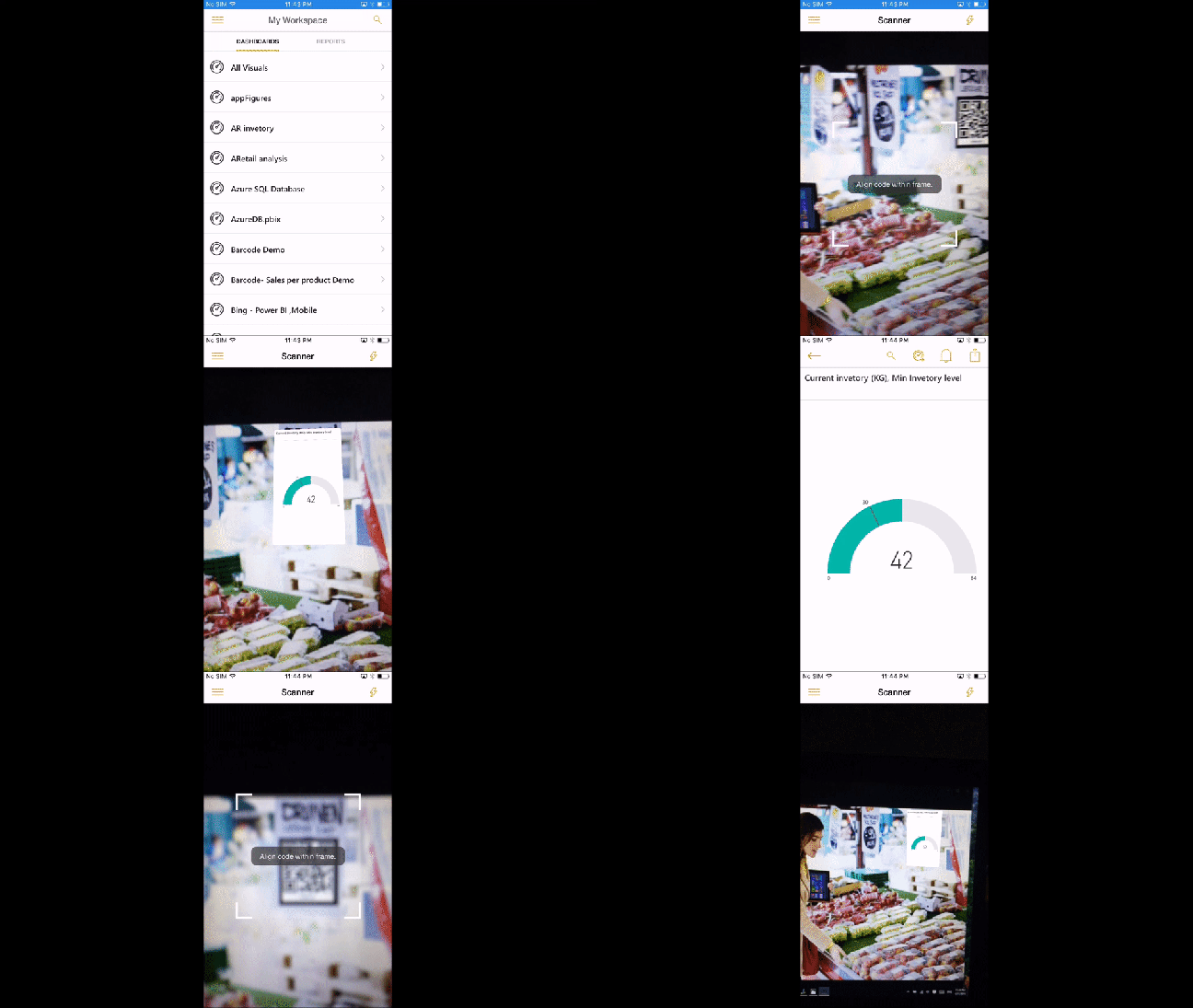
      Air tap the QR code for the location or item and it shows a Power BI card on the status shelf or product. Then click the card to get even more data on the transaction flow/alternative locations and so on. Like shown in the video from the Power BI App
      69719b59-6af3-42b7-aa07-55ae60979f36

  2. Manufacturing

    1. Machine data and statuses

      Display graphics from your machine IoT sensors directly on the machine itself along side current job description and progress.

    2. Executing jobs

      Get a list of your jobs and drop them to a box on the machine to start it. Integration with AX and the machine can automate things like settings machine parameters and other information directly from AX based on data stored on the item or production order.
      The users can see progress in machine vs. estimated time in AX ++

    3. Custom production orders

      Drawings and product designs can be displayed in 3D from the item in AX with measurements and specs along side the production order estimated time and elapsed time on the task. A Skype link to the engineer or sales peson is available so the person can do Live assistance if needed (Like the plumber demo)
      HololensPlumber.png


Do you have any visions for Hololens and AX working together? Please leave a comment! 🙂

Get Certified for Dynamics AX (7)

red-approved-stamp-10503-large

If you browse to the Microsoft Learning portal you can find an assortment of Dynamics AX exams. Most are for AX 2012 (Version 6), but some courses are available for Version 7 already. If you look at the certification library, it shows two courses now. Financials and Development introduction are available, but I also was able to find distribution & trade by trying some URLs.

There are a lot of information on these pages, but the one I found interesting was the “Preparation options”. You can go to Dynamics Learning Portal and take the required material through watching instructor led videos. Which for me personally is AWESOME!

To get access to the Dynamics Learning Portal, which is a part of the Microsoft Extranet AKA Partner Portal, you have to ba a certified partner. If you are… Then good on ya. Go train and get certified!
If not… Take a look at this site: Dynamics ERP Partner.

I would love to try to take the exam directly as it should be similar to the AX 2012, but the is no free second chance at the moment and I wouldn’t want to waste the company money. So now I just have to run through these videos and I’m set for my exam.