AX7 – New general filter box UI

I stumbled upon this nice UI for filtering when in the Purchase order receipt and follow-up workspace.

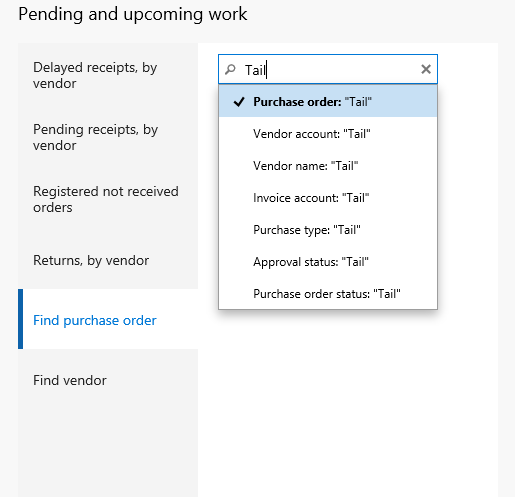
There is a single filter field which can search for multiple data/record types.

AX7_Newfilter

When trying to find a purchase order and you want to search by vendor name, you simply just start typing and are presented with different data types to search by.

AX7_Newfilter2

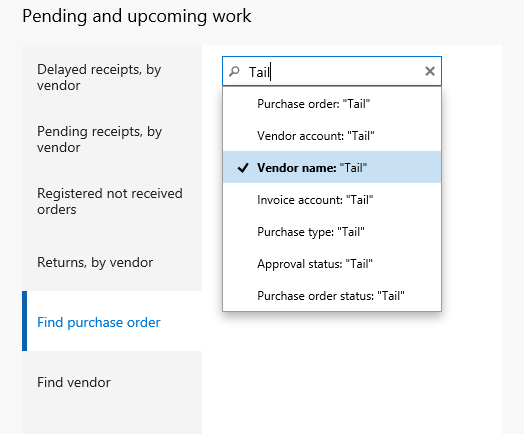
I used the down arrows to select my preferred data type: Vendor Name.

AX7_Newfilter3

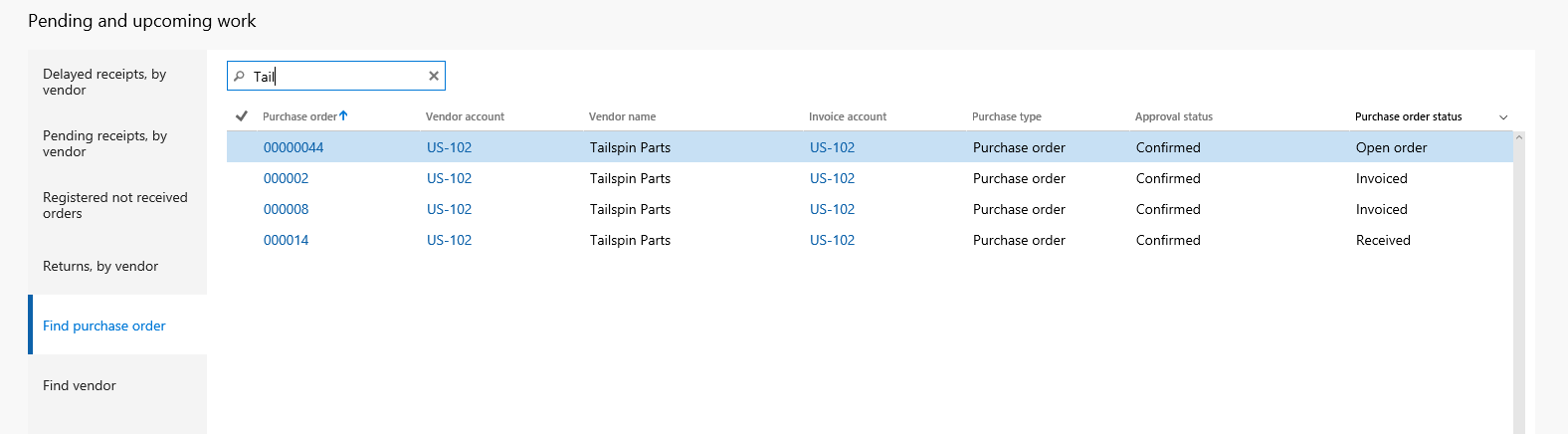
I clicked “Enter” and I got the list of orders for the vendor in a flash.

AX7_Newfilter4

Simple!


AX7 – Mobile experience

One of the obvious benefits of AX7 is off cause that the user interface is based on HTML5, which can be accessed using any recently (last couple of years) updated browser. My first thought was that it would be excellent to use a phone or a tablet to work with AX and I tried it out for quite a while on my Lumia 950XL.

It is great to be able to work on a phone to access your AX, but there are some areas in the standard forms that can be improved. However it gives a great platform to create an excellent mobile experience if you want.

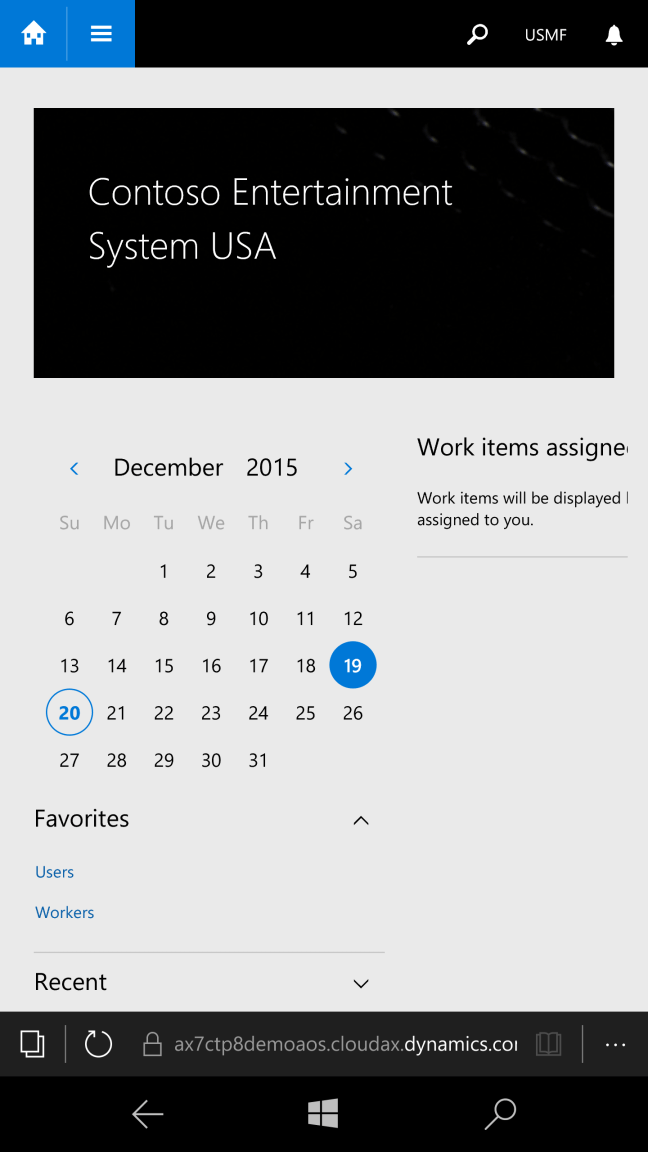
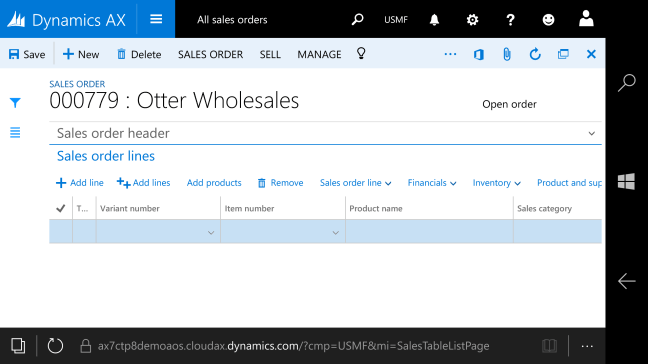
The start page view is pretty good and it removes any unnecessary objects that are not all that important for daily use.wp_ss_20151220_0001.png

So the design of forms are mobile responsive. Elements move off when not necessary and even working with both header and line forms.

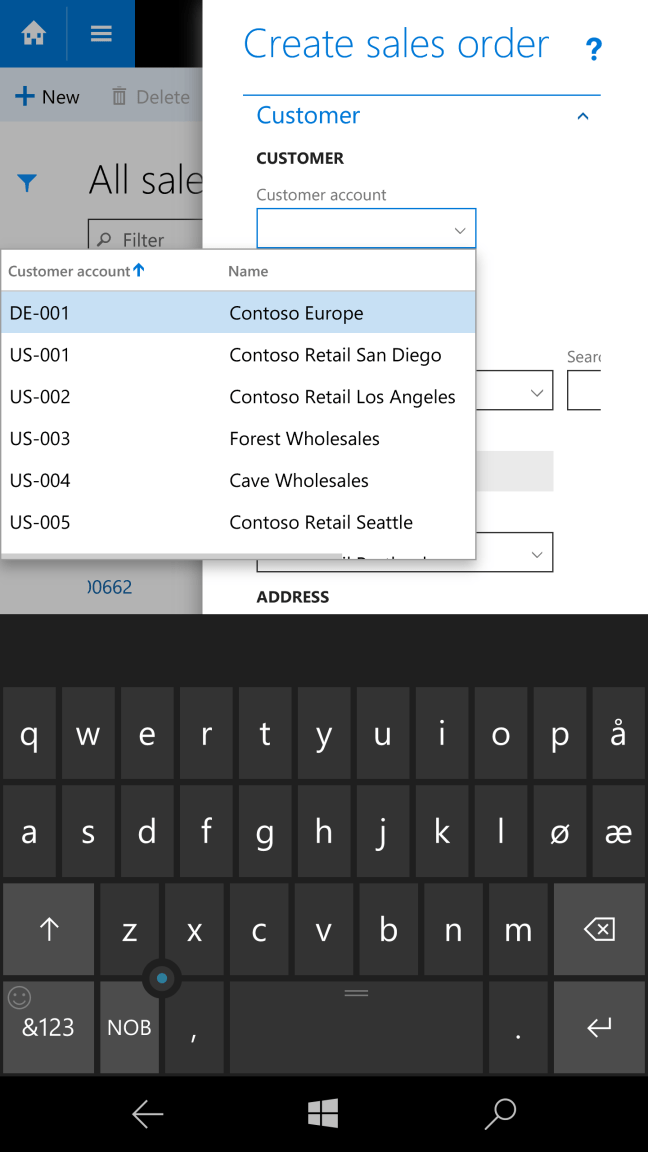
Working with a data rich form in a mobile view isn’t close to a large screen, but it is good enough if you reduce the amount of fields to the absolute minimum.

wp_ss_20151220_0005

Flipping to landscape does help.

wp_ss_20151220_0006

Only thing I would like to see is that the wizard dialogue in the right side of the screen would go full screen if the resolution is low enough. There is no reason to not in my opinion.

wp_ss_20151220_0003

You can do any function on a phone that you can do in the desktop. Which gives GREAT power to the user. Access and do anything, anywhere!

I tried to print and that worked wonderfully.

wp_ss_20151220_0011

The one screen made for tablets is just a tad small for phone, but I bet it is awesome on a tablet.

wp_ss_20151220_0012

All in all this is a fantastic opportunity to make a great mobile experience for the end user. It is quick, responsive and looks great. Imagine all the power of AX on your phone. AX7 makes this happen!

AX7 – Task Recorder

I am not a big fan of the previous versions of Task Recorders. A big deal for me is that you have to have a perfect run through for the task to be valid. You get a lot of nice screenshots, but there are better tools to do that with then Task recorder 1 or 2.

The new AX has a great task recorder that is very easy to work with brings a very easy way to create interactive user guides called “task guide”.

1. You find the task recorder in the settings menu (the gear icon) to the right on the top menu bar.

AX7_Task1

The task guide pops up a bar to the right in the window.

2. Give the new task a name an description.

AX7_Task2

A bar on the top is shown and the bar on the right is ready for your input.
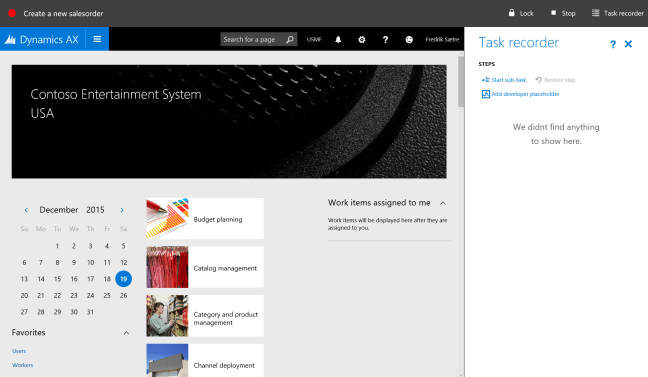
AX7_Task3

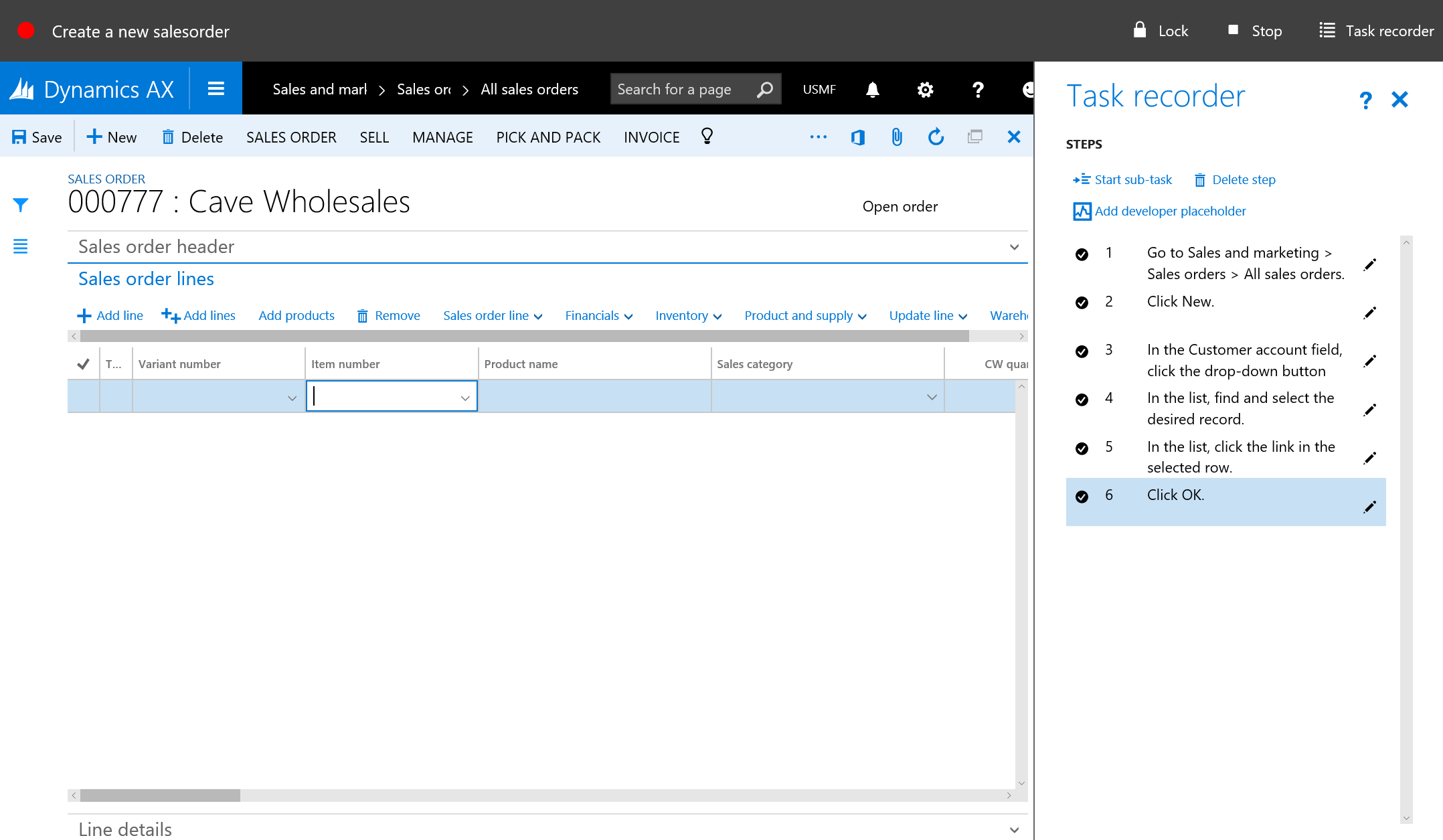
3. Go click around and the list starts filling up.

AX7_Task4

4. Click add sub task if you need it.

You can add multiple sub tasks, but only in one level.
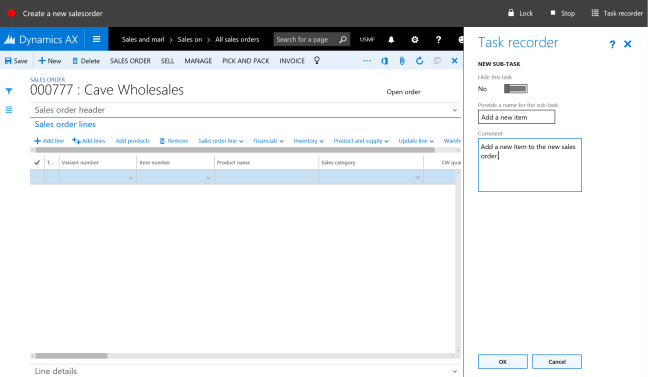
AX7_Task5

5. You can also delete steps that are unnecessary.

This is for me probably the biggest improvement. You can also undelete them until you save it.

AX7_Task6.PNG

6. You end your recording by clicking “Stop” in the top menu bar.
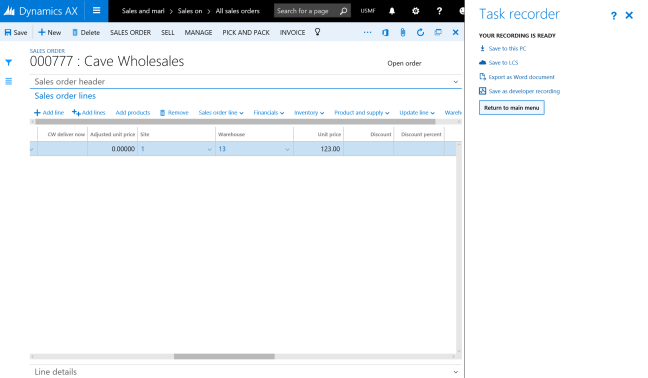
AX7_Task7

You can then download the task, save it to LCS, export as a word document or save it as a developer recording.

Post editing

After recording and saving a task, you can go and edit the task by clicking “Change recording text” from the main task recorder menu.

You can also download the file to your PC and I guess there is an editor there somewhere. The file format is “.AXTR”, so you can probably do some type of transformation and then upload it back onto the server.

Exports

Developer recording

During the recording you can put in developer place holders. I’m unsure what the developers process will be, but I believe that you can download the xml file after completed recording and send it to your developer to run through it. Nice!

Word export

Export of the word document is still here, and it is much simpler then the former task recorders. It does not contain the screenshots that it did earlier and some of you might miss that, but this task recorder is much more generic and using screenshots is kind of not generic if you do the recording on non demo data. The task guide weigh up for that anyways…

AX7_Task8

Task guide

The task guide is an interactive user guide where the user is guided in the interface to run through the process. It shows a step by step process. You’re prompted with an overlay task. When complete, the box wobble and then move/transform to the next action. AWESOME!

AX7_Task9

Summary

All in all the task guide is vastly improved.

You can edit, delete steps, download, upload and do developer commentary.

The task guide is awesome and brings a whole new paradigme to end user training.

The word export has now actual numbered list which bothered me endlessly in previous versions, but you don’t get the screenshots.

I can live with that. Two thumbs up!

AX7 – Employee self service Workspace

Gone is the old and dreaded Enterprise Portal. We welcome the new Employee Self Service workspace!

It is pretty nice and gives a great overview of all your needs and requirements.

AX7_EmployeeSelfServiceWorkspace

It looks nice and is a very informative dashboard experience.

It shows a picture and some contact information to the far left. You can also here enter your own information and keep it up to date. Addresses, Contact information, Picture, Personal contacts (ICEs ++) and identification numbers like Social security numbers and so on.

AX7_EmployeeSelfServiceEditContact.PNG

Under the section of My information you find:

  • Work items assigned to you.
  • An overview with a small status update on your expenses with a quick add function.
  • Your Timesheets.
  • Certificates that are about to expire
  • Internal discussions and meetings
  • Performance goal status and tracking
  • Latest updated skills
  • Compensations has a nice show/hide function in case a co-worker is looking over your shoulder.

Under Company information you’ll find the company directory with all the contact information to your co-workers and an overview of open jobs within the company which one could quickly apply to.

Under Additional information there are links to several more forms regarding you as an employee.

This looks very nice and will move a lot of data entry work from HR to the employee them selves.

AX7 – Default dashboard

The default dashboard is what you end up on when you click the Dynamics AX icon in the top right corner or go to Common > Common > Default dashboard.

AX7_DefaultDashboard.PNG

It has a banner on top that is set for configurable for each company with the company name printed on it.

There are three subsections: Left, middle (biggest) and right.


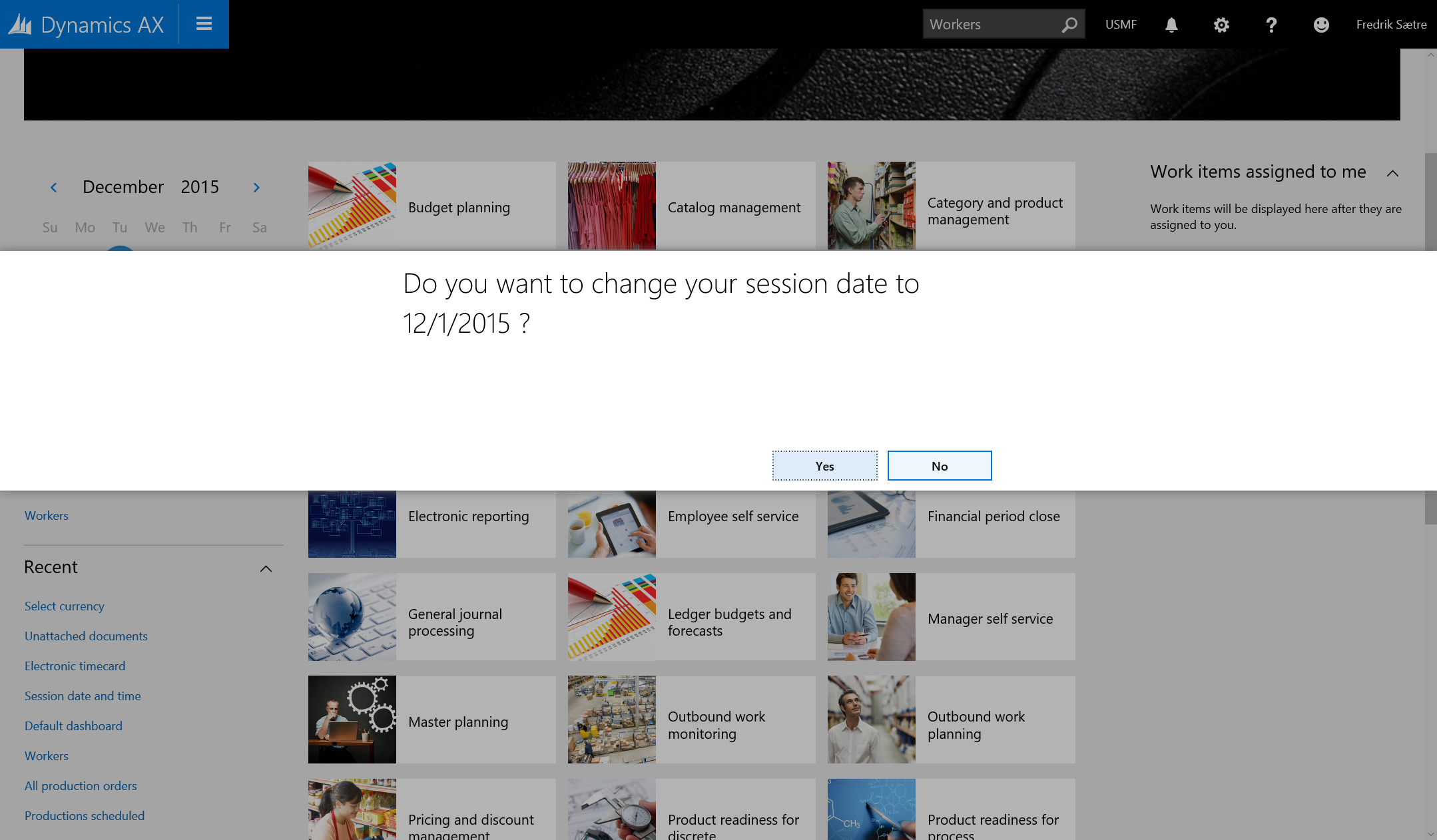
The left section contains a calendar with todays date circled and your session date showing. By selecting a date you’re prompted with a dialogue to change session dates.

AX7_SessionDate

Below the calendar are two groups with your menu favorites and recent menu items showing.


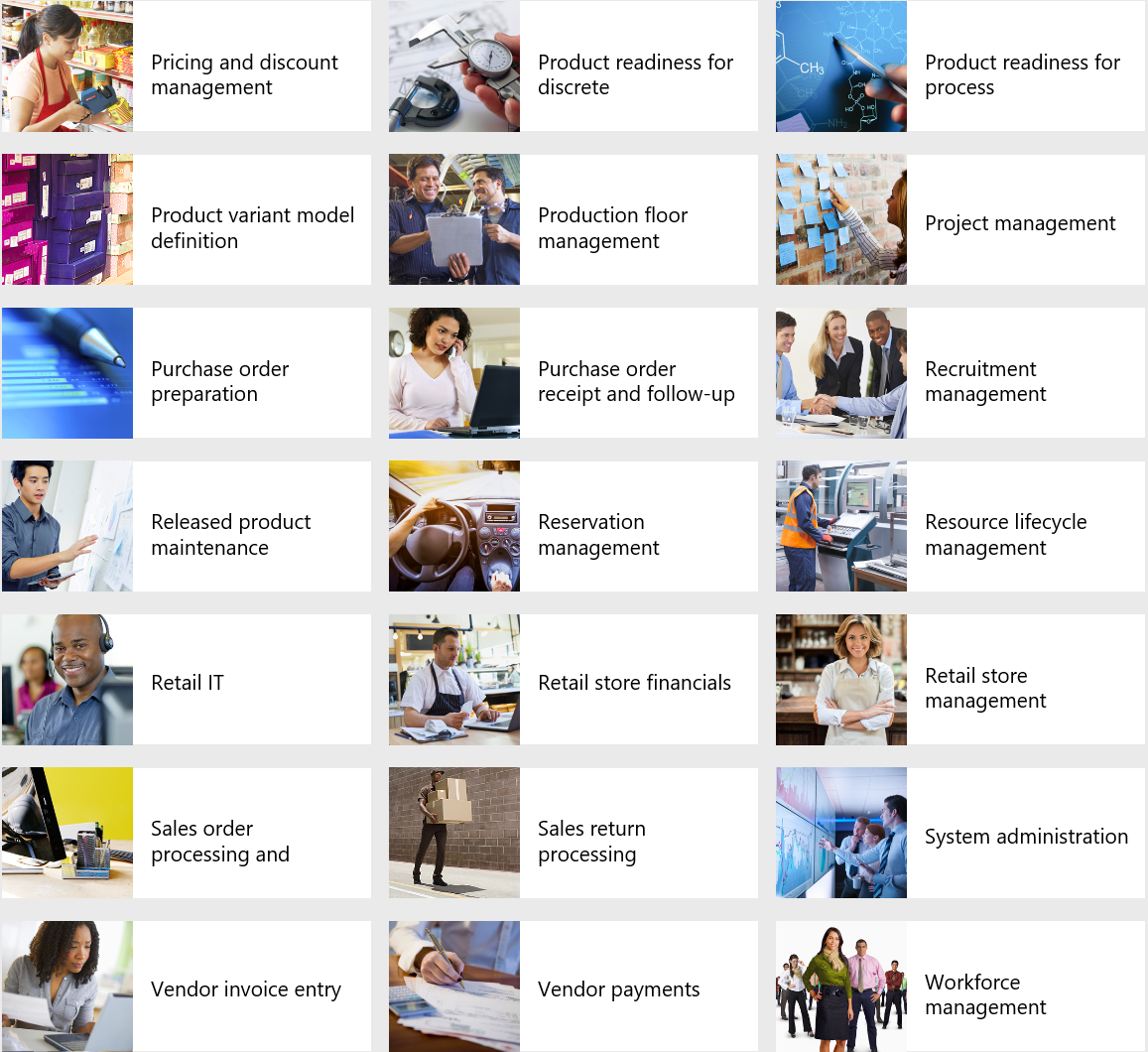
The center section is a view of the Work spaces. Each work space has a very nice little picture next to it to make it easier to find what you want.

AX7_DiffWorkSpaces.PNG


The right section has a list of your work tasks.

I believe that this is a configurable dashboard and can be configured. But I like the ease of use and overview it gives.

AX7 – The Menu

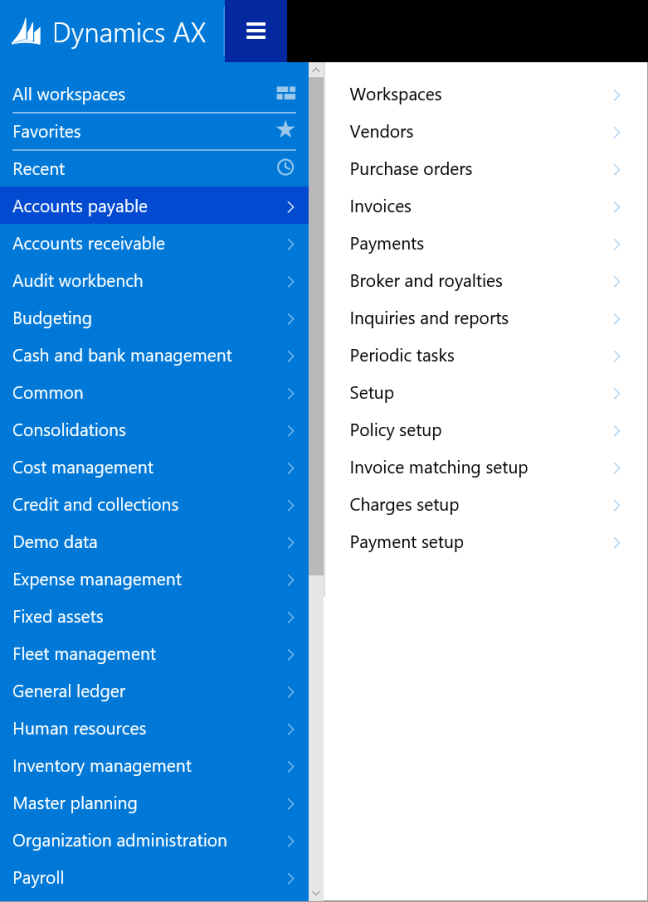
Microsoft is redesigning the menus. The Hamburger-menu is now the key to open all menu items.

From the top in the main menu you’ll see All workspaces, Favorites and Recent. The latter (Recent) being a welcome addition as this is kind of a “free” favorites menu that you don’t have to maintain.

Under that you’ll see all the grouping that you’re confortable with like Accounts Payable or General ledger.

The new menus in Microsoft Dynamics AX “7” has been transformed and is moving away from the old static paradigme with Common, Journals, Reports, Inquiries, Periodic, Setup and is redesigning them to fit more with actual processes within the different “Modules”/Top menus. Grouping and dividing the old menu items into new menu groupings like multiple setup menus.

AX7_Menu_AP.PNG

Even if it is all moved around I found it very simple to work with and if I ever missed something or wondered where it had all gone; I simply used the metadata search in the top of the menu which works perfectly.

AX7_Menu_Metadata

Sweet!

AX7 – What’s new manufacturing

Disclaimer: The information is gathered from a pre released version of AX7 and might be subject for change before final release.

It has been stated that the next AX version will be equal to AX 2012 R3 when it comes to features, but there are some new knick knacks you should be aware of.

Mainly it’s the new user interface that offers some very nice new opportunities to interact with the existing data model. There are some new features as well.

Workspaces

Workspaces are the new dashboard experience that Microsoft is introducing. It is basically a combination of different elements. The consist of PowerView reports, Tiles (Replace cues), A list of some tables with their own action menus and a set of links/functions.
Together it is a very powerfull tool when used correctly.

Production floor management workspace is created for the manufacturing shop floor manager or formen. A one-stop-shop for all their needs from releasing, prioritizing, managing the workers, managing feedback and so on.

AX7_ProdContrWorkspace

The visual impression is pretty nice and it gives new possibilities to combine insight and action.

AX7_ProdContrWorkspace2.PNG

General improvements to the UI

It is no surprise that the new interface is totally transformed and it takes some getting used to, but when you can grasp the new combination of forms and processes that it supports it is pretty obvious that Microsoft has been listening to their customers to gear the solution towards actual processes.

AX7_ReleaseToProduction.PNG

Like this beauty above which you are presented when clicking the “Production orders to release”-tile in the Workspace.

In a glance it shows the critical on-hand which is crucial when releasing jobs to the manufacturing floor.

Also they have moved away from the constraints of the menu structure (Common, Reports, Journals…) as well. Like accessing Manufacturing Execution.

AX7_ProductionControlMenu

Talking about Manufacturing execution…

Job Card Device and Terminal = Shop Floor Terminal

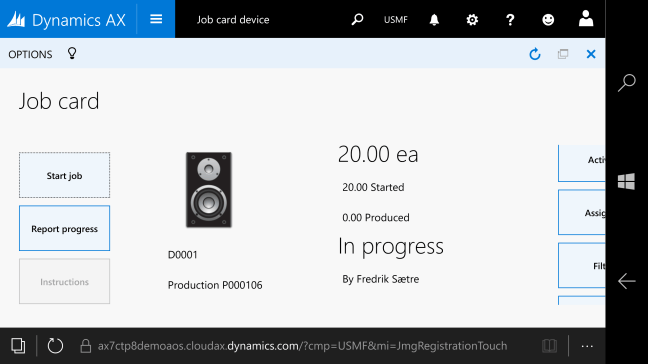
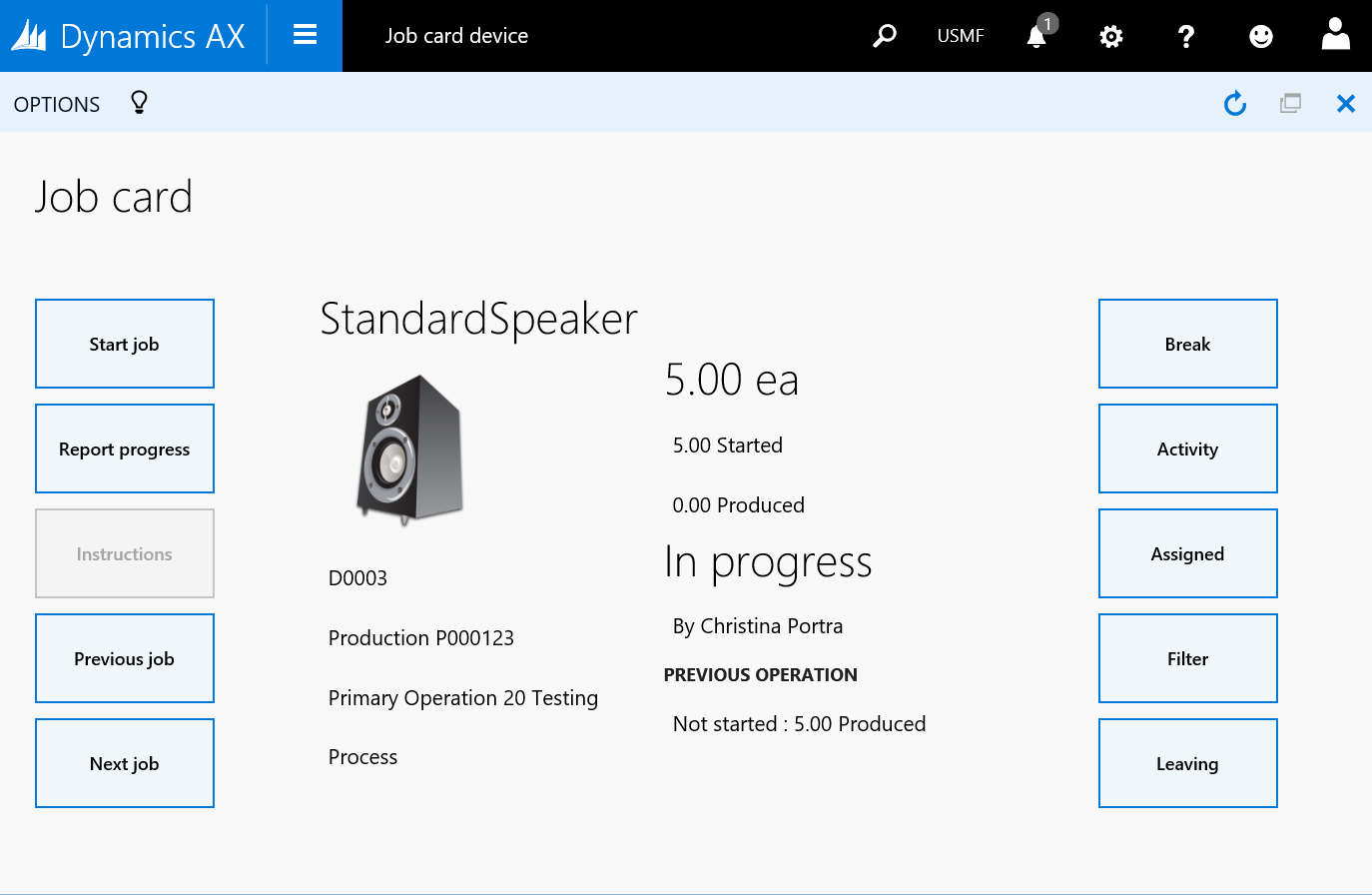
The job registration form is still present, but now it is called “Job card Terminal“. The new interface called “Job Card Device” is an alternative to the Shop Floor Control Job registration form and is actually very similar to the Windows New UI app that they developed.

AX7_JobCardDevice

The interface is snappy and very intuitive!
Production related buttons on the left side and actions related to the user on the right side. It works just like the Job card Terminal and is handling time and attendance with absence, work times, breaks and so on. Nifty!

Looking forward to implementing this!