AX7 – A smart and quick way to run a setup process

First off:

Now to the subject at hand… The Excel quick link process guide template (EQLPGT)!

I found a nice way to create a template to quickly reach menu items without amendments, coding or rummaging through AX 7 menus. It is simple… Yes, the Task recorder is awesome and can guide you in way more detail, but it also requires some more work. If you just need to get to the menu items quickly, then read on. 🙂

This is what you do.
Create an Excel spreadsheet and use the HYPERLINK function to sow together your links.
You need two general parameters: URL and CMP (Legal entity). Give the Excel columns these names to easily referencing them (Write the name in the cell name to the left of the formula bar).

Format: =HYPERLINK(URL,NAME)
Example: =HYPERLINK(URL&”?cmp=”&CMP&”&mi=”&[Cell],[Cell])

I’ve created a spreadsheet template with some data in it that I hope you will be able to use. Click the image below to download it.

AX7_ExcelQuickLinks


AX7 UI is getting even better

Just ran though this Office Mix: https://mix.office.com/watch/1ohsrrpsd02e1 and it shows the new UI features coming to AX7 CTP8 and the upcoming release. It looks very nice!

I strongly encourage you to look through it as there are a lot of nice to know things in it.
I highlighted a couple of things that I thought was cool below in this blogpost… and it is almost everything. 🙂 Click continue reading below to look at the highlights.

Love Office Mix by the way…

Continue reading AX7 UI is getting even better

Revise your AX strategy now

The new AX version (AX 7) is getting close to release and most of the cards are on the table. There are some changes, so if you are on AX 2012 or earlier versions there are some things you should take in to account right now to not go down or continue down a path of now return. So here are some coarse changes I suggest you take in to account.

Role centers and Business intelligence

Enterprise Portal
The role center is deprecated.
The Role center is deprecated and Work spaces are introduced as a replacement. Work spaces are high level forms tailored to a specific task like Production floor management, Budget planning, Customer invoicing and so forth.
If you’ve done work on your role centers, you should pivot your focus to Power BI. You should still be able to use your SSRS reports in the new Work centers, but they are vastly inferiour to the powerfull Power BI.
I’m not saying you should stop working on BI, but just take a look at the solution that will give you greater ROI later on.

Enterprise Portal or other web portal solutions

CSS

Most of Enterprise portal is deprecated in AX7. The good thing is that Microsoft is throwing it in the trash, but I do not know of any alternative to Customer Portal or Vendor Portal yet. I will be surprised if something isn’t brewing in the R&D team to replace this as well. We’re on a web platform already, so it shouldn’t be too far fetched to imagine a solution. When it comes it will be awesome and in tune with the default development of the rest of AX.
Employee self services has an alternative that is much better in the Employee self service Work space.
If you’re thinking of implementing the AX Enterprise Portal or further enhancing it, I would suggest you wait until the replacement solution known before you do more work. Of cause if it gives you great benefit in a short term then go ahead, but just don’t expect to get future value for your investments in that area.
If you have plans or have already created a separate web portal solution for customer or vendor interaction. I would also suggest waiting before taking on a greater project before the solution in AX is revealed.

Infrastructure

This is a pretty much an echo by everyone associated with Microsoft is saying, but here goes. Planning on scaling up your servers any time soon? Even if you’re doing minor hardware upgrade, you should strongly consider Azure. Through Life cycle services you can prevision servers that can reduce your infrastructure installation by weeks.

Need an on-premise solution? Take a look at Azure Stack. If that is over-kill, then you can use a hybrid cloud solution with your old equipment.

Bottom line is that if you start moving to the cloud today, you will be better prepared when upgrading to AX7.

Time and Attendance (Part 29/30): Teams and assistance

In a dynamic factory setting where human resources go back and forth between different jobs, roles and machines it is important to track each resource to get a good overview of the costing. Some times people go around helping each other on tasks and also work as a team throughout the entire day or for a longer period of time.

When many workers work together on multiple production orders within a period, you can task one of the persons to be responsible to register time for all users. This is done by creating a “team”.

Creating a team

In a team you have the pilot and the team members. The pilot is responsible for the terminal registrations for all the team members. This is done by simply changing jobs as usual. The team members use the “assistance” functionality to join a team. Simply click Assistant and select another signed in worker to start a team.

AX2012_TA_AssistantEnter.PNG


Managing your team

An overview of current teams can be shown in the Teams form (Human resources > Inquiries > Time and attendance > Teams)

This slideshow requires JavaScript.

Teams can not be “nested”, meaning that a team can not be a part of another team. Not because of the functionality. The tree view is clearly there to illustrate a multi level hierarchy. There just isn’t any way for a team pilot to assist another team pilot. You would have to hack it to do so, and then I don’t know what happens to cost calculations.

The team pilot, Bill Malone in the example above, will change jobs and the cost of the team members (Dana and Christina) will be assigned to the jobs that the pilot is working on.

Before the pilot checks out for the day, and still is pilot, he will get a message saying he has to change pilot before checking out.

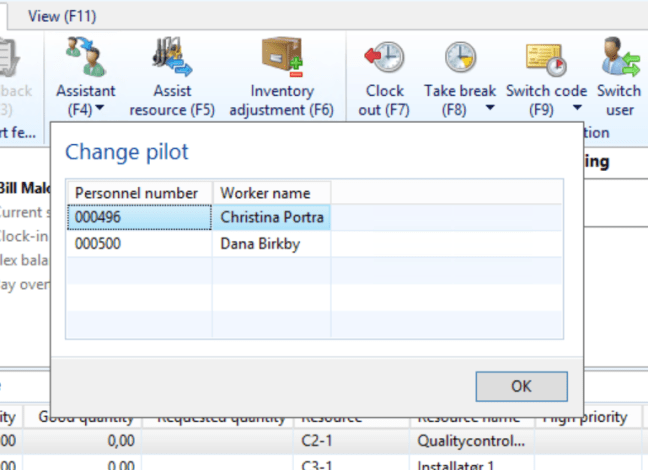
The pilot then uses the “Assistant” function as well, but since he/she is a pilot, the menu will say: Change pilot.

AX2012_TA_AssistantChangePilot.PNG

After selecting one of the team members to be pilot, the user will be demoted to team member. A dialogue shows to confirm this.

AX2012_TA_AssistantChangePilotConfirmed

Setup: System jobs needed

If you try to work with assistance and you get a message about missing jobs, it is because your system is not ready.

Go to the Indirect Activities (Human resources > Setup > Time and attendance > Indirect Activities), enter the “System” group and add the required jobs like this:

AX2012_TA_AssistantChangePilotJob

Add jobs for the following system functions:

  • Start assistance
  • Stop assistance
  • Change pilot

Remember to check the “registration” to be able to use it in time and attendance.

Smart use of this feature for shifts/hand off

A smart way to use this feature is if you have a resource that handles many jobs at once and do a shift change. I have a customer that has a production line where many (40-100) jobs can be active at once from about 1000 released jobs.

Instead of the shift coming on has to register to all the jobs and select them from the enormous list of jobs, he/she uses this feature for a hand-off.

This is what you do:

  1. The shift coming on signs in and registers as assistant on the one working on all the jobs.
  2. The shift going home registers the person coming on as pilot and checks out.

The jobs are then handed over. A great time saver.

AX7 – Filtering

As the UI changes, so also does the workflow. There are some new filtering features both good and bad. Keep in mind that I’m testing this on a prerelease version, so there are a few kinks to be sorted out yet, but I’ll bet you the’ll get there in time for launch.

Quick filter

On most of the forms the quick filter is available. I’ve written a post on this earlier as well, but in general it is a quick way to find the many different types of data in just one field. The field type is selected in the dropdown. It is mostly defaulted to filter on the Description field in the grid and is a Begins with filter. Notice that you can not use the AX filter annotations here with * and ? wildcards or date filters like “..” and “d”. It doesn’t work.
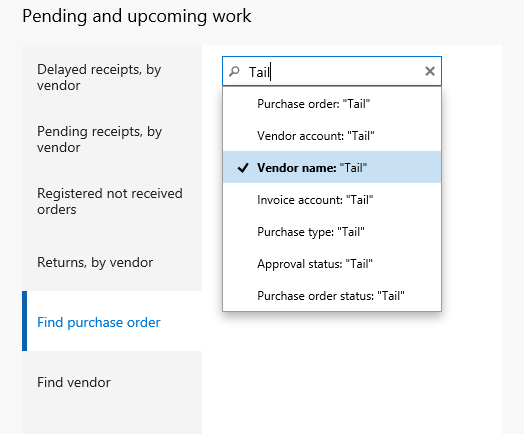
AX7_Newfilter3

Grid filter

The grid filter criteria are given for each field in the grid. Just tap the grid header and select the way you want to filter. Wildcard does work.
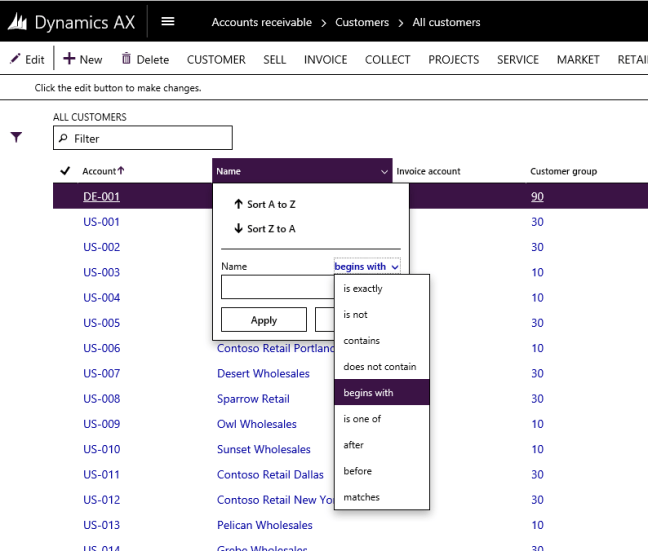
AX7_Filter_Grid.PNG

Microsoft has announced in a training video that they are going to work on this and might be more in tune with the Excel searches. Hopefully with the datatype dropdown which shows unique fields in strings and dates get this drill through feature. Searching on dates is a bit of a hassle, so I would use some of the other filter options.

The only thing that is in place in the CPT8 right now is for lookup fields.
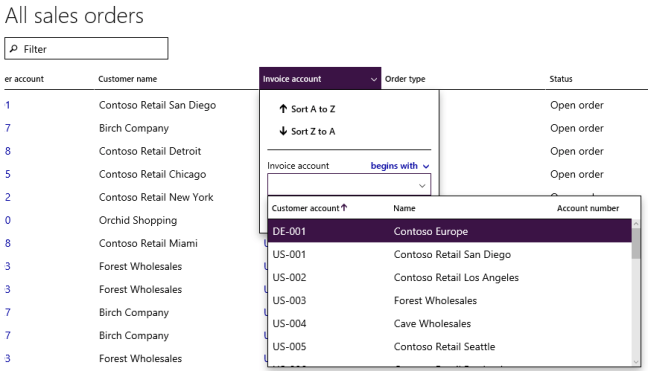
AX7_Filter_Grid_Lookup.PNG

For filtering dates you can use dynamic dates like “01” is translated to the first of the current month this year and “0101” means the first of January this year. The date is transformed automatically and when you open it back up again, it shows you the transformed date. (Bug in the “Between” filter gives just “01” as value)
However you have to state the pattern of search from the date you use. You can not use the “..” syntax. This will have to be determined by selecting the right search parameter.
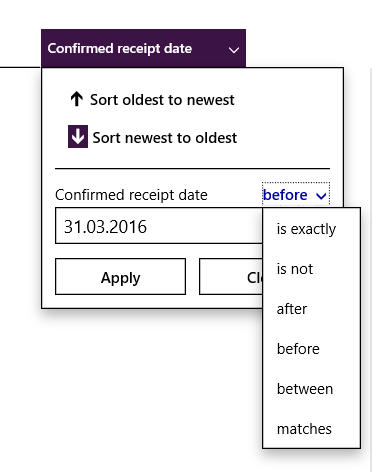
AX7_Filter_Grid_Date

The SysQueryRangeUtil works in this field, which is great.

Filter menu icon

AX7_Filter_ButtonActive.PNG

To the left of most (All I’ve seen) grids there is a filter button. Clicking on this pulls out an interface where you can add fields that are not in the grid. Same function as the grid fields. That means no wildcards here either.

Microsoft also said in the training video that I referred to earlier that they will be extending the features in this dialogue to contain some elements of the advanced filter options described below.

I will put money on the fact that at least a save function will be in here when the product is ready for release.

Advanced filter

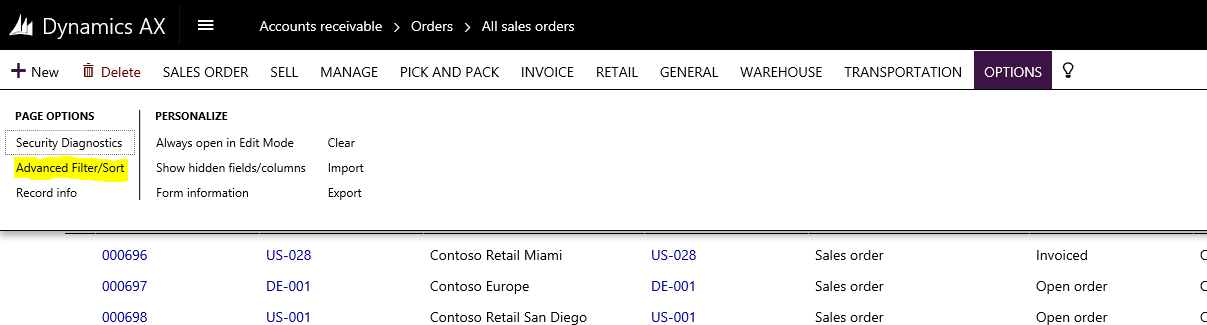
The good thing is that the advanced filter dialogue still is available that we know and love from earlier versions is still available. By going to Options in the top menu and clicking Advanced filter/sorting you’ll access this familier AX filter options dialogue.

AX7_Filter_AdvancedFilter.PNG

There are some limitations for now, like that you can not use the short date versions (01..31, so use full dates for now), but it does function like before and you can save your queries like before.

AX7_Filter_Advanced_Range

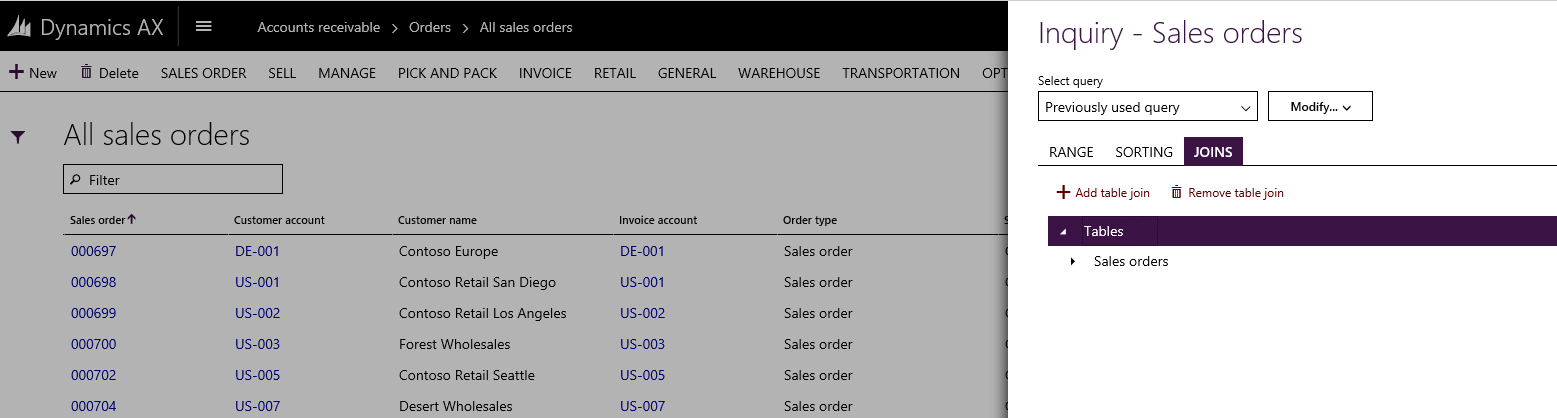
You can also do Joins to other tables like before to make a rich filter criteria.

AX7_Filter_Advanced_Joins.PNG

Click to the left of the table name to add a table reference.

AX7_Filter_Advanced_Joins2.PNG

Then click Select to add it and it will be selectable in the range selection.

Summary

It looks like there are some faster ways to handle filters then before. I believe 90% of filtering will be done in the Quick filter and I’m excited to see the filter options from Excel being implemented into the grid filter.

The thing I’m missing is the nice AX filter features that AX users are used to like the date handler “..” to select the search pattern for date filters. I can’t seem to see a way to quickly access a filter that is stored either, but I bet you that that feature will be available once they move more features from the Advanced filter dialogue to the filter button. Hopefully you will be able to call a filter through the URL and store it as a favorite on your desktop. It shouldn’t be too hard to do that and will give GREAT value.

We’re still in preview, so I bet that the small kinks are worked out when the release is finished.



Flushing principles

I’ve had some questions from customers on how to utilize the flushing principles, so I want to try and explain it as simple as I can.

Flushing principles are settings that tell the system when to automatically deduct your BOM items during manufacturing. When executing manufacturing actions in AX you can decide to use flushing principle, always (All items) or never (No items). This way you can pull some BOM lines at different stages of production. But keep in mind what setting you use, so you don’t pull your materials multiple times or none at all.

There are three settings for a flushing principle: Start, End and Manual.

Start pulls your items on start actions. These are: Start production or start operation.

End pulls your items on end actions. These are: End operation or report as finished.

Manual won’t be pulled automatically at any manufacturing actions, but must be manually picked through a production picking list being manually posted.

AX_FlushingPrinciple.png

Again: Be aware on how your manufacturing actions are set up to handle posting of journals.

This also applies to your route operations, cause you can apply the same concept to them as well. This is based on the route group settings.

Now go out and get some sun! 🌞